
How to Find a Song You Know by Heart
Are you tired of trying to remember the title of that one song that’s been stuck in your head all day? Do you find yourself humming or singing along to a tune, but can’t quite recall what it’s called? You’re not alone! Many people have experienced this frustrating phenomenon. But fear not, dear reader, for we’ve got just the solution for you.
Using Soundhound to Identify Songs
One of the most effective ways to find a song is by using an app like SoundHound. This nifty tool allows you to listen and identify songs by humming or singing along to them. Here’s how it works:
- Download the SoundHound app on your Android or iOS device.
- Open the app and tap on the orange button in the center of the screen.
- Start singing or humming the song you’re trying to find, making sure to hold the microphone close to your mouth.
- The app will then provide you with a list of possible matches based on your singing or humming.
- If the app can’t identify the song, don’t worry! You can try again and tap on the “Ahh, are not attained to find it” button.
Other Apps For Identifying Songs
While SoundHound is an excellent tool, there are other apps that can help you find songs as well. Some of these include:
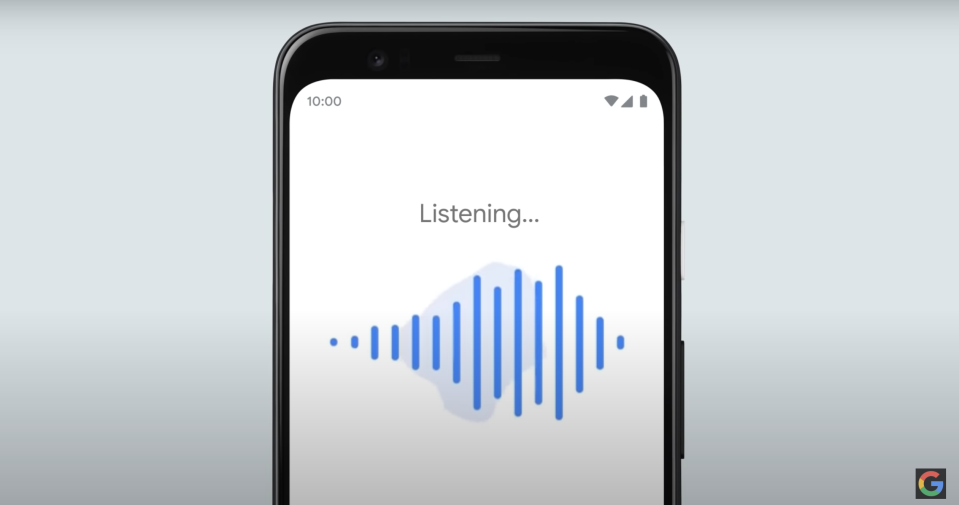
- Google: Yes, even Google has a feature that allows you to identify songs by humming or singing along to them. Just open the app, tap on the microphone icon, and start singing or humming.
- Midomi: This online portal allows you to identify songs using your computer’s microphone. Simply click on the orange button, sing or hum the song, and wait for the results.
- Audiotag: This free online service has a vast database of songs that you can search through by uploading an audio file or singing or humming into your computer’s microphone.
Tips For Using These Apps
Here are some tips to keep in mind when using these apps:
- Make sure to hold the microphone close to your mouth while singing or humming, as this will help improve the accuracy of the results.
- Try to sing or hum the song with a steady and clear tone, rather than mumbling or whispering.
- If you’re having trouble finding the song you’re looking for, try searching through other apps or online services.
Conclusion
Finding a song that’s been stuck in your head can be frustrating, but it doesn’t have to be. With the help of these apps and tools, you’ll be able to identify songs with ease and get back to enjoying your favorite tunes without any hassle.
Frequently Asked Questions (FAQs)
Here are some frequently asked questions about finding songs:
- Q: What is Soundhound?
A: SoundHound is an app that allows you to listen and identify songs by humming or singing along to them. - Q: Can I Use Google to Find Songs?
A: Yes, Google has a feature that allows you to identify songs using your device’s microphone. - Q: How do I Record Audio on my Computer?
A: You can use online portals like Midomi or AudioTag to record audio and upload it to their servers. - Q: What Happens if The App Can’t Find The Song I’m Looking For?
A: Don’t worry! If the app can’t identify the song, you can try again or search through other apps or online services.
Using Soundhound on Android, Ios, And Ipados Devices
SoundHound is available as an app on both Android and iOS devices, including iPads. Here’s how to use it:
- Download the SoundHound app from the Play Store or App Store.
- Open the app and tap on the orange button in the center of the screen.
- Start singing or humming the song you’re trying to find.
- The app will then provide you with a list of possible matches based on your singing or humming.
Tips For Using Soundhound
Here are some tips to keep in mind when using SoundHound:
- Make sure to hold the microphone close to your mouth while singing or humming, as this will help improve the accuracy of the results.
- Try to sing or hum the song with a steady and clear tone, rather than mumbling or whispering.
- If you’re having trouble finding the song you’re looking for, try searching through other apps or online services.
How to Use Midomi
Midomi is an online portal that allows you to identify songs using your computer’s microphone. Here’s how it works:
- Go to the Midomi website and click on the orange button.
- Sing or hum the song you’re trying to find into your computer’s microphone.
- The app will then provide you with a list of possible matches based on your singing or humming.
How to Use Audiotag
AudioTag is an online service that has a vast database of songs that you can search through by uploading an audio file or singing or humming into your computer’s microphone. Here’s how it works:
- Go to the AudioTag website and click on the “Select a file” button.
- Upload an audio file of the song you’re trying to find, or sing or hum into your computer’s microphone.
- The app will then provide you with a list of possible matches based on your singing or humming.
How to Use Aha Music
AHA Music is an extension for Google Chrome that allows you to identify songs using the browser’s audio capabilities. Here’s how it works:
- Install the AHA Music extension from the Chrome Web Store.
- Go to a website that plays music, such as YouTube or Spotify.
- Click on the AHA Music button in the browser bar and select “Get Song Info”.
- The app will then provide you with information about the song, including its title and artist.
Tips For Using Aha Music
Here are some tips to keep in mind when using AHA Music:
- Make sure to install the AHA Music extension from the Chrome Web Store.
- Go to a website that plays music, such as YouTube or Spotify.
- Click on the AHA Music button and select “Get Song Info”.
- The app will then provide you with information about the song, including its title and artist.
How to Erase Extensions in Google Chrome
If you’re having trouble finding a song using one of these apps, it’s possible that an extension is interfering with your search. Here’s how to erase extensions in Google Chrome:
- Go to the Chrome menu and select “More tools”.
- Click on “Extensions” from the dropdown menu.
- Find the extension you want to erase and click on the “Remove” button.
Conclusion
Finding a song that’s been stuck in your head can be frustrating, but it doesn’t have to be. With the help of these apps and tools, you’ll be able to identify songs with ease and get back to enjoying your favorite tunes without any hassle.


