
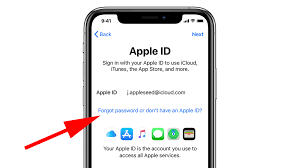
How to Find Your Apple Id: A Step-by-step Guide
Are you struggling to find your Apple ID? Don’t worry, we’ve got you covered! In this article, we’ll take you through a step-by-step guide on how to find your Apple ID on various devices and platforms.
What is an Apple Id?
Before we dive into the nitty-gritty, let’s quickly define what an Apple ID is. An Apple ID is a unique identifier that allows you to access various Apple services, such as iCloud, iTunes, and the App Store. It’s essentially your digital identity on the Apple ecosystem.
Finding Your Apple ID on Iphone or Ipad
If you’re using an iPhone or iPad, finding your Apple ID is relatively straightforward. Here’s how:
- Go to Settings: Open the Settings app on your device.
- Tap on Your Name: Tap on your name at the top of the screen.
- Find Your Apple ID: Your Apple ID will be displayed below your name.
Finding Your Apple ID on PC
If you’re using a Windows PC, here’s how to find your Apple ID:
- Open Icloud For Windows: Make sure you have the official iCloud client installed on your PC.
- Click on Start: Click on the Start button and type “iCloud” in the search bar.
- Select Icloud: Select the iCloud icon from the list of results.
- Find Your Apple ID: Click on the three horizontal lines at the top left corner, then click on “Account Details.” Your Apple ID will be displayed.
Finding Your Apple ID on Mac
If you’re using a Mac, here’s how to find your Apple ID:
- Go to System Preferences: Click on the Apple logo in the top left corner and select “System Preferences.”
- Select Icloud: Select “iCloud” from the list of preferences.
- Find Your Apple ID: Your Apple ID will be displayed below the “Sign In” button.
Finding Your Apple ID on Apple TV
If you’re using an Apple TV, here’s how to find your Apple ID:
- Go to Settings: Open the Settings app on your Apple TV.
- Select Users And Accounts: Select “Users and Accounts” from the list of settings.
- Find Your Apple ID: Your Apple ID will be displayed below your name.
Finding Your Apple ID Using a Browser
If you’ve used your Apple ID to access iCloud.Com or other Apple services in the past, you can find it by:
- Logging in to Icloud.Com: Log in to iCloud.Com with your Apple ID and password.
- Click on Settings Account: Click on “Settings” at the top right corner of the screen, then select “Account.”
- Find Your Apple ID: Your Apple ID will be displayed below the “Sign In” button.
Recovering a Forgotten Apple ID
If you’ve forgotten your Apple ID or are having trouble finding it, don’t worry! Here’s how to recover it:
- Go to Appleid.Apple.Com: Visit the official Apple ID website.
- Click on “Forgot Id?”: Click on the “Forgot ID?” button at the bottom of the page.
- Enter Your Details: Enter your name, email address, and password (if you have one).
- Follow The Instructions: Follow the instructions to recover your Apple ID.
Conclusion
Finding your Apple ID is a relatively straightforward process, whether you’re using an iPhone or iPad, PC, Mac, or Apple TV. By following these steps, you should be able to locate your Apple ID and access various Apple services with ease.
Frequently Asked Questions (FAQs)
- What if I Forget my Apple Id?
If you forget your Apple ID, you can recover it by visiting the official Apple ID website and clicking on “Forgot ID?” - Can I Change my Apple Id?
Yes, you can change your Apple ID by logging in to iCloud.Com, selecting “Account” from the menu, and following the instructions. - How do I Reset my Apple ID Password?
To reset your Apple ID password, visit the official Apple ID website, click on “Forgot Password?”, and follow the instructions. - Can I Use The Same Apple ID Across Multiple Devices?
Yes, you can use the same Apple ID across multiple devices, such as an iPhone, iPad, PC, Mac, or Apple TV. - How do I Add a New Device to my Apple Id?
To add a new device to your Apple ID, visit the official Apple ID website, log in with your Apple ID and password, and follow the instructions. - Can I Remove a Device From my Apple Id?
Yes, you can remove a device from your Apple ID by logging in to iCloud.Com, selecting “Account” from the menu, and following the instructions. - How do I Find my Apple ID on an Old Device?
If you’re trying to access an old device with your Apple ID, try visiting the official Apple ID website and clicking on “Find My Devices.” - What if I’m Having Trouble Finding my Apple Id?
If you’re having trouble finding your Apple ID, contact Apple Support for assistance.
By following these steps and answers to frequently asked questions, you should be able to find and manage your Apple ID with ease!


