
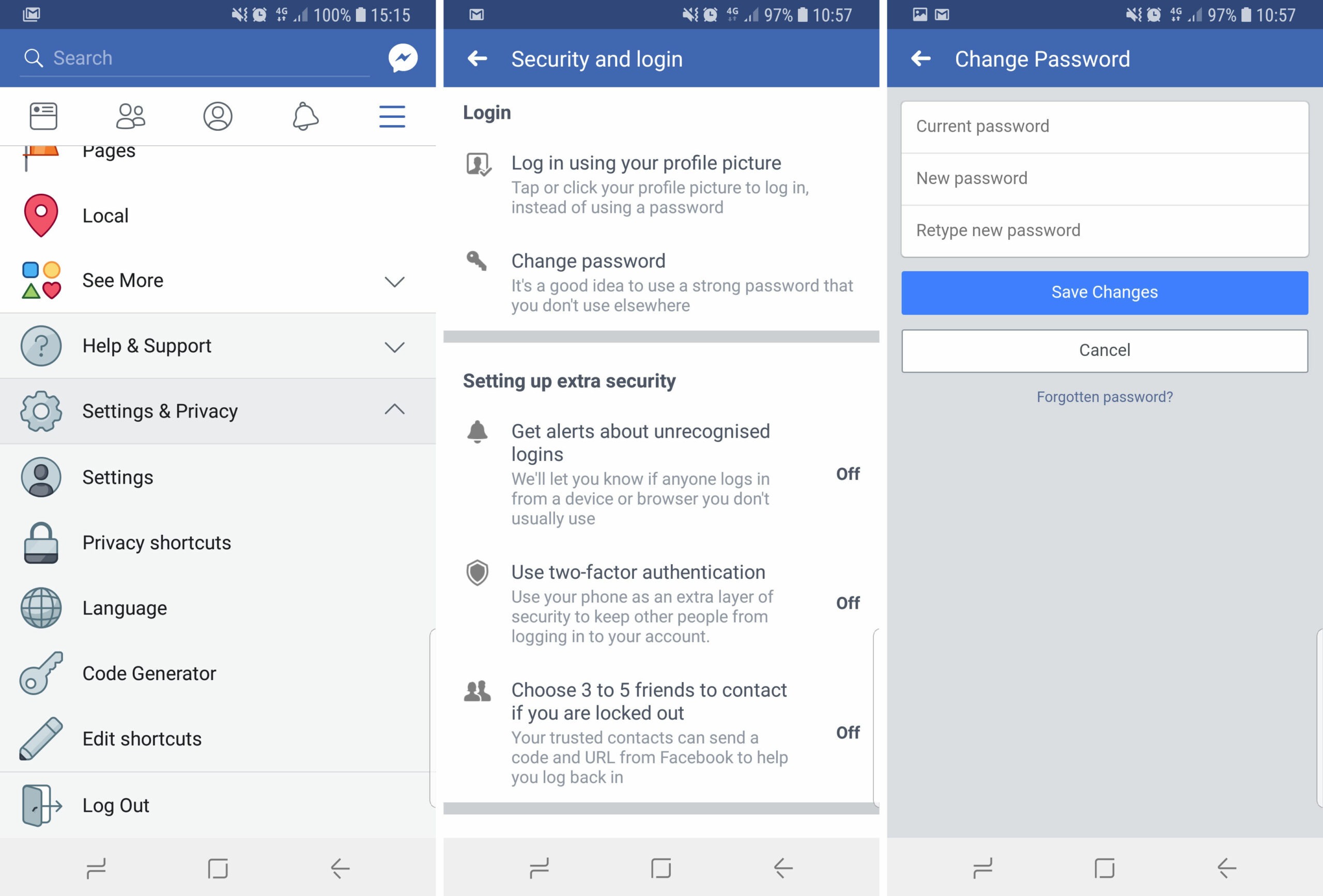
How to Find Your Forgotten Facebook Password
Are you worried because you’ve forgotten your Facebook password? Don’t panic! We’ll guide you through the steps to recover your login credentials.
Understanding The Process
Before we dive into the procedures, it’s essential to understand that recovering a forgotten Facebook password is a relatively straightforward process. You can either retrieve it from the saved passwords on your device or reset it using the social network’s built-in procedure.
Recovering Passwords on Android Devices
If you’re using an Android smartphone or tablet, follow these steps:
- Open The Settings App: Find and open the Settings application on your device.
- Select Password And Safety: Scroll down to the “Password and safety” section.
- Choose Gestire Password: Tap on “Gestiri password” (Manage passwords) to access your saved login credentials.
- Search For Facebook: Look for “facebook.Com” in the list of saved websites.
- Tap on Facebook: Select the entry for Facebook, and you’ll be prompted to enter your device’s unlock code or use Face ID/Touch ID.
- View Password: Once you’ve entered your unlock code, tap on the eye icon next to “Password” to view your login credentials.
Recovering Passwords on Ios/ipados Devices
If you’re using an iPhone, iPad, or iPod touch with iOS 14 or later, follow these steps:
- Open The Settings App: Find and open the Settings application.
- Select Password And Account: Tap on “Password e account” (Password and account) in the menu.
- Choose Password App And Websites: Select “Password app and website” to access your saved login credentials.
- Search For Facebook: Look for “facebook.Com” in the list of saved websites.
- Tap on Facebook: Select the entry for Facebook, and you’ll be prompted to enter your device’s unlock code or use Face ID/Touch ID.
- View Password: Once you’ve entered your unlock code, tap on the eye icon next to “Password” to view your login credentials.
Recovering Passwords on Computers
If you’re using a computer to access Facebook, follow these steps:
- Open Google Chrome (or Other Browsers): Launch your preferred web browser.
- Click on The Three Dots: Click on the three horizontal dots in the top-right corner of the browser window.
- Select Settings: From the dropdown menu, select “Settings.”
- Choose Password And Forms: Scroll down to the “Password e form” section.
- Select Manage Passwords: Click on “Manage passwords” to access your saved login credentials.
- Search For Facebook: Look for “facebook.Com” in the list of saved websites.
- View Password: Once you’ve selected the entry for Facebook, click on the eye icon next to “Password” to view your login credentials.
Resetting Your Password
If you’re unable to recover your password using the above steps or if someone has stolen your password, don’t worry! You can reset it by following these procedures:
- For Android devices, go to Settings > Google > Manage passwords and select Facebook from the list.
- For iOS/iPadOS devices, go to Settings > Password & account > Password app and websites and select Facebook from the list.
- On computers, open your browser’s password manager (e.G., Chrome or Firefox) and look for Facebook in the list of saved login credentials.
Additional Tips
- If you’ve forgotten your email address associated with your Facebook account, try using a phone number to recover your account.
- Be cautious when using public computers to access your Facebook account.
- To prevent identity theft, change your password regularly and use strong passwords that are unique for each account.
Conclusion
Recovering a forgotten Facebook password is a straightforward process. If you’re unable to retrieve it from saved passwords on your device or browser, you can reset it using the social network’s built-in procedure. Remember to always keep your login credentials safe and secure by changing them regularly and using strong, unique passwords for each account.
Frequently Asked Questions (FAQs)
- Q: How do I Recover my Facebook Password if I’ve Forgotten It?
A: You can try recovering it from the saved passwords on your device or browser. - Q: Can I Reset my Facebook Password Without Using an Email Address?
A: Yes, you can use a phone number to recover your account. - Q: How Often Should I Change my Facebook Password?
A: It’s recommended to change your password every 60 days or whenever you feel it’s necessary. - Q: What Should I do if Someone Has Stolen my Facebook Password?
A: Immediately report the incident to Facebook and change your password. - Q: Can I Recover my Facebook Password Using a Friend’s Help?
A: Unfortunately, this feature is no longer available on Facebook. - Q: How Can I Prevent Identity Theft When Accessing Facebook on Public Computers?
A: Avoid using public computers to access your account, and use strong passwords that are unique for each account. - Q: Can I Recover my Facebook Password if It’s Been Stolen?
A: Yes, you can try reporting the incident to Facebook and resetting your password.
Please note that these answers are provided in a conversational style and may not be applicable to every situation. It’s always best to consult official sources for accurate information.


