
Understanding Facebook’s Unique Identifier (UID)
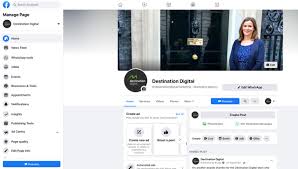
Facebook’s Unique Identifier, also known as UID, is a numerical code assigned to each user and page on the platform. This code serves as a digital “tattoo” that helps verify a user’s identity without relying on standard data like name, email address, or mobile number.
What is Facebook’s Uid?
Facebook’s UID is a unique string of characters that identifies a particular profile or page on the platform. It’s often used in various contexts, such as:
- Plugin Promotion: To track and manage promotional plugins installed on pages.
- Gamings And Apps: To request assistance or access specific features within games and apps on Facebook.
- Advanced Search: To utilize Facebook Graph, a powerful tool for searching and retrieving data from the platform.
Why Can’t I Find Uid Facebook?
Until recently, it was possible to find a user’s Facebook ID using automated tools like Facebook Graph or specialized software. However, due to platform modifications, these methods are no longer functional.
Finding Your Facebook Uid
Fortunately, there is an alternative way to obtain your Facebook UID, and we’ll walk you through it below:
Method 1: Google Chrome
To find the Facebook UID using Google Chrome:
- Open Google Chrome on your computer.
- Navigate to Facebook’s leading page (you might need to log in).
- Click right on an empty space on the page and select “Inspect” from the menu that opens.
- Press Ctrl+F(Windows) orCmd+F** (Mac) to open the search bar.
- Type
profile_idin the search bar, and you’ll find your Facebook UID highlighted in yellow.
Method 2: Mozilla Firefox
To find the Facebook UID using Mozilla Firefox:
- Open Mozilla Firefox on your computer.
- Navigate to Facebook’s leading page (you might need to log in).
- Click right on an empty space on the page and select “Inspect Element” from the menu that opens.
- Type
profile_idin the search bar, but note that it won’t be highlighted like in Chrome.
Method 3: Microsoft Edge
To find the Facebook UID using Microsoft Edge:
- Open Microsoft Edge on your computer.
- Navigate to Facebook’s leading page (you might need to log in).
- Click on the three dots in the top-right corner and select “More tools” > “Developer tools.”
- In the developer console, type
profile_idin the search bar.
Method 4: Safari
To find the Facebook UID using Safari:
- Open Safari on your Mac.
- Navigate to Facebook’s leading page (you might need to log in).
- Click right on an empty space on the page and select “Inspect” from the menu that opens.
- In the elements tab, type
profile_idin the search bar.
Conclusion
In conclusion, while automated tools like Facebook Graph are no longer functional, it’s still possible to find your Facebook UID using alternative methods. Follow these steps for each browser:
- Google Chrome: Method 1
- Mozilla Firefox: Method 2
- Microsoft Edge: Method 3
- Safari: Method 4
Frequently Asked Questions (FAQs)
Q1: What is a Facebook Uid?
A Facebook UID, or Unique Identifier, is a numerical code assigned to each user and page on the platform.
Q2: Why Can’t I Find my Facebook ID Using Automated Tools?
Due to recent modifications, these methods are no longer functional.
Q3: How do I Find my Facebook Uid?
Follow the steps for your preferred browser in Method 1 (Google Chrome), Method 2 (Mozilla Firefox), Method 3 (Microsoft Edge), or Method 4 (Safari).
While your Facebook ID is not sensitive information, we recommend being cautious when sharing it.
Q5: Can I Use my Facebook Uid For Any Specific Purposes?
Yes, you can utilize your Facebook ID in various contexts, such as plugin promotion, gamings, and advanced search.
If You Have Any Questions or Concerns Regarding Facebook’s Uid, Feel Free to Ask!


