
How to Find Your IP Address on a Windows PC
Are you having trouble connecting to the internet or accessing certain websites? One possible solution is to check your IP address, which can be found using various methods on a Windows PC. In this article, we will guide you through the process of finding your IP address on different versions of Windows.
Understanding Your IP Address
Before we dive into the steps, let’s understand what an IP address is. An IP address is a unique number assigned to your device by your internet service provider (ISP) or router. It allows devices connected to the same network to communicate with each other and access the internet. There are two types of IP addresses: Public and private.
- Public IP Address: This is the IP address assigned to your device by your ISP or router, which is used to connect to the internet.
- Private IP Address (Local Ip): This is the IP address assigned to your device within a local network, such as a home network.
Finding Your Local IP Address on Windows 11
To find your local IP address on Windows 11:
- Click on the clock icon in the taskbar and select “Settings.”
- Go to the “Network & Internet” section.
- Select “Ethernet” or “Wi-Fi,” depending on how you’re connected to the internet.
- Click on the “Properties” button next to your network connection.
- Scroll down to the “IPv4” section, and you’ll see your local IP address listed.
Alternatively, you can use the Command Prompt:
- Press the Windows key + S to open the Search bar.
- Type “Command Prompt” and press Enter.
- Type
ipconfigand press Enter. - Look for the line that says “IPv4 Address,” and your local IP address will be listed.
Finding Your Local IP Address on Windows 10
To find your local IP address on Windows 10:
- Click on the network icon in the taskbar, usually represented by a series of waves or a Wi-Fi signal.
- Right-click on the icon and select “Open Network & Internet Settings.”
- Go to the “Network & Sharing Center” section.
- Click on the “Change adapter settings” link.
- Select your network connection (Ethernet or Wi-Fi).
- Click on the “Properties” button next to your network connection.
- Scroll down to the “IPv4” section, and you’ll see your local IP address listed.
Alternatively, you can use PowerShell:
- Press the Windows key + S to open the Search bar.
- Type “PowerShell” and press Enter.
- Type
Get-WmiObject -Class Win32_NetworkAdapterConfiguration | where {$_.DhcpEnabled -eq $false -and $_.DefaultIPGateway -eq $null}.IPAddress | Select-Object -First 1and press Enter. - Your local IP address will be listed.
Finding Your Local IP Address on Windows 7
To find your local IP address on Windows 7:
- Click on the network icon in the taskbar, usually represented by a series of waves or a Wi-Fi signal.
- Right-click on the icon and select “Open Network & Internet Settings.”
- Go to the “Network & Sharing Center” section.
- Click on the “Change adapter settings” link.
- Select your network connection (Ethernet or Wi-Fi).
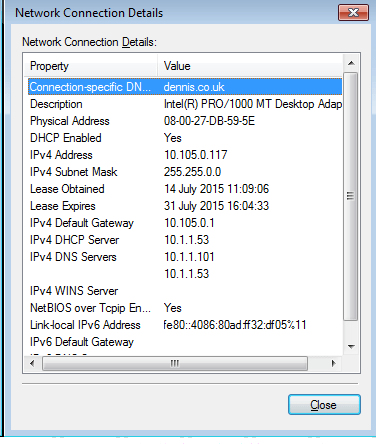
- Click on the “Details…” Button next to your network connection.
- Look for the line that says “IPv4 Address,” and your local IP address will be listed.
Alternatively, you can use the Command Prompt:
- Press the Windows key + S to open the Search bar.
- Type “Command Prompt” and press Enter.
- Type
ipconfigand press Enter. - Look for the line that says “IPv4 Address,” and your local IP address will be listed.
Finding Your Public IP Address
To find your public IP address, you can use online tools or utilities on your Windows PC:
- Use a website like WhatIsMyIP.Com or IPChicken.Com.
- Open the Command Prompt or PowerShell and type
curl ifconfig.Me(on Windows 10 or 11) oripconfig /all(on Windows 7).
Finding Your Printer’s IP Address
If you need to find your printer’s IP address on Windows:
- Go to “Settings” > “Bluetooth & devices” > “Printers & scanners.”
- Select your printer and click on the “Properties” button.
- Look for the line that says “Location” or “Address,” and your printer’s IP address will be listed.
Conclusion
Finding your IP address on a Windows PC is a straightforward process, and we’ve covered the steps for different versions of Windows. Whether you need to troubleshoot internet connectivity issues or access specific websites, knowing your local and public IP addresses can be helpful.


