
Understanding IP Addresses: A Comprehensive Guide
Are you curious about how your devices connect to the internet? Do you want to know more about IP addresses, the secret language of computers? Look no further! In this article, we will delve into the world of IP addresses and explore everything you need to know.
What is an IP Address?
An IP address (Internet Protocol address) is a numerical label assigned to each device connected to a network or the internet. It’s like a street address for your computer, smartphone, or tablet, allowing them to communicate with other devices on the same network or the wider internet.
Types of IP Addresses
There are two main types of IP addresses: Static and dynamic.
- Static IP Address: A fixed IP address assigned to a device, which remains the same even after rebooting or reconnecting to the network.
- Dynamic IP Address: An IP address that changes each time a device connects to the network. This type of IP address is commonly used in home networks and public Wi-Fi hotspots.
How to Find Your IP Address
Finding your IP address is relatively easy, and we will guide you through several methods:
Using Online Services
There are many online services that can help you find your IP address quickly and easily. Some popular options include:
- Whatismyip.Org: A simple website that displays your public IP address.
- Whatismyip.Com: Another easy-to-use website that shows your public IP address, along with additional information such as your location and browser details.
Using Your Device
You can also find your IP address directly from your device:
- Windows 10/11:
- Press the Windows key + R to open the Run dialog box.
- Type
ipconfigand press Enter. - Look for the IPv4 Address or IPv6 Address field, which will display your current IP address.
Finding Your Printer’s IP Address
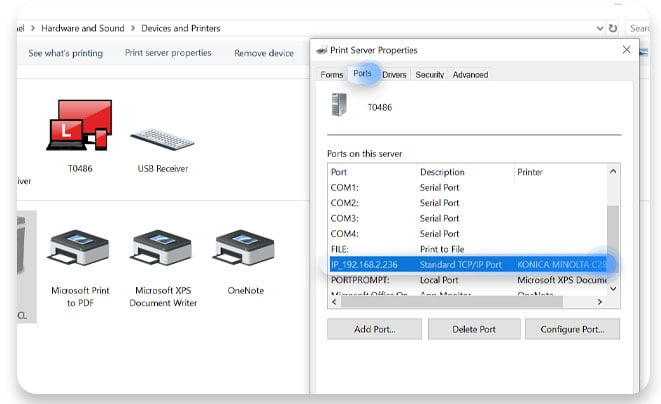
If you need to find your printer’s IP address, follow these steps:
- Printers With Lcd Monitors: Open the print settings menu on your printer and look for the network settings. The IP address should be displayed there.
- Printers Without Lcd Monitors: Print a network configuration page from your printer to display its IP address.
Finding Your Computer’s IP Address
To find your computer’s IP address, follow these steps:
- Windows 10/11:
- Press the Windows key + R to open the Run dialog box.
- Type
ipconfigand press Enter. - Look for the IPv4 Address or IPv6 Address field, which will display your current IP address.
Finding Your Smartphone or Tablet’s IP Address
To find your smartphone or tablet’s IP address:
- Android:
- Go to Settings > Network & Internet > Wi-Fi.
- Tap on the network name and select Advanced options.
- Look for the IP address field, which will display your current IP address.
Finding Someone Else’s IP Address
Finding someone else’s IP address can be more challenging, as it involves accessing their device or network. However, here are some scenarios where you might need to find someone else’s IP address:
- Public Wi-fi Hotspots: When using public Wi-Fi hotspots, your IP address is typically visible to the hotspot owner.
- Shared Networks: If you’re connected to a shared network at home or in the office, your IP address may be visible to other devices on the same network.
Conclusion
In this article, we have explored the world of IP addresses and provided you with the necessary information to find your own IP address. We hope that this guide has been helpful in understanding how your devices connect to the internet and communicate with each other.
Faqs
Here are some frequently asked questions about IP addresses:
- Q: What is an IP Address?
A: An IP address is a numerical label assigned to each device connected to a network or the internet. - Q: How do I Find my IP Address?
A: You can use online services, such as WhatsMyIP.Org or WhatsMyIP.Com, or check your device’s settings. - Q: Can I Change my IP Address?
A: In most cases, no. Your IP address is assigned by your internet service provider (ISP) and cannot be changed manually. - Q: Why do I Need to Find my IP Address?
A: You may need to find your IP address for various reasons, such as troubleshooting network issues or configuring devices on a shared network.
Additional Resources
If you’re interested in learning more about IP addresses and networking, here are some additional resources:
- IP Address Tutorial: A comprehensive guide to understanding IP addresses and how they work.
- Networking Basics: A primer on the fundamentals of computer networking.


