
How to Find Your Mac Address: A Step-by-step Guide
Are you wondering how to find your MAC address? Do you want to know what a MAC address is and why it’s important? You’re in the right place! In this article, we’ll guide you through the process of finding your MAC address on various devices.
What is a Mac Address?
A MAC (Media Access Control) address is a unique identifier assigned to a device’s network interface. It’s used to identify a device on a network and ensure that data packets are delivered to the correct device. Think of it like a physical address, but for your device’s network connection.
Why Do I Need My Mac Address?
You might need your MAC address for various reasons, such as:
- Creating a private network
- Setting up a Wi-Fi router
- Configuring a smart home device
- Troubleshooting network issues
Finding Your Mac Address on Windows
If you’re using a Windows PC, follow these steps to find your MAC address:
- Click on the Start button and search for “Settings.”
- Click on “Network & Internet” and select “Wi-Fi” or “Ethernet,” depending on your connection type.
- Click on the name of your network, then click on “Details.”
- Your MAC address will be listed under “Physical Address (MAC).”
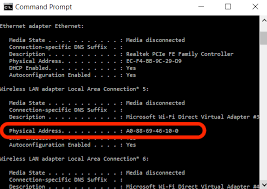
Alternatively, you can use the Command Prompt to find your MAC address:
- Open the Command Prompt and type
ipconfig /all. - Look for the section that says “Ethernet adapter” or “Wireless LAN adapter,” depending on your connection type.
- Your MAC address will be listed under “Physical Address.”
Finding Your Mac Address on Mac
If you’re using a Mac, follow these steps to find your MAC address:
- Click on the Apple logo and select “System Preferences.”
- Click on “Network” and select the name of your network.
- Click on the “Advanced” button.
- Select the “Hardware” tab and look for the section that says “MAC Address.”
Alternatively, you can use the Terminal to find your MAC address:
- Open the Terminal and type
ifconfig. - Look for the section that says “ether” or “en0,” depending on your connection type.
- Your MAC address will be listed under “inet.”
Finding Your Mac Address on Android
If you’re using an Android device, follow these steps to find your MAC address:
- Go to Settings and select “About phone.”
- Scroll down and look for the section that says “MAC address” or “Wi-Fi MAC address.”
- Your MAC address will be listed.
Alternatively, you can use the app “Settings” and search for “Wi-Fi MAC address.”
Finding Your Mac Address on Iphone
If you’re using an iPhone, follow these steps to find your MAC address:
- Go to Settings and select “General.”
- Scroll down and look for the section that says “About.”
- Look for the line that says “Wi-Fi Address” or “MAC address.”
- Your MAC address will be listed.
Finding Your Mac Address on Other Devices
If you’re using a device other than Windows, Mac, Android, or iPhone, follow these steps to find your MAC address:
- Check the label on the back of the device for a MAC address.
- Look in the device’s manual or instructions for a MAC address.
- If you can’t find it there, try searching online for “MAC address [device name]”.
Conclusion
Finding your MAC address is a straightforward process that can be done on various devices. Whether you need to create a private network, set up a Wi-Fi router, or troubleshoot network issues, knowing your MAC address is essential. We hope this guide has helped you find your MAC address and understand its importance.
Frequently Asked Questions
- Q: What is a Mac Address?
A: A MAC (Media Access Control) address is a unique identifier assigned to a device’s network interface. - Q: Why do I Need my Mac Address?
A: You might need your MAC address for various reasons, such as creating a private network or troubleshooting network issues. - Q: How do I Find my Mac Address on Windows?
A: To find your MAC address on Windows, go to Settings > Network & Internet > Wi-Fi or Ethernet and select “Details.” - Q: How do I Find my Mac Address on Mac?
A: To find your MAC address on Mac, go to System Preferences > Network and select the name of your network. - Q: How do I Find my Mac Address on Android?
A: To find your MAC address on Android, go to Settings > About phone and look for the section that says “MAC address” or “Wi-Fi MAC address.” - Q: How do I Find my Mac Address on Iphone?
A: To find your MAC address on iPhone, go to Settings > General > About and look for the line that says “Wi-Fi Address” or “MAC address.” - Q: What if I Have Trouble Finding my Mac Address?
A: If you’re having trouble finding your MAC address, try searching online for “MAC address [device name]”. - Q: Can I Change my Mac Address?
A: No, your MAC address is a unique identifier assigned by the manufacturer and cannot be changed.
Conclusion
Finding your MAC address is an essential step in managing your device’s network connection. We hope this guide has helped you find your MAC address and understand its importance. If you have any further questions or concerns, feel free to ask!


