
How to Find My Android: A Step-by-step Guide
Are you tired of searching for your lost or stolen Android device? Do you want to know how to locate, block, and even format it remotely? Look no further! In this article, we’ll guide you through the process of finding your Android device using various services available on the market.
Introduction
Finding a lost or stolen Android device can be a frustrating experience. With so many devices out there, it’s easy to misplace them. However, with the right tools and knowledge, you can locate your device and take necessary actions to prevent it from falling into the wrong hands.
What is Find My Device?
Find My Device is a service provided by Google that allows you to locate, block, and reset your Android device remotely. This service is free and comes pre-installed on most Android devices. To use this service, you need to have a Google account associated with your device.
How to Use Find My Device
Using Find My Device is relatively simple:
- Open the Find My Device website on any PC or mobile device.
- Sign in with your Google account credentials.
- Select the device you want to locate from the list of available devices.
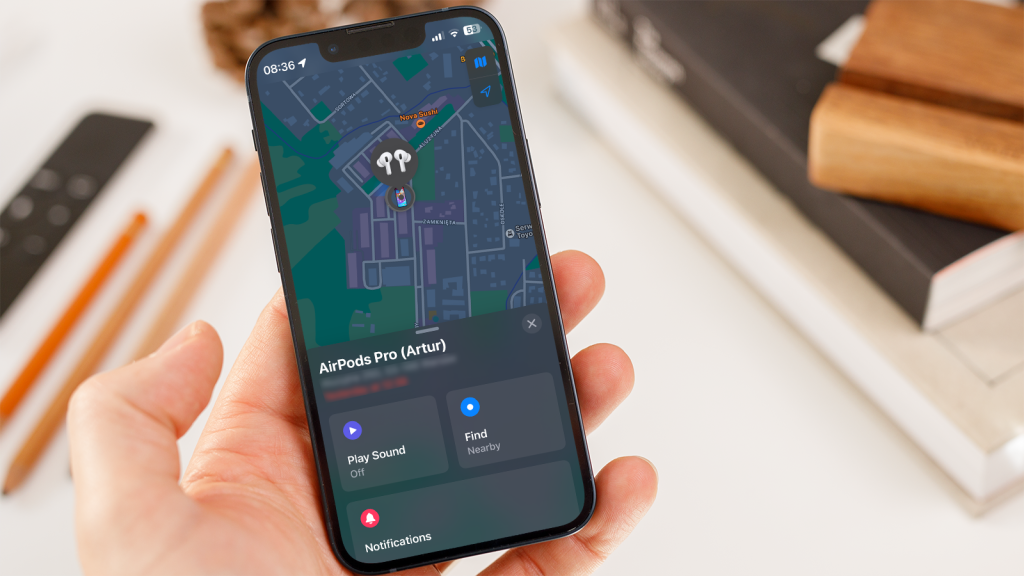
- The service will display a map showing the current location of your device, if it’s connected to the internet.
Alternative Services: Find Personal Device And Find Device
While Find My Device is an excellent service, there are other alternatives available for specific Android brands. Here are a few examples:
Find Personal Device (Samsung)
If you have a Samsung device, you can use the Find Personal Device service to locate, block, or reset it remotely. To access this service, follow these steps:
- Open the Settings app on your Samsung device.
- Scroll down and select “Safety and privacy.”
- Tap on “Find personal device” and toggle the switch to ON.
- Sign in with your Samsung account credentials.
Find Device (Xiaomi)
If you have a Xiaomi device, you can use the Find Device service to locate it remotely. To access this service, follow these steps:
- Open the Settings app on your Xiaomi device.
- Tap on “Password and safety.”
- Select “Privacy” and toggle the switch next to “Find device” to ON.
- Sign in with your Xiaomi account credentials.
Find Device (Huawei)
If you have a Huawei device, you can use the Find Device service to locate it remotely. To access this service, follow these steps:
- Open the Settings app on your Huawei device.
- Tap on “Security and lock screen.”
- Select “Location services” and toggle the switch next to “Find device” to ON.
Locating a Lost or Stolen Iphone With an Android Device
Did you lose your iPhone, but have an Android device handy? Don’t worry! You can use the Find My Device service on your Android device to locate your lost iPhone. Simply follow these steps:
- Open the Find My Device website on any PC or mobile device.
- Sign in with your Google account credentials.
- Select the iPhone device you want to locate from the list of available devices.
Conclusion
Finding a lost or stolen Android device can be a challenging experience, but with the right tools and knowledge, you can locate it and take necessary actions to prevent it from falling into the wrong hands. Remember to use Find My Device or alternative services like Find Personal Device (Samsung), Find Device (Xiaomi), or Find Device (Huawei) to track down your device.
Frequently Asked Questions
- What is Find My Device?
Find My Device is a service provided by Google that allows you to locate, block, and reset your Android device remotely.
- How do I Use Find My Device?
To use Find My Device, sign in with your Google account credentials on the Find My Device website or access it through the corresponding app on your device.
- Can I Locate a Lost Iphone Using my Android Device?
Yes, you can use the Find My Device service on your Android device to locate a lost iPhone.
- Do I Need to Have a Google Account Associated With my Device to Use Find My Device?
Yes, you need to have a Google account associated with your device to use Find My Device.
- How do I Block or Reset my Device Using Find My Device?
To block or reset your device using Find My Device, access the service through the website or app and select the corresponding option for your device.
- What Are The Alternative Services Available For Finding a Lost Android Device?
Alternative services include Find Personal Device (Samsung), Find Device (Xiaomi), and Find Device (Huawei).
- Can I Use These Alternative Services on Any Android Device?
No, you need to have a specific brand’s service enabled on your device to access the alternative services.
- How do I Enable The Alternative Services on my Device?
To enable the alternative services, follow the steps outlined in each section of this article for the corresponding brand’s service.


