
How to Recover Gmail Password: A Step-by-step Guide
Are you struggling to remember your Gmail password? Don’t worry, we’ve got you covered! In this article, we’ll guide you through the process of recovering your Gmail password in a few easy steps.
Why is it Important to Recover Your Gmail Password?
Your Gmail account is not just an email service; it’s also a hub for your Google Drive files, Google Photos, and other Google services. Losing access to your Gmail account can be frustrating and may cause you to miss important notifications and updates from these services.
Recovering Your Gmail Password: A Step-by-step Guide
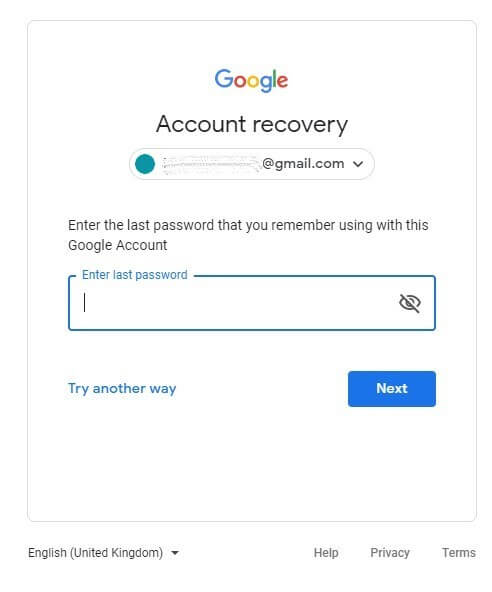
To recover your Gmail password, follow these simple steps:
- Go to The Gmail Recovery Page: Open a web browser and navigate to the Google Account recovery page (https://Myaccount.Google.Com/).
- Enter Your Email Address: Enter the email address associated with your Gmail account.
- Click on “Next”: Click on the “Next” button to proceed.
- Choose a Recovery Method: Choose one of the following recovery methods:
- Answer Security Questions: If you’ve set up security questions for your account, answer them correctly.
- Use a Phone or Tablet: Use a phone or tablet that’s associated with your Google account to receive a verification code.
- Recover Using a Backup Code: If you’ve generated a backup code, enter it to recover your password.
- Enter The Verification Code: Enter the verification code sent to your phone or tablet.
- Create a New Password: Create a new password for your Gmail account and confirm it.
Alternative Ways to Recover Your Gmail Password
If you’re unable to use one of the above methods, don’t worry! You can try the following:
- Use The Google Account Recovery Page: If you’ve set up a recovery email address or phone number, go to the Google Account recovery page (https://Myaccount.Google.Com/).
- Use The Gmail Password Manager: If you’re using Chrome, Firefox, Microsoft Edge, or Safari as your browser, check if it has a password manager feature. This may help you recover your password.
Tips For Recovering Your Gmail Password
- Be Patient And Persistent: Recovery can take some time, so be patient and try different methods.
- Use a Trusted Device: Try to use a trusted device that’s associated with your Google account.
- Have a Backup Code Ready: If you’ve set up a backup code, have it ready for recovery.
Recovering Your Gmail Password on Android Devices
If you’re using an Android device, follow these steps:
- Open The Settings App: Open the settings app and select “Google”.
- Tap on “Manage Your Google Account”: Tap on “Manage your Google account”.
- Select “Security”: Select the “Security” option.
- Tap on “Password Manager”: Tap on the “Password manager” option.
- Follow The Instructions: Follow the instructions to recover your password.
Recovering Your Gmail Password on Ios Devices
If you’re using an iOS device, follow these steps:
- Open The Settings App: Open the settings app and select “Passwords & Accounts”.
- Tap on “Add New Account”: Tap on “Add new account”.
- Select “Google”: Select the Google option.
- Follow The Instructions: Follow the instructions to recover your password.
Conclusion
Recovering your Gmail password can be a straightforward process if you follow these simple steps. Remember to be patient, persistent, and use a trusted device associated with your Google account. If you’re still having trouble, try using alternative methods or seeking help from Google support.
Frequently Asked Questions (FAQs)
- Q: How do I Recover my Gmail Password if I Forgot It?
A: Go to the Google Account recovery page (https://Myaccount.Google.Com/) and follow the instructions. - Q: Can I Recover my Gmail Password Using a Backup Code?
A: Yes, you can use a backup code to recover your password. - Q: How do I Prevent Losing Access to my Gmail Account Again?
A: Make sure to save your new password securely and consider setting up two-factor authentication (2FA) for added security. - Q: Can I Recover my Gmail Password on an Android Device?
A: Yes, you can recover your password using the Google Account recovery page (https://Myaccount.Google.Com/). - Q: How do I Recover my Gmail Password on an Ios Device?
A: You can recover your password by following the instructions provided in this article. - Q: What Should I do if I’m Unable to Recover my Gmail Password?
A: Try using alternative methods or seeking help from Google support. - Q: Can I Change my Gmail Password Regularly For Security Purposes?
A: Yes, you can change your password regularly to maintain account security. - Q: How Often Should I Update my Password?
A: It’s recommended to update your password every 60-90 days or as needed.
I hope this article has been helpful in guiding you through the process of recovering your Gmail password. Remember to always keep your password secure and consider setting up two-factor authentication (2FA) for added security. If you have any further questions, feel free to ask!


