
Discovering Password Wifi: A Comprehensive Guide
Are you concerned about the safety of your wireless network? Do you want to ensure that only authorized users can access it? Discovering password WiFi is a crucial step in protecting your network from unauthorized access.
The Importance of Protecting Your Wireless Network
Your wireless network, also known as Wi-Fi, is a vital part of your digital life. It allows you to connect your devices to the internet and access various online services. However, this convenience comes with risks. Unauthorized users can easily hack into your network if they gain access to your password.
How Malicious Users Can Access Your Network
Malicious users can use various methods to gain access to your wireless network, including:
- Brute Force Attack: This involves trying all possible combinations of passwords until the correct one is found.
- Dictionary Attack: This involves using a list of common words and phrases to guess the password.
- Social Engineering: This involves tricking users into revealing their password.
Protecting Your Network With Strong Passwords
To prevent unauthorized access, you need to use strong passwords for your wireless network. A strong password should be:
- At Least 12-16 Characters Long
- Alphanumeric, meaning it contains a mix of letters and numbers.
- Not Easily Guessable.
How to Discover Password Wifi on Different Devices
Discovering password WiFi is essential to protecting your network from unauthorized access. Here’s how you can do it on different devices:
Windows 10
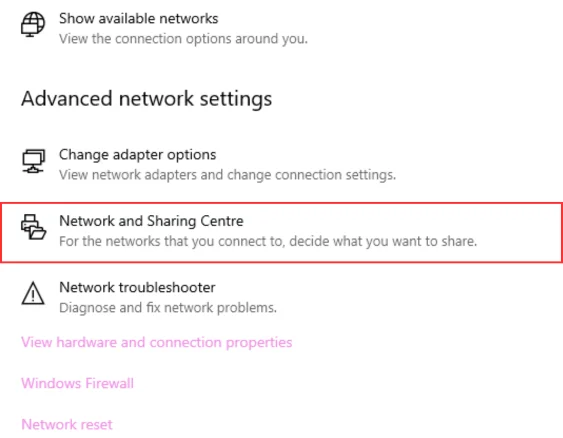
To discover password WiFi on Windows 10, follow these steps:
- Click on the Start menu and select Settings.
- Click on Network & Internet.
- Click on Wi-Fi.
- Select the network you want to connect to.
- Click on Properties.
- Click on Security.
Macos
To discover password WiFi on macOS, follow these steps:
- Click on the Apple menu and select System Preferences.
- Click on Network.
- Select Wi-Fi from the list of interfaces.
- Click on Advanced.
- Click on Passwords.
Linux
To discover password WiFi on Linux, you can use various tools and techniques. One popular option is Kali Linux, a free operating system that includes various tools for network analysis.
How to Use Kali Linux to Discover Password Wifi
To use Kali Linux to discover password WiFi, follow these steps:
- Download and install Kali Linux.
- Launch the Kali Linux terminal.
- Type
airmon-ngand press Enter. - Select the Wi-Fi interface you want to scan.
- Type
airodump-ngand press Enter.
How to Protect Your Network From Unauthorized Access
To protect your network from unauthorized access, follow these tips:
- Use a Strong Password: Use a password that is at least 12-16 characters long and alphanumeric.
- Use Wpa2-aes Encryption: This is the strongest encryption protocol available for Wi-Fi networks.
- Keep Your Router’s Firmware Up-to-date: Regularly update your router’s firmware to ensure you have the latest security patches.
- Change Your Password Regularly: Change your password every 60 days to prevent unauthorized access.
Conclusion
Discovering password WiFi is essential to protecting your network from unauthorized access. By following these steps and tips, you can keep your wireless network safe and secure. Remember, a strong password is the key to keeping your network protected. Don’t compromise on this; it’s worth the extra effort.


