
Discovering Passwords: A Comprehensive Guide
Are you tired of forgetting your passwords or struggling to recover them? Look no further! This guide is designed to help you discover, recover, or reset your passwords for various online services, devices, and systems.
Understanding Password Security
Before we dive into the nitty-gritty of password recovery, let’s take a moment to understand why password security is crucial. In today’s digital age, passwords are the first line of defense against cyber threats. A strong password can prevent unauthorized access to your sensitive information, while a weak one can leave you vulnerable to attacks.
Types of Passwords
There are several types of passwords you’ll encounter in this guide:
- Wi-fi Passwords: These are used to connect to public or private Wi-Fi networks.
- Account Passwords: These are used to access online services, such as email, social media, or banking platforms.
- Device Passwords: These are used to lock and unlock your devices, including smartphones, tablets, and computers.
Discovering Wifi Passwords
Let’s start with the most common type of password: Wi-Fi. Here are some steps to follow:
How to Discover Wifi Passwords
- Check Your Modem or Router: Look for a sticker or label on your modem or router that displays the default Wi-Fi password.
- Use The Router’s Web Interface: Log in to your router using its IP address (usually 192.168.1.1 Or 192.168.0.1) And follow the instructions to access the Wi-Fi settings.
- Check Your Device’s Settings: Look for the Wi-Fi settings on your device and check if it displays the saved password.
Discovering Passwords For Online Accounts
Now that we’ve covered Wi-Fi passwords, let’s move on to discovering passwords for online accounts.
How to Discover Account Passwords
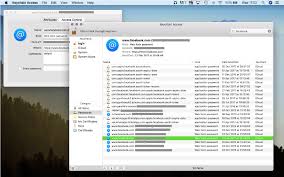
- Check Your Browser’s Password Manager: Most modern browsers have a built-in password manager. Look for it in the settings or preferences section.
- Use a Dedicated Password Manager: If you’ve installed a separate password management app, such as LastPass or 1Password, check if it has stored the passwords.
- Contact The Service Provider: If all else fails, reach out to the service provider’s support team and ask them to reset your password.
Discovering Passwords For Devices
Now that we’ve covered online accounts, let’s move on to discovering passwords for devices.
How to Discover Device Passwords
- Check Your Device’s Settings: Look for the lock screen or security settings on your device and check if it displays the saved password.
- Use a Dedicated Password Manager: If you’ve installed a separate password management app, such as LastPass or 1Password, check if it has stored the passwords.
- Contact The Manufacturer’s Support Team: If all else fails, reach out to the device manufacturer’s support team and ask them to reset your password.
Conclusion
In this comprehensive guide, we’ve covered various methods for discovering, recovering, or resetting passwords for online services, devices, and systems. Whether you’re struggling with forgotten Wi-Fi passwords or need help unlocking your device, these steps should help you regain access to your sensitive information.
Frequently Asked Questions (FAQs)
- Q: How Can I Recover my Password if I’ve Forgotten It?
A: Check the service provider’s support website or contact their customer support team for assistance. - Q: Can I Use a Password Manager to Store All my Passwords?
A: Yes, dedicated password management apps like LastPass and 1Password can securely store your passwords. - Q: How Can I Prevent Myself From Forgetting Passwords in The Future?
A: Consider using a password manager or setting up two-factor authentication (2FA) to add an extra layer of security. - Q: What if I’ve Forgotten my Device’s Password And Need to Reset It?
A: Check your device’s settings for options to reset the password, or contact the manufacturer’s support team for assistance. - Q: Can I Use a Public Computer to Recover my Password?
A: We recommend using a private computer or device to recover your password, as public computers may be vulnerable to malware and other security threats. - Q: How Long Does it Take to Recover a Password?
A: The time it takes to recover a password depends on the service provider’s response time and the complexity of the process. - Q: Can I Use my Device’s Fingerprint or Face Recognition Feature to Unlock my Device?
A: Yes, many devices now offer advanced biometric authentication features that can replace traditional passwords. - Q: What if I’ve Forgotten my Password And Need Help From a Technical Expert?
A: Reach out to a trusted friend or family member who has experience with technology, or consider hiring a professional IT consultant for assistance.
Additional Resources
If you’re still struggling with password recovery or have additional questions, consider consulting the following resources:
- Password Management Guides: Check online tutorials and guides that provide step-by-step instructions on using password managers like LastPass and 1Password.
- Device Manufacturer Support Websites: Visit the official support websites of your device’s manufacturer for assistance with device-related issues.
- Service Provider Customer Support Teams: Reach out to the service provider’s customer support team for help recovering passwords or resetting access to online services.


