
Finding Your Printer’s IP Address: A Step-by-step Guide
Are you tired of dealing with tangled cables on your desk? Have you recently acquired a new wireless printer and are struggling to configure it with your home network? Look no further! In this article, we will walk you through the process of finding your printer’s IP address, a crucial step in setting up your new device.
Understanding IP Addresses
Before we dive into the steps, let’s briefly explain what an IP address is. An IP (Internet Protocol) address is a unique numerical label assigned to each device on a network. It allows devices to communicate with each other and identify themselves on the network.
Why Do I Need My Printer’s IP Address?
Your printer’s IP address is essential for configuring it on your home network, especially if you have multiple devices connected. By knowing your printer’s IP address, you can:
- Configure your printer to work seamlessly with your computer or other devices
- Troubleshoot connectivity issues
- Monitor and control access to your printer
How to Find Your Printer’s IP Address: A Step-by-step Guide
Here are the steps to follow for various operating systems:
Windows 10/11
- Click on The Start Button: Click on the Start button located at the bottom left corner of your screen.
- Select Settings: Choose the “Settings” option from the menu that appears.
- Click on Devices: Select “Devices” or “Bluetooth and devices” from the settings menu.
- Open Printers And Scanners: Click on the “Printers and scan” option to access your printer list.
- Find Your Printer: Locate your printer in the list of available devices, then click on it.
- Click on Properties/printer Properties: Select “Gestisci” (only on Windows 10) or click on the “Property” tab to find your printer’s IP address.
Older Versions of Windows
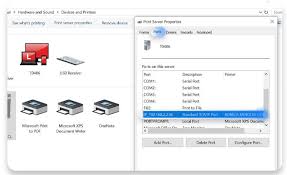
- Open Control Panel: Click on the Start button and select “Control Panel”.
- Select Hardware And Sound: Choose “Hardware and sound” from the control panel menu.
- Click on Devices And Printers: Select “Devices and printers” to access your printer list.
- Find Your Printer: Locate your printer in the list of available devices, then click on it.
- Right-click on The Printer: Right-click on the printer icon to open its properties menu.
- Select Properties/printer Properties: Choose “Property printer” to find your printer’s IP address.
Mac
- Click on The Apple Logo: Click on the Apple logo located at the top left corner of your screen.
- Select System Preferences: Choose “System Preferences” from the drop-down menu.
- Open Printers & Scanners: Click on “Printers & scanners” to access your printer list.
- Find Your Printer: Locate your printer in the list of available devices, then click on it.
- Click on Options And Features…: Select “Options and features…” to find your printer’s IP address.
Smartphones/tablets
If you’re using a smartphone or tablet, you can follow these steps:
- Open Your Printer App: Open the app that came with your printer or use an alternative app.
- Select Printers/devices: Choose “Printers” or “Devices” from the menu to access your printer list.
- Find Your Printer: Locate your printer in the list of available devices, then note its IP address.
Finding Your Printer’s IP Address: Additional Methods
If you’re still having trouble finding your printer’s IP address using these steps, try the following:
- Check your printer manual for specific instructions
- Use a network analyzer app to scan for devices on your network
- Access your router’s administrative page (usually by typing its IP address into your browser)
Conclusion
Finding your printer’s IP address is an essential step in configuring it with your home network. By following these simple steps, you’ll be able to locate and note your printer’s IP address, ensuring seamless connectivity and troubleshooting.
Frequently Asked Questions (FAQs)
- Q: Why do I Need my Printer’s IP Address?
A: Your printer’s IP address is essential for configuring it on your home network and troubleshooting connectivity issues. - Q: How do I Find my Printer’s IP Address on Windows 10/11?
A: Follow the steps outlined in this article, specifically for Windows 10/11 users. - Q: Can I Use a Smartphone/tablet to Find my Printer’s IP Address?
A: Yes, you can follow the steps provided for smartphones and tablets. - Q: What if I’m Still Having Trouble Finding my Printer’s IP Address?
A: Try checking your printer manual or using a network analyzer app to scan for devices on your network. - Q: Can I Access my Router’s Administrative Page to Find my Printer’s IP Address?
A: Yes, you can try accessing your router’s administrative page (usually by typing its IP address into your browser). - Q: Why is it Important to Note my Printer’s IP Address?
A: Noting your printer’s IP address ensures seamless connectivity and makes troubleshooting easier. - Q: Can I Use a Third-party App to Find my Printer’s IP Address?
A: Yes, there are various apps available that can help you scan for devices on your network and find your printer’s IP address. - Q: What if I’m Using an Older Version of Windows or Mac?
A: Follow the steps outlined in this article for older versions of Windows and Mac.
I hope this helps! Let me know if you have any further questions or need clarification on any of these points.


