
How to Find Your Router’s IP Address: A Step-by-step Guide
Are you tired of not knowing how to access your router’s panel of administration? Do you want to configure your network settings, but can’t seem to find the address of your router? Look no further! In this article, we will guide you through a step-by-step process on how to find your router’s IP address.
Understanding Your Router’s IP Address
Before we dive into the instructions, it’s essential to understand what an IP address is. An IP (Internet Protocol) address is a unique code that identifies a device connected to a network. In the case of a router, its IP address allows you to access its administrative panel and configure settings.
Why Do I Need My Router’s IP Address?
Knowing your router’s IP address is crucial for several reasons:
- You can access the administrative panel to configure network settings, such as changing passwords or updating firmware.
- You can troubleshoot connectivity issues by accessing the router’s diagnostic tools.
- You can monitor your network traffic and usage.
How to Find Your Router’s IP Address: A Step-by-step Guide
Windows
If you’re using a Windows device, follow these steps:
- Open the “Control Panel” app.
- Click on “Network and Sharing Center”.
- Click on “Change adapter settings”.
- Right-click on your active network connection (usually “Ethernet” or “Wi-Fi”).
- Select “Properties”.
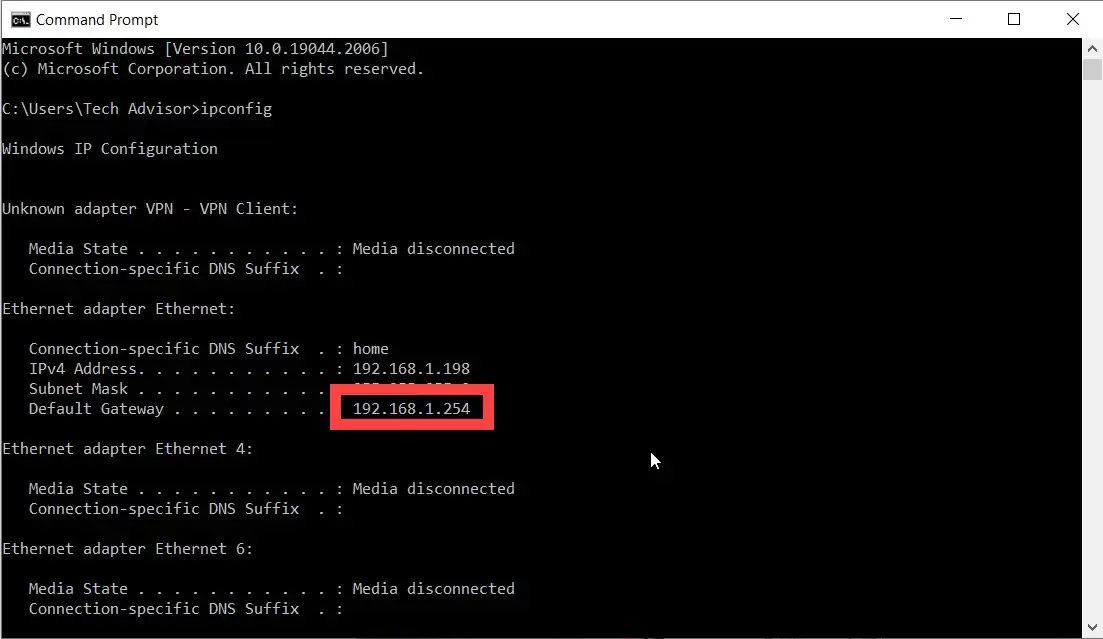
- Look for the “IPv4 Default Gateway” field, which will display your router’s IP address.
Macos
If you’re using a macOS device, follow these steps:
- Open the “System Preferences” app.
- Click on “Network”.
- Select your active network connection (usually “Wi-Fi”).
- Click on the “Advanced” button.
- Go to the “TCP/IP” tab and look for the “Router” field, which will display your router’s IP address.
Android
If you’re using an Android device, follow these steps:
- Open the “Settings” app.
- Scroll down and click on “Wi-Fi”.
- Long press on your active network connection (usually the name of your Wi-Fi network).
- Click on the gear icon next to the network name.
- Look for the “Gateway” field, which will display your router’s IP address.
Iphone/ipad
If you’re using an iPhone or iPad, follow these steps:
- Open the “Settings” app.
- Scroll down and click on “Wi-Fi”.
- Click on the “i” icon next to your active network connection (usually the name of your Wi-Fi network).
- Look for the “Router” field, which will display your router’s IP address.
Alternative Methods
If you’re unable to find your router’s IP address using the above methods, try these alternative approaches:
- Check your router’s manual or packaging for the default IP address.
- Search online for your router’s model number and “default IP address”.
- Contact your internet service provider (ISP) for assistance.
Finding Your Router’s Public IP Address
If you want to find your router’s public IP address, which is used by external devices to connect to your network, follow these steps:
- Open a web browser and navigate to www.Whatismyip.Com.
- Wait for the website to load and display your public IP address.
Conclusion
Finding your router’s IP address is an essential step in managing your network settings and troubleshooting connectivity issues. By following these step-by-step instructions, you should be able to locate your router’s IP address on Windows, macOS, Android, iPhone/iPad, and other devices. Remember to always check your router’s manual or packaging for the default IP address if needed.
Frequently Asked Questions
- Q: Why do I Need my Router’s IP Address?
A: You need your router’s IP address to access its administrative panel, configure network settings, troubleshoot connectivity issues, and monitor network traffic. - Q: How Can I Find my Router’s Public IP Address?
A: You can find your router’s public IP address by visiting www.Whatismyip.Com or using a similar online service. - Q: Can I Change my Router’s IP Address?
A: Yes, you can change your router’s IP address by accessing its administrative panel and updating the settings. - Q: Why is my Router’s IP Address Different From my Device’s IP Address?
A: Your router’s IP address is used to identify the router itself, while your device’s IP address is used to identify the individual device connected to the network. - Q: How do I Troubleshoot Connectivity Issues Using my Router’s IP Address?
A: You can use your router’s IP address to access its diagnostic tools and troubleshoot connectivity issues. - Q: Can I Access my Router’s Panel From a Remote Location?
A: Yes, you can access your router’s panel from a remote location by using a VPN or other remote management tools. - Q: Why is it Essential to Keep my Router’s Firmware Up-to-date?
A: Keeping your router’s firmware up-to-date ensures that you have the latest security patches and features to protect your network and devices. - Q: Can I Use my Router’s IP Address to Configure Settings For Multiple Devices on my Network?
A: Yes, you can use your router’s IP address to configure settings for multiple devices on your network by accessing its administrative panel.
I hope this guide has been helpful! If you have any further questions or need additional assistance, please don’t hesitate to ask.


