
How to Find The Whatsapp QR Code: A Step-by-step Guide
Are you tired of trying to find the elusive WhatsApp QR code? Look no further! In this article, we will guide you through the process of finding and sharing your WhatsApp QR code with others.
What is a Whatsapp QR Code?
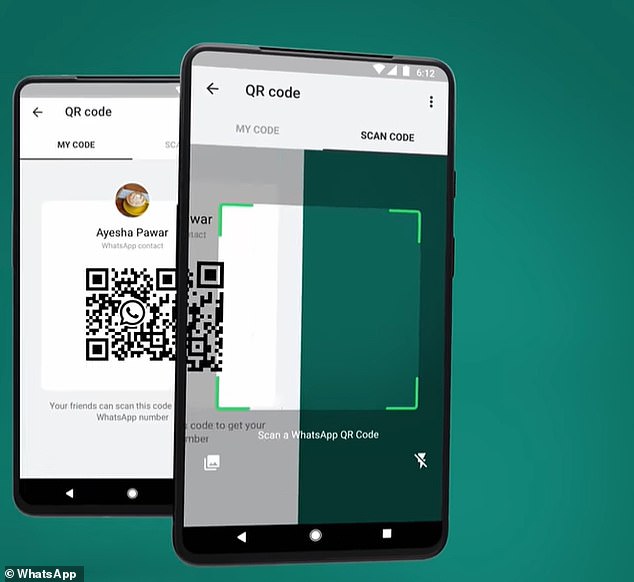
Before we dive into the step-by-step guide, let’s quickly explain what a WhatsApp QR code is. There are two types of QR codes available in WhatsApp: One that can be shared with others to add you as a contact, and another that allows you to access your WhatsApp account on multiple devices.
How to Find Your Whatsapp QR Code
Finding your WhatsApp QR code is a relatively simple process. Here’s how:
For Android Users
- Open WhatsApp and tap on the three dots (⋯) in the top-right corner.
- Select “Settings” from the menu.
- Tap on “Account” and then select “My QR Code”.
- You’ll see your WhatsApp QR code, which you can share with others by tapping on the “Share” button.
For Iphone Users
- Open WhatsApp and tap on Settings (the gear icon).
- Select “WhatsApp Web/Desktop” from the menu.
- Tap on “QR Code” to view your WhatsApp QR code.
- You can share your QR code with others by tapping on the “Share” button.
Sharing Your Whatsapp QR Code
Once you’ve found your WhatsApp QR code, you can share it with others by:
- Opening WhatsApp and tapping on the three dots (⋯) in the top-right corner.
- Selecting “Settings” from the menu.
- Tapping on “Account” and then selecting “My QR Code”.
- Sharing your QR code via SMS, email, or other messaging apps.
Accessing Your Whatsapp Account on Multiple Devices
If you want to access your WhatsApp account on multiple devices, follow these steps:
For Android Users
- Open WhatsApp and tap on the three dots (⋯) in the top-right corner.
- Select “Settings” from the menu.
- Tap on “Account” and then select “Devices connected”.
- Tap on “Add device” and scan the QR code displayed on your main device.
For Iphone Users
- Open WhatsApp and tap on Settings (the gear icon).
- Select “WhatsApp Web/Desktop” from the menu.
- Tap on “QR Code” to view your WhatsApp QR code.
- Scan the QR code with your secondary device to access your WhatsApp account.
Accessing Your Whatsapp Account on a Computer
If you want to access your WhatsApp account on a computer, follow these steps:
- Open WhatsApp Web in your browser.
- Scan the QR code displayed on your screen using your phone’s camera.
- Once scanned, you’ll be able to access your WhatsApp account on your computer.
Tips And Precautions
- Be cautious when accessing WhatsApp on public or shared computers, as others may be able to read your messages or use your account without your permission.
- Make sure to log out of WhatsApp Web when finished using the service.
Conclusion
Finding and sharing your WhatsApp QR code is a simple process. By following these step-by-step guides, you’ll be able to access your WhatsApp account on multiple devices and share your contact information with others.
Frequently Asked Questions (FAQs)
- What is a Whatsapp QR Code?
A WhatsApp QR code is a unique code that allows you to add someone as a contact or access your WhatsApp account on multiple devices. - How do I Find my Whatsapp QR Code?
You can find your WhatsApp QR code by opening WhatsApp and tapping on the three dots (⋯) in the top-right corner, then selecting “Settings” and “Account”. - Can I Share my Whatsapp QR Code With Others?
Yes, you can share your WhatsApp QR code with others by tapping on the “Share” button. - How do I Access my Whatsapp Account on Multiple Devices?
You can access your WhatsApp account on multiple devices by scanning the QR code displayed on your main device using your secondary device’s camera. - Can I Use Whatsapp on a Computer?
Yes, you can access WhatsApp on a computer by opening WhatsApp Web in your browser and scanning the QR code displayed on your screen.
I hope this article has helped you understand how to find and share your WhatsApp QR code!


