
Discovering Your Wi-fi Password: A Comprehensive Guide
Are you tired of searching for your Wi-Fi password only to find that it’s nowhere to be found? Do you feel like you’re stuck in a digital dead-end with no way to access the internet? Don’t worry, we’ve got you covered! In this article, we’ll show you how to discover your Wi-Fi password on various devices, including Windows PC, macOS, Android smartphone, and iPhone.
Understanding Your Wi-fi Password
Before we dive into the nitty-gritty of discovering your Wi-Fi password, it’s essential to understand what a Wi-Fi password is. Simply put, a Wi-Fi password is a string of characters that grants access to your wireless network. It’s like a secret code that only you and your devices know.
Why Discover Your Wi-fi Password?
Discovering your Wi-Fi password can be incredibly useful in various situations:
- You want to connect multiple devices to your network without having to input the password repeatedly.
- You need to troubleshoot connectivity issues on your devices.
- You want to share your internet connection with friends or family members.
How to Discover Your Wi-fi Password on Windows PC
If you’re using a Windows PC, discovering your Wi-Fi password is relatively straightforward. Here’s how:
- Click on the Start button and type “Control Panel” in the search bar.
- Open the Control Panel and click on “Network and Sharing Center.”
- Select “Manage Wireless Networks” from the left-hand menu.
- Right-click on your Wi-Fi network and select “Properties.”
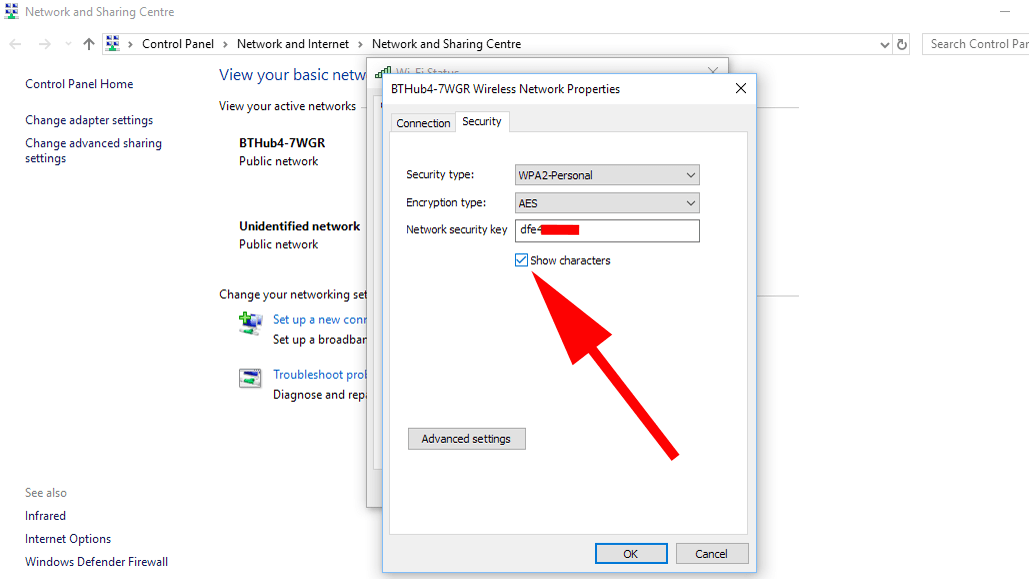
- Click on the “Security” tab and look for the “Show characters” checkbox.
- Check the box to display your password in plain text.
How to Discover Your Wi-fi Password on Macos
Discovering your Wi-Fi password on a Mac is also quite easy:
- Open the Launchpad and click on the “Utilities” folder.
- Select “Keychain Access” from the Utilities folder.
- Click on “System Keychains” in the left-hand menu.
- Look for your Wi-Fi network in the list of keychains.
- Double-click on your Wi-Fi network to open its properties.
- Click on the “Accessories” tab and look for the “Show password” checkbox.
- Check the box to display your password in plain text.
How to Discover Your Wi-fi Password on Android Smartphone
Discovering your Wi-Fi password on an Android smartphone is also relatively straightforward:
- Open the Settings app on your device.
- Tap on “Wi-Fi” or “Connections.”
- Select your Wi-Fi network from the list of available networks.
- Tap on the three dots (⋯) next to your Wi-Fi network’s name.
- Look for the “QR code” option and tap on it.
- Your device will generate a QR code containing your Wi-Fi password.
- Scan the QR code using a QR code reader app to view your password.
How to Discover Your Wi-fi Password on Iphone
Discovering your Wi-Fi password on an iPhone is also quite easy:
- Open the Settings app on your device.
- Tap on “Wi-Fi.”
- Select your Wi-Fi network from the list of available networks.
- Tap on the “i” icon next to your Wi-Fi network’s name.
- Look for the “Password” section and tap on it.
- Your password will be displayed in plain text.
How to Discover Your Wi-fi Password on Router
If you’re unable to discover your Wi-Fi password using the above methods, you can try accessing your router’s settings:
- Open a web browser on your device.
- Type
http://192.168.1.1(Orhttp://192.168.0.1) In the address bar and press Enter. - Log in to your router using the default admin username and password.
- Look for the “Wi-Fi” or “Wireless” settings section.
- Select your Wi-Fi network from the list of available networks.
- Look for the “Password” section and tap on it.
- Your password will be displayed in plain text.
Conclusion
Discovering your Wi-Fi password is a straightforward process that can be completed using various devices, including Windows PC, macOS, Android smartphone, and iPhone. By following these simple steps, you’ll be able to access the internet without having to input your password repeatedly.


