
How to Recover Your Facebook Password: A Step-by-step Guide
Are you struggling to remember your Facebook password? Don’t worry, we’ve got you covered! In this article, we’ll guide you through the process of recovering your Facebook password on various devices, including smartphones and tablets, PCs, and even browsers.
Table 1: Recovering Your Facebook Password on Various Devices
| Device | Steps to Follow |
|---|---|
| Smartphone (Android) | Go to Settings > Password & safety > Google, search for “Facebook”, tap on it, and follow the prompts. |
| Iphone/ipad | Open Settings, go to Safari > Passwords, search for “Facebook”, and tap on it to access your password. |
| PC (Chrome) | Open Chrome, click on the three dots in the top right corner, select Settings, scroll down to Autofill & saved entry, and look for Facebook. Click on it, and you’ll be able to see your password. |
| PC (Edge) | Open Edge, click on the three dots in the top right corner, select Settings, go to Profiles, and search for “Facebook”. Click on it, and follow the prompts to access your password. |
How to Recover Your Facebook Password on Android Devices
If you’re using an Android device, you can recover your Facebook password by going to Settings > Password & safety > Google. Search for “Facebook” in the list of saved passwords, tap on it, and follow the prompts to access your password.
Recovering Your Facebook Password on Iphone/ipad
If you’re using an iPhone or iPad, you can recover your Facebook password by opening Settings, going to Safari > Passwords, searching for “Facebook”, and tapping on it to access your password. Note that this process may vary slightly depending on the version of iOS you’re running.
Recovering Your Facebook Password on PC (Chrome)
If you’re using Google Chrome on a PC, you can recover your Facebook password by opening Chrome, clicking on the three dots in the top right corner, selecting Settings, scrolling down to Autofill & saved entry, and looking for Facebook. Click on it, and you’ll be able to see your password.
Recovering Your Facebook Password on PC (Edge)
If you’re using Microsoft Edge on a PC, you can recover your Facebook password by opening Edge, clicking on the three dots in the top right corner, selecting Settings, going to Profiles, and searching for “Facebook”. Click on it, and follow the prompts to access your password.
Recovering Your Facebook Password on Other Browsers
If you’re using a different browser, such as Firefox or Safari, you can try recovering your Facebook password by following similar steps. However, please note that these browsers may have slightly different interfaces and procedures for accessing saved passwords.
Alternative Methods For Recovering Your Facebook Password
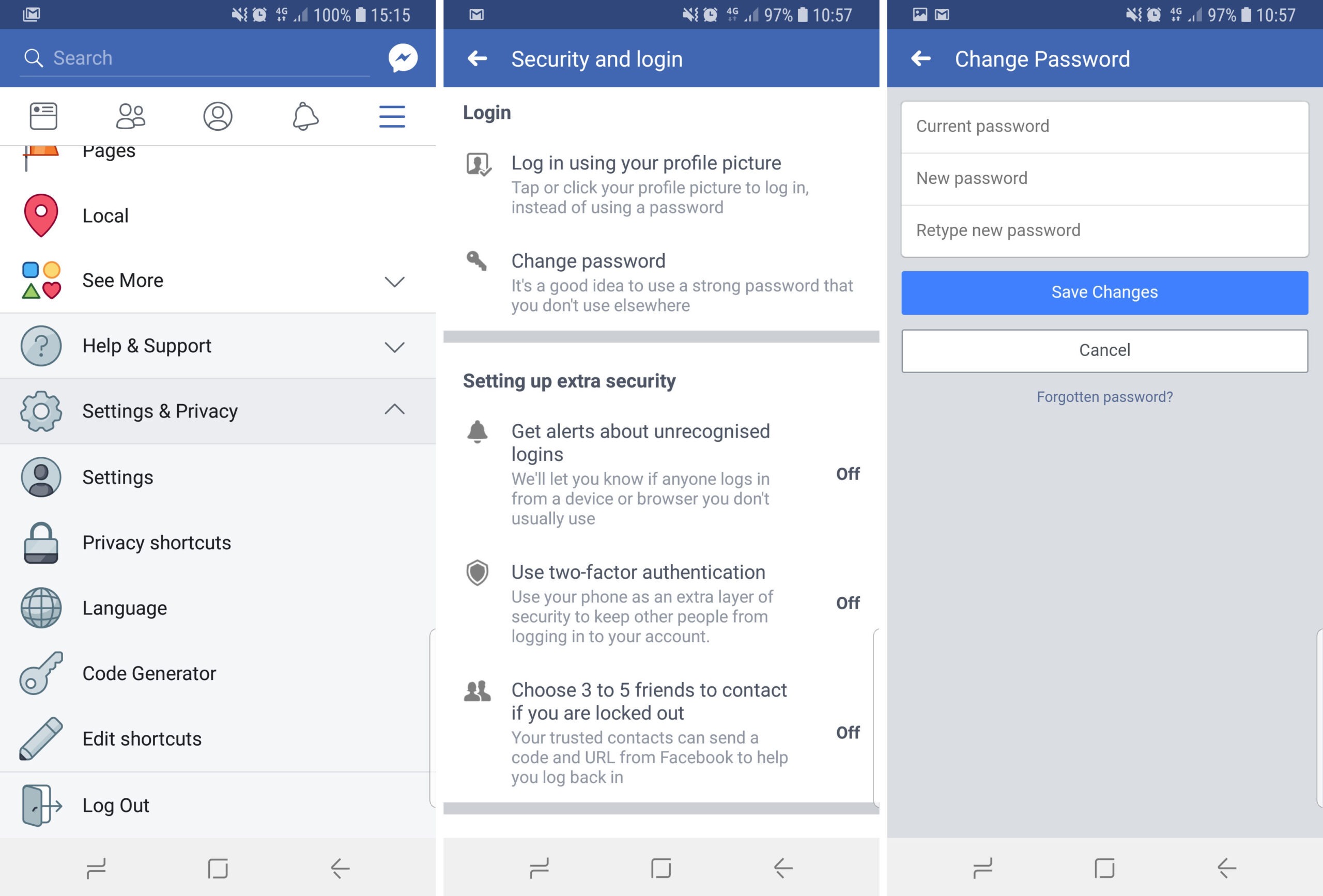
In addition to the methods outlined above, there are alternative ways to recover your Facebook password. For example, if you’ve forgotten your password and can’t access it on any of your devices, you can try modifying your password directly from the Facebook website or app. If that doesn’t work, you may want to consider using a password manager like LastPass or 1Password to generate and store strong, unique passwords for all of your accounts.
Conclusion
Recovering your Facebook password can be a frustrating experience, but it’s a necessary one if you want to access your account again. By following the steps outlined in this guide, you should be able to recover your password on various devices, including smartphones, PCs, and browsers. If you’re still having trouble, don’t hesitate to reach out to Facebook support for further assistance.
Faqs
Q: What if I’ve forgotten my Facebook password?
A: Don’t worry! You can try recovering it by following the steps outlined in this guide or by modifying it directly from the Facebook website or app.
Q: Can I use a password manager to recover my Facebook password?
A: Yes, you can use a password manager like LastPass or 1Password to generate and store strong, unique passwords for all of your accounts, including Facebook.
Q: How do I prevent myself from forgetting my Facebook password in the future?
A: One way is to set up two-factor authentication on your account, which will send a verification code to your phone or email whenever you try to log in. You can also consider using a password manager to generate and store strong passwords for all of your accounts.
Q: Can I use a VPN to protect my Facebook login session?
A: Yes, you can use a Virtual Private Network (VPN) like Panda Security’s VPN to encrypt your internet traffic and protect your login sessions on Facebook and other websites.
Q: How do I uninstall the Facebook app from my smartphone or tablet?
A: To uninstall the Facebook app on an Android device, go to Settings > Apps > Facebook, then tap on the “Uninstall” button. On an iPhone or iPad, go to Settings > General > Storage & iCloud Usage > Manage Storage, then find the Facebook app and tap on it to delete it.
Q: Can I recover my Facebook password if I’ve forgotten my login credentials?
A: Yes, you can try recovering your Facebook password by following the steps outlined in this guide or by modifying it directly from the Facebook website or app. If that doesn’t work, you may want to consider using a password manager like LastPass or 1Password to generate and store strong passwords for all of your accounts.
Q: How do I report a problem with my Facebook account?
A: You can report problems with your Facebook account by visiting the Help Center on the Facebook website or by contacting Facebook support directly.


