
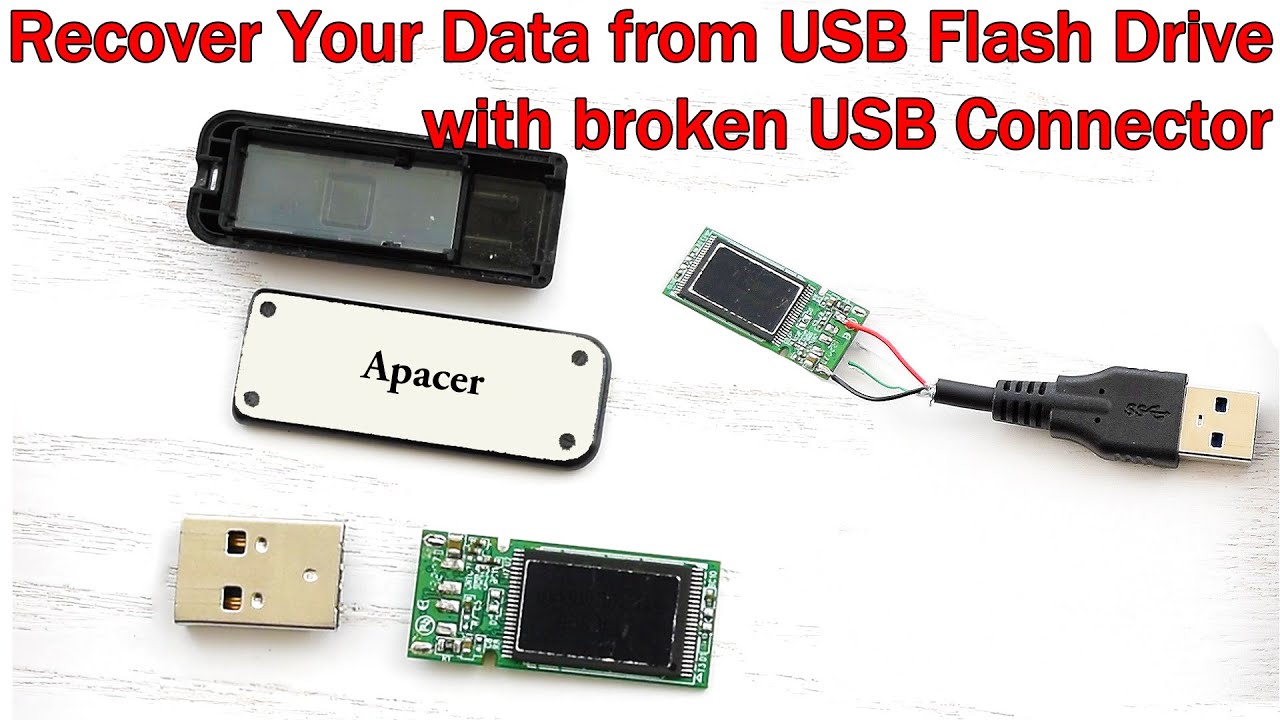
Repairing a Non-functional Usb Drive: A Step-by-step Guide
Are you experiencing frustration when trying to use your USB drive, only to find it’s not functioning correctly? Don’t worry; you’re not alone! Many of us have been in this situation at some point or another. In this article, we’ll walk you through the steps to repair a non-functional USB drive using both software and hardware approaches.
Understanding The Problem
Before diving into the solutions, it’s essential to understand why your USB drive might be malfunctioning. There could be several reasons for this, including:
- Physical damage to the drive or its components
- Corruption of the file system or data
- Incompatibility with your operating system
Software Approach: Recovering Data From a Non-functional Usb Drive
If your USB drive is not functioning correctly, but you still want to recover the data stored on it, you can try using software tools designed for this purpose.
Step 1: Create an Image of Your Usb Drive
The first step in recovering data from a non-functional USB drive is to create an image of the drive. This process creates a virtual copy of your USB drive that you can work with safely.
- Download and install the free software DRDD (or DataRescue DD) on your computer.
- Connect your non-functional USB drive to your computer.
- Launch DRDD, select your USB drive as the source device, and choose a location to save the image.
Step 2: Choose a Recovery Tool
Once you have created an image of your USB drive, you can use specialized software tools to recover data from it. Some popular options include:
- PhotoRec
- TestDisk
- Disk Drill
- Recuva
These tools are designed to scan the image and extract files that may still be intact.
Step 3: Recover Data
To recover data, follow these steps:
- Download and install your chosen recovery software.
- Launch the software and select the image of your USB drive as the source device.
- Choose the type of file system used by your USB drive (e.G., FAT32, NTFS).
- Select the files you want to recover and choose a location to save them.
Hardware Approach: Repairing a Non-functional Usb Drive
If your USB drive is not functioning correctly due to physical damage or hardware issues, you may need to take more drastic measures.
Step 1: Inspect Your Usb Drive
Examine your USB drive for any signs of physical damage. Check the connector, contacts, and internal components for any visible signs of wear or tear.
Step 2: Seek Professional Help
If your USB drive is severely damaged, it may be best to seek professional help from a computer repair shop or a data recovery service. They will have the necessary expertise and equipment to assess and repair the damage.
Conclusion
Repairing a non-functional USB drive can be a challenging process, but with the right tools and approach, you may still be able to recover your data. If the issue is due to physical damage or hardware issues, it’s often best to seek professional help from a computer repair shop or data recovery service.


