
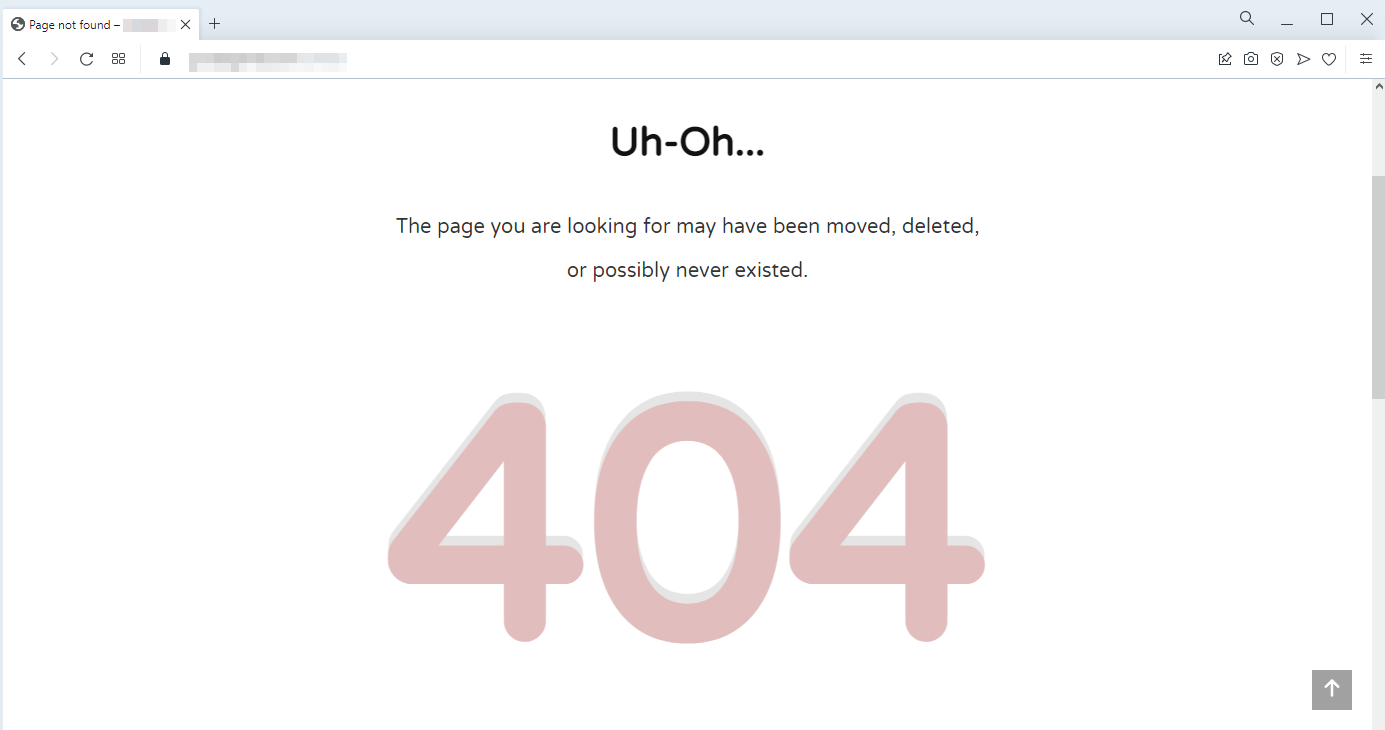
Error 404: The Ultimate Guide to Resolving The Not Found Error
Are you tired of seeing “Error 404” on your screen every time you try to access a website? Do you want to know how to resolve this frustrating error and get back to browsing in no time? Look no further! In this comprehensive guide, we’ll take you through the step-by-step process of resolving Error 404 on your own website, as well as on other websites that are giving you grief.
What is Error 404?
Error 404, also known as a “Not Found” error, occurs when a user tries to access a webpage or resource that does not exist anymore. This can happen for various reasons such as:
- A website has been deleted or moved to a new location
- A page or file has been removed from the server
- A website is experiencing technical difficulties
Why Does Error 404 Happen?
Error 404 happens when a user’s browser or search engine tries to access a webpage that no longer exists. This can occur due to various reasons such as:
- Website redesign or reorganization
- File deletion or corruption
- Server errors or downtime
How to Resolve Error 404 on Your Own Website
If you’re experiencing Error 404 on your own website, here are some steps you can take to resolve the issue:
- Check For Broken Links: Review your website’s internal and external links to ensure that they are working properly.
- Update or Delete Non-existent Content: Remove any pages or files that no longer exist or have been deleted.
- Use a 301 Redirect: Redirect users from the old URL to the new one, preserving their search engine rankings.
- Utilize a Website Maintenance Plugin: Install a plugin like Broken Link Checker to help you identify and fix broken links on your site.
Using Google Search Console
Google Search Console is a free tool that helps you monitor and maintain your website’s presence in Google search results. Here’s how to use it to resolve Error 404:
- Sign up For a Google Account: If you haven’t already, create a Google account to access the console.
- Set up Your Website: Add your website to the Search Console by following the on-screen instructions.
- Check For Crawl Errors: Use the “Crawl Errors” report to identify any issues with crawling and indexing your site.
- Verify 404 Errors: Look for 404 errors in the console’s reports, which indicate pages that no longer exist.
Dead Link Checker
If using Google Search Console isn’t feasible for you, consider using Dead Link Checker, a free online tool that scans your website for broken links and dead URLs.
- Enter Your Url: Paste your website’s URL into the tool to initiate a scan.
- Wait For Results: The tool will crawl your site and report any broken links or 404 errors.
- Fix Broken Links: Address the issues by updating or deleting non-existent content, using a 301 redirect, or installing a plugin like Broken Link Checker.
Plugin For Cms
If you’re using a Content Management System (CMS) to host your website, consider using plugins specifically designed to help with Error 404 resolution:
- Yoast Seo: This popular SEO plugin includes features to help detect and fix broken links.
- Broken Link Checker: A dedicated plugin that scans for dead URLs and provides actionable suggestions.
Resolving Error 404 on Other Websites
If you’re experiencing Error 404 on another website, follow these steps:
- Check The Website’s Status: Verify if the website is experiencing technical difficulties or has been moved.
- Contact The Webmaster: Reach out to the website’s administrator and ask them to review their broken links.
- Use Wayback Machine: Consult a snapshot of the website in its past state using Wayback Machine.
Error 404 on Electronic Bills
If you’re encountering Error 404 while forwarding an electronic bill, here’s what to do:
- Wait For The Addressee’s Response: Allow time for the recipient to acknowledge or reject the bill.
- Correct Any Errors: Address any issues with the bill, such as incorrect formatting or missing information.
Conclusion
Resolving Error 404 can be a daunting task, but by following these steps and utilizing various tools and resources, you’ll be well on your way to resolving this frustrating error. Remember to:
- Check for broken links
- Update or delete non-existent content
- Utilize Google Search Console and Dead Link Checker
- Install plugins like Broken Link Checker for CMS websites
Don’t hesitate to reach out to us if you have any further questions or concerns!
Frequently Asked Questions
Q: What causes Error 404?
A: Error 404 occurs when a user tries to access a webpage or resource that no longer exists.
Q: How do I resolve Error 404 on my own website?
A: Check for broken links, update or delete non-existent content, use a 301 redirect, and install plugins like Broken Link Checker.
Q: Can I use Google Search Console to resolve Error 404?
A: Yes, you can! Sign up for a Google account, set up your website, check for crawl errors, and verify 404 errors.
Q: What is Dead Link Checker?
A: Dead Link Checker is an online tool that scans your website for broken links and dead URLs.
Q: Can I use plugins like Yoast SEO or Broken Link Checker to help with Error 404 resolution?
A: Yes! These popular plugins can help detect and fix broken links on your CMS website.
Q: What should I do if I’m experiencing Error 404 on another website?
A: Check the website’s status, contact the webmaster, and use Wayback Machine to consult a snapshot of the website in its past state.
Q: How do I resolve Error 404 on electronic bills?
A: Wait for the addressee’s response, correct any errors with the bill, and forward it again once corrected.


