
How to Adjust Errors on a Hard Disk: A Comprehensive Guide
Are you experiencing errors on your hard disk, slowing down your computer? Don’t worry! This guide will walk you through the steps to adjust errors on a hard disk for Windows, macOS, and Ubuntu.
What Are Hard Disk Errors?
Hard disk errors occur when there is a problem with the file system or physical disc. These errors can cause data loss, corruption, or even render your computer unusable. Identifying and fixing these errors is crucial to maintain the health of your hard drive.
Adjusting Hard Disk Errors in Windows
If you’re using Windows 8 or later, you can adjust hard disk errors using the built-in utility called Control Panel. Here’s how:
- Click on the Start button and select Control Panel.
- Click on System And Security, then click on Administrative Tools.
- Click on Disk Management.
- Right-click on the hard disk drive you want to check, and select Properties.
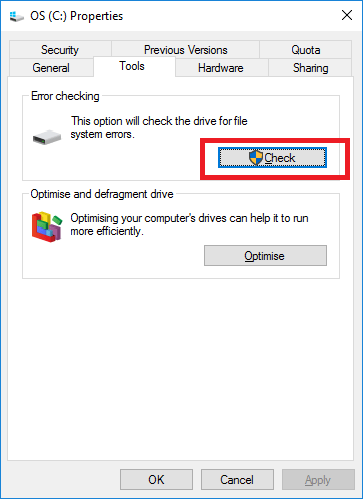
- In the Properties window, click on Tools, then click on Check.
- Select Scan For Bad Sectors and follow the prompts.
If you’re using Windows 7 or earlier, you can use the Scandisk utility:
- Click on the Start button and select Computer.
- Right-click on the hard disk drive you want to check, and select Properties.
- In the Properties window, click on Tools, then click on Check.
- Select Scan For Bad Sectors and follow the prompts.
Adjusting Hard Disk Errors in Macos
If you’re using a Mac, you can adjust hard disk errors using the built-in utility called Disk Utility:
- Click on the Finder icon in the dock.
- Click on Applications, then click on Utilities.
- Open Disk Utility.
- Select the hard disk drive you want to check from the list on the left.
- Click on the First Aid tab, and select Run.
You can also use the Terminal command:
- Open the Terminal app.
- Type
diskutil verifyVolume /(if using a single volume) ordiskutil verifyVolume /Volumes/[volume name](if using multiple volumes). - Press Enter to run the command.
Adjusting Hard Disk Errors in Ubuntu
If you’re using Ubuntu, you can adjust hard disk errors using the Fsck utility:
- Open the Terminal app.
- Type
fsck /*dev/*sdb[number partition](if using a single partition) orfsck /*dev/*sdb[number partition] -y(if using multiple partitions). - Press Enter to run the command.
Best Programs For Adjusting Hard Disk Errors
If you’re not satisfied with the built-in solutions, there are several third-party programs available that can help you adjust hard disk errors:
- Diskdrill: A free program for Windows and macOS that provides a range of features for data recovery, disk maintenance, and error correction.
- Minitool Partition Wizard: A reliable partition manager for Windows that includes deep scanning and performance testing capabilities.
- Onyx: A free utility for macOS that allows you to check the integrity of your hard drive and repair errors.
Conclusion
Adjusting errors on a hard disk is crucial to maintain its health and prevent data loss. By following this guide, you can identify and fix hard disk errors using Windows, macOS, or Ubuntu. If you’re not satisfied with the built-in solutions, there are third-party programs available that can help you achieve your goals.
Frequently Asked Questions (FAQs)
- What Are The Causes of Hard Disk Errors?
Hard disk errors occur due to various reasons such as file system corruption, physical damage to the disc, or software issues.
- How Often Should I Check For Hard Disk Errors?
It’s recommended to run a disk check at least once a month to prevent data loss and maintain the health of your hard drive.
- Can I Recover Deleted Files Using The Methods Mentioned Above?
No, the methods mentioned in this guide are designed to identify and fix hard disk errors, not recover deleted files. For file recovery, you’ll need to use a dedicated file recovery software or service.
- Are There Any Risks Associated With Adjusting Hard Disk Errors?
Yes, if you’re not careful, you may inadvertently cause more harm to your hard drive. It’s essential to follow the instructions carefully and take necessary precautions to avoid data loss.
- Can I Adjust Hard Disk Errors on a Mac With a Fusion Drive?
Yes, you can adjust hard disk errors on a Mac with a Fusion Drive using the methods mentioned in this guide for macOS.
- Are There Any Free Programs Available For Adjusting Hard Disk Errors?
Yes, there are several free programs available that can help you adjust hard disk errors, such as DiskDrill and Onyx.
- Can I Use These Methods to Fix External Hard Drives?
No, the methods mentioned in this guide are designed for internal hard drives only. For external hard drives, you’ll need to consult the manufacturer’s instructions or seek professional help.


