
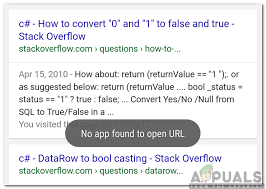
How to Resolve Any Application Found to Open Url Error
Are you tired of seeing a frustrating error message on your screen every time you try to open a link? “Any application found to open URL” is a common issue that can occur on various devices, including smartphones, tablets, and computers. In this guide, we will walk you through the steps to resolve this problem and get back to browsing the web with ease.
Understanding The Issue
When your device encounters an error message saying “Any application found to open URL,” it means that there is a problem associating the link with the correct app or browser on your device. This issue can occur due to various reasons, such as:
- A malfunctioning association between the protocol (e.G., HTTP or HTTPS) and the app.
- An error in the app’s configuration or functionality.
- A missing update for the app or operating system.
Solving The Problem: Android Devices
If you’re using an Android device, follow these steps to resolve the issue:
1. Restore Default Browser
To fix the problem on your Android device, try restoring the default browser settings. Here’s how:
A. Go to Settings > Apps > All apps.
B. Look for the “Browser” or “App Browser” option and select it.
C. Tap on the three dots (⋮) at the top-right corner of the screen and select “Display system.”
D. If the default browser is not listed, tap on the “Add” button and choose “Browser” or “App Browser.”
2. Re-associate Browser With Protocols
If restoring the default browser doesn’t resolve the issue, you may need to re-associate the browser with the protocols (HTTP and HTTPS).
A. Go to Settings > Apps.
B. Look for the “Android System WebView” option and select it.
C. If the app is not active or updated, tap on the three dots (⋮) at the top-right corner of the screen and select “Display system.”
D. Tap on the “Active” button to activate the app if it’s not already active.
3. Reinstall Android System Webview
If re-associating the browser with protocols doesn’t work, try reinstalling the Android System WebView app.
A. Go to Settings > Apps.
B. Look for the “Android System WebView” option and select it.
C. Tap on the three dots (⋮) at the top-right corner of the screen and select “Display system.”
D. Tap on the “Uninstall” button to remove the app, then tap on the “Install” button to reinstall it.
Solving The Problem: Iphone And Ipad
If you’re using an iPhone or iPad, follow these steps to resolve the issue:
1. Check Browser Settings
To fix the problem on your iOS device, try checking the browser settings. Here’s how:
A. Open the Settings app.
B. Tap on “Safari” (or the default browser).
C. Look for the option labeled “App for the browser of default.”
D. Make sure that Safari (or the default browser) is selected as the default app.
2. Update Browser And Ios
If checking the browser settings doesn’t resolve the issue, try updating your browser and iOS.
A. Open the App Store.
B. Look for any updates available for your browser.
C. Tap on the “Update” button to update the browser.
D. If an update is available for iOS, tap on the “Update” button to update the operating system.
Solving The Problem: Windows 10 And 11
If you’re using a Windows 10 or 11 device, follow these steps to resolve the issue:
1. Restore Default Browser
To fix the problem on your Windows device, try restoring the default browser settings. Here’s how:
A. Press the Windows key + X.
B. Select “Settings.”
C. Click on “Apps” > “Default apps.”
D. Look for the option labeled “Web browser” and select it.
2. Re-associate Browser With Protocols
If restoring the default browser doesn’t resolve the issue, you may need to re-associate the browser with the protocols (HTTP and HTTPS).
A. Press the Windows key + S.
B. Type “protocol settings” in the search bar.
C. Look for the option labeled “Choose an app to handle HTTP requests.”
D. Select the correct browser to associate with the protocol.
3. Update Browser
If re-associating the browser with protocols doesn’t work, try updating your browser.
A. Open the Microsoft Store.
B. Look for any updates available for your browser.
C. Tap on the “Update” button to update the browser.
Solving The Problem: Macos
If you’re using a macOS device, follow these steps to resolve the issue:
1. Restore Default Browser
To fix the problem on your macOS device, try restoring the default browser settings. Here’s how:
A. Click on the Apple logo in the top-left corner of the screen.
B. Select “System Preferences.”
C. Click on “General” and then select “Desktop & Dock.”
D. Look for the option labeled “Browser Web of default.”
2. Re-associate Browser With Protocols
If restoring the default browser doesn’t resolve the issue, you may need to re-associate the browser with the protocols (HTTP and HTTPS).
A. Click on the Apple logo in the top-left corner of the screen.
B. Select “System Preferences.”
C. Click on “General” and then select “Security & Privacy.”
D. Look for the option labeled “HTTPS” and select it.
3. Update Safari
If re-associating the browser with protocols doesn’t work, try updating your browser.
A. Open the App Store.
B. Look for any updates available for Safari.
C. Tap on the “Update” button to update the browser.
By following these steps, you should be able to resolve the “Any application found to open URL” error and get back to browsing the web with ease. Remember to always check for updates and restore default settings whenever possible to avoid similar issues in the future.


