
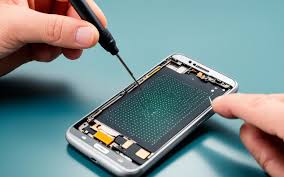
How to Fix a Mobile Microphone: A Step-by-step Guide
Are you tired of poor audio quality on your mobile device? Do you find yourself struggling to hear conversations or record clear messages? You’re not alone! Many people experience issues with their mobile microphones, but the good news is that there are ways to fix them. In this article, we’ll take a closer look at how to troubleshoot and repair a faulty mobile microphone.
The Importance of Good Audio Quality
Good audio quality is essential for effective communication. Whether you’re making calls, recording messages, or participating in video conferencing, a clear and crisp sound is crucial. However, when the microphone on your mobile device fails to deliver, it can lead to frustration and wasted time.
The Causes of Mobile Microphone Problems
Before we dive into the solutions, let’s first identify some common causes of mobile microphone problems:
- Software issues: Corrupted software or outdated operating systems can cause microphone malfunction.
- Hardware damage: Physical damage to the microphone or its surrounding components can affect sound quality.
- Dust and dirt accumulation: Dirt and dust particles can clog the microphone, reducing its effectiveness.
Step 1: Check Your Phone’s Protective Case
The first step in troubleshooting your mobile microphone is to check if your phone’s protective case is compatible with your device. If the case is not original or fully compatible with your phone, it may be covering one of the microphones, compromising its performance.
- Tip: Replace your protective case with a new one that is specifically designed for your phone model.
Step 2: Clean The Microphone
Dirt and dust accumulation can significantly affect sound quality. Cleaning the microphone regularly can resolve this issue.
- Step-by-step Guide: Follow these steps to clean your mobile microphone:
- Locate the microphone on your device.
- Prepare a soft, lint-free cloth or brush.
- Gently sweep the cloth or brush across the microphone to remove any dirt or dust particles.
- Repeat this process until you notice an improvement in sound quality.
Step 3: Restart Your Device
If the problem persists after cleaning the microphone, try restarting your device. Sometimes, a simple reboot can resolve software-related issues.
- Tip: Press and hold the power button for 10 seconds to restart your device.
Step 4: Update Your Operating System
Outdated operating systems can cause compatibility issues with your mobile microphone. Updating your OS may resolve this problem.
- Guide: Follow these steps to update your operating system:
- Go to Settings > Info on the phone.
- Check for software updates.
- If available, download and install the latest update.
Step 5: Visit an Authorized Service Center
If none of the above solutions work, it may be time to visit an authorized service center or contact a professional repair service. A trained technician will diagnose the issue and provide a suitable solution.
Conclusion
In conclusion, fixing a mobile microphone can be a straightforward process if you follow these steps. Remember to check your phone’s protective case for compatibility issues, clean the microphone regularly, restart your device, update your operating system, and visit an authorized service center as a last resort. Good audio quality is essential for effective communication; by following these tips, you’ll be able to enjoy clear and crisp sound on your mobile device.
Frequently Asked Questions
- Q: Why Does my Phone’s Microphone Keep Malfunctioning?
A: Common causes include software issues, hardware damage, or dust and dirt accumulation. - Q: How Often Should I Clean The Microphone?
A: Regular cleaning (every 1-3 months) is recommended to maintain sound quality. - Q: What if my Phone’s Protective Case is Not Compatible With my Device?
A: Replace your protective case with a new one designed for your phone model. - Q: Can I Update The Operating System Myself?
A: Yes, follow the steps provided in this article to update your OS. - Q: What if I’m Not Comfortable Repairing my Phone’s Microphone Myself?
A: Visit an authorized service center or contact a professional repair service for assistance.
Bonus Tips
- Regularly clean your phone’s earpiece and receiver to maintain sound quality.
- Use a high-quality protective case designed specifically for your device.
- Update your operating system regularly to ensure compatibility with new features.


