
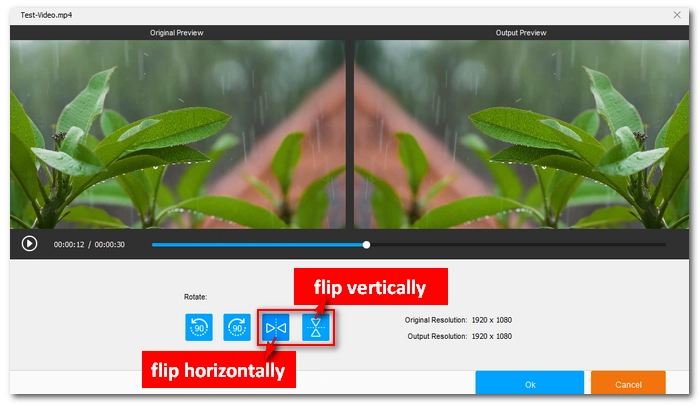
How to Flip a Video: A Step-by-step Guide
Are you tired of watching videos that seem upside down? Do you want to know how to flip a video on your phone or computer? Look no further! In this article, we will guide you through the process of flipping a video using various methods.
Why Would You Want to Flip a Video?
Before we dive into the instructions, let’s talk about why you might want to flip a video. Perhaps you recorded a video on your phone with the camera facing downwards, and now it looks upside down when played back on your computer or TV. Or maybe you created a video using a smartphone app that automatically flipped the footage.
Whatever the reason, flipping a video can be useful for various purposes, such as:
- Correcting camera orientation errors
- Creating a unique visual effect
- Editing videos more efficiently
How to Flip a Video on Your Phone (Android or Iphone)
If you want to flip a video directly on your phone, here’s how to do it:
For Android Users
- Open the Gallery app and select the video you want to edit.
- Tap the “Edit” button (represented by a pencil icon).
- Tap the “Rotate” button (represented by a square with a rotary arrow).
- Choose the desired rotation angle (90 degrees, 180 degrees, or 270 degrees).
- Save the edited video.
For Iphone Users
- Open the Photos app and select the video you want to edit.
- Tap the “Edit” button (represented by a pencil icon).
- Tap the “Rearrange” button (represented by two interlocking squares with arrows).
- Choose the desired rotation angle (90 degrees, 180 degrees, or 270 degrees).
- Save the edited video.
Other Apps For Flipping Videos
There are several other apps available that can help you flip videos on your phone or computer. Some popular options include:
- CapCut: A comprehensive video editing app that offers a range of features, including rotation.
- VideoShow: An app that allows you to create personalized videos and rotate them using intuitive tools.
- VideoFlip: An app specifically designed for rotating videos.
How to Flip a Video on Your Computer (PC)
If you want to flip a video directly on your computer, here are the steps:
Using Vlc Media Player
- Open VLC Media Player and select the video you want to edit.
- Click on “Media” (on Windows) or “File” (on Mac).
- Choose “Open” and select the video file.
- In the media player, click on “Tools” > “Effects and filters”.
- Select “Effects video” and choose the “Geometry” option.
- Check the box next to “Rotation” and adjust the virtual handle to rotate the video.
- Save the edited video.
Using Adobe Premiere
- Open Adobe Premiere and select the video you want to edit.
- Click on “File” > “New” > “Project”.
- Choose a name for your project and select the destination folder.
- Drag and drop the video file into the timeline.
- Select the “Control effects” panel and choose “Rotation”.
- Adjust the number of degrees to rotate the video.
- Save the edited video.
How to Flip a Video on TV
If you want to flip a video directly on your TV, here’s what you can do:
- Connect your phone or computer to the TV using an HDMI cable.
- Play the video on your device.
- Rotate the video by adjusting the display settings on your device.
Conclusion
Flipping a video can be a useful skill to have, especially when working with footage recorded in unusual orientations. With these steps, you should be able to flip a video using various methods and software. Whether you’re an experienced videographer or a beginner, we hope this article has provided you with the necessary guidance to get started.
Faqs
- Q: How do I Flip a Video on my Phone?
A: You can use built-in apps like CapCut (for Android and iPhone) or third-party apps like VideoShow. - Q: Can I Flip a Video on my Computer?
A: Yes, you can use software like VLC Media Player or Adobe Premiere to edit and rotate videos. - Q: How do I Flip a Video on Tv?
A: You can connect your phone or computer to the TV using an HDMI cable and adjust the display settings to rotate the video. - Q: What Are Some Popular Apps For Flipping Videos?
A: Some popular options include CapCut, VideoShow, and VideoFlip. - Q: Can I Flip a Video of Any Format?
A: Yes, most software and apps can handle various formats, including MP4, AVI, and more. - Q: How do I Save The Edited Video?
A: You can usually find a “Save” or “Export” option in the software or app you’re using to edit your video. - Q: Can I Rotate a Video in Increments of 90 Degrees?
A: Yes, many software and apps allow you to rotate videos in increments of 90 degrees, but some may offer more precise control over rotation angles. - Q: What if I Accidentally Flip my Video?
A: Don’t worry! You can usually undo the changes or go back to a previous version of your video using the “Edit” history feature in most software and apps.


