
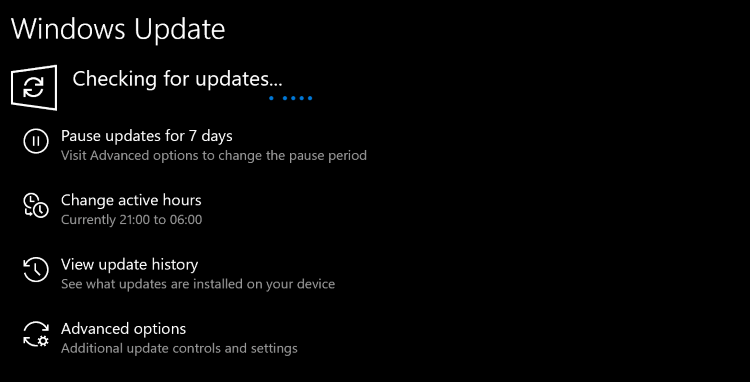
How to Force Update Windows 10: A Step-by-step Guide
Are you tired of waiting for weeks or even months for the Windows 10 update to become available on your computer? If so, this article is for you! We will guide you through a step-by-step process on how to force update Windows 10, ensuring that you get the latest version of the operating system as soon as possible.
Understanding The Windows 10 Update Process
Before we dive into the process of forcing the update, it’s essential to understand how the Windows 10 update process works. The update is typically rolled out by Microsoft in phases, with different regions and countries receiving the update at different times. However, if you’re using an older version of Windows, such as Windows 7 or Windows 8.1, You may not be eligible for the update immediately.
What You Need to Know Before Forcing The Update
Before attempting to force the update, there are a few things you need to know:
- Your computer must have a genuine copy of Windows 7 SP1 or Windows 8.1 Installed.
- Your computer must meet the minimum system requirements for Windows 10, which include at least 2 GB of RAM (1 GB for 32-bit versions), 20 GB of free disk space, and a processor with support for PAE, NX, and SSE2.
Step-by-step Guide to Forcing The Update
Now that you have the necessary requirements met, let’s proceed with the step-by-step guide on how to force update Windows 10:
Option 1: Using The File of Installation
To force update Windows 10 using the file of installation, follow these steps:
- Visualize The Folders Concealed by Windows: Double-click on the “Computer” or “This PC” icon in the Start menu, then double-click on the Local Disk where you’ll find the folder named “Windows.” From there, navigate to the SoftwareDistribution and Download folders.
- Select All Files And Move Them to The Trash: Select all the files within the Download folder and move them to the Recycle Bin.
Step-by-step Guide to Forcing Update Windows 10 Using Media Creation Tool
To force update Windows 10 using the Media Creation Tool, follow these steps:
- Download The Media Creation Tool: Go to the official Microsoft website and download the Media Creation Tool.
- Run The Tool And Select The Option to Update Windows: Run the Media Creation Tool, and you’ll see a menu with several options. Select the one that says “Update Windows” (or something similar).
- Select Your Language And Edition Preferences: Choose your preferred language and edition of Windows.
- Accept The Terms And Conditions: Read through the terms and conditions, and accept them to proceed.
Step-by-step Guide to Installing Windows 10
Once you’ve downloaded and run the Media Creation Tool, follow these steps to install Windows 10:
- Choose Your Installation Method: Select the option to update your current operating system or choose a clean installation.
- Select Your Language And Edition Preferences: Choose your preferred language and edition of Windows.
- Accept The Terms And Conditions: Read through the terms and conditions, and accept them to proceed.
Step-by-step Guide to Configuring Your New Windows 10 Installation
Once you’ve completed the installation process, follow these steps to configure your new Windows 10 installation:
- Connect to Wi-fi or Ethernet: Connect your computer to a reliable internet connection using Wi-Fi or Ethernet.
- Set up Your User Account And Password: Create a new user account and set a strong password.
- Configure Your Regional Settings: Set your regional settings, including language, time zone, and currency.
Conclusion
Forcing the Windows 10 update can be a straightforward process if you follow these steps carefully. Make sure to meet the minimum system requirements and ensure that you’re using a genuine copy of Windows before attempting to force the update.


