
How to Format a Rewritable CD on Windows, Macos, or Linux
Are you tired of using up valuable space on your computer’s hard drive by saving files onto rewritable CDs? Do you want to free up some room for more important data? Look no further! Formatting a rewritable CD is a simple process that can be done on various operating systems. In this article, we will guide you through the steps to format a rewritable CD on Windows, macOS, and Linux.
Understanding The Risks
Before we begin, it’s essential to understand that formatting a rewritable CD is an irreversible operation. Once the data is erased, it cannot be recovered. Make sure you want to delete the contents of your CD before proceeding.
Formatting a Rewritable CD on Windows
Method 1: Using File Explorer
Windows has a built-in utility called File Explorer (formerly known as Windows Explorer) that can help you format a rewritable CD. To do this:
- Open File Explorer and insert the CD into the computer’s CD drive.
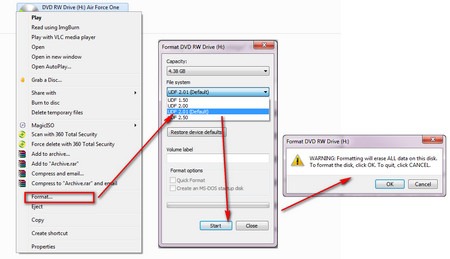
- Right-click on the CD icon in the left-hand sidebar and select “Format.”
- Choose the correct file system (UDF 2.01 Or ISO9660) to avoid compatibility issues.
- Select the format speed (Fast or Safe) and assign a label to the CD.
- Click “Start” to initiate the formatting process.
Method 2: Using Windows Media Player
Windows Media Player is another option for formatting a rewritable CD on Windows.
- Insert the CD into the computer’s CD drive.
- Open Windows Media Player and click on the menu button (three horizontal lines).
- Select “Manage Library” and then choose the CD drive as the library location.
- Right-click on the CD icon in the middle pane and select “Erase.”
- Confirm that you want to erase the data by clicking “Yes.”
Method 3: Using Infrarecorder
InfraRecorder is a free, open-source software for burning CDs and DVDs.
- Download and install InfraRecorder from the official website.
- Insert the CD into the computer’s CD drive.
- Open InfraRecorder and click on the menu button (three horizontal lines).
- Select “Erase disc” and choose the correct file system (UDF 2.01 Or ISO9660).
- Select the format speed (Fast or Safe) and assign a label to the CD.
- Click “OK” to initiate the formatting process.
Method 4: Using Cdburnerxp
CDBurnerXP is another free software for burning CDs and DVDs.
- Download and install CDBurnerXP from the official website.
- Insert the CD into the computer’s CD drive.
- Open CDBurnerXP and click on the menu button (three horizontal lines).
- Select “Erase disc” and choose the correct file system (UDF 2.01 Or ISO9660).
- Select the format speed (Fast or Safe) and assign a label to the CD.
- Click “OK” to initiate the formatting process.
Formatting a Rewritable CD on Macos
Method 1: Using Finder
Finder is the default file manager for macOS. To format a rewritable CD using Finder:
- Insert the CD into the computer’s CD drive.
- Open Finder and select the CD icon in the left-hand sidebar.
- Right-click (or Control-click) on the CD icon and select “Erase.”
- Choose the correct file system (UDF 2.01 Or ISO9660).
- Assign a label to the CD and click “OK” to initiate the formatting process.
Method 2: Using Burn
Burn is a free software for burning CDs and DVDs on macOS.
- Download and install Burn from the official website.
- Insert the CD into the computer’s CD drive.
- Open Burn and select the CD icon in the middle pane.
- Right-click (or Control-click) on the CD icon and select “Erase.”
- Choose the correct file system (UDF 2.01 Or ISO9660).
- Assign a label to the CD and click “OK” to initiate the formatting process.
Formatting a Rewritable CD on Linux
Method 1: Using Brasero
Brasero is a free software for burning CDs and DVDs on Linux.
- Insert the CD into the computer’s CD drive.
- Open Brasero and select the CD icon in the middle pane.
- Right-click (or Control-click) on the CD icon and select “Erase.”
- Choose the correct file system (UDF 2.01 Or ISO9660).
- Assign a label to the CD and click “OK” to initiate the formatting process.
Method 2: Using Wodim
Wodim is a command-line utility for burning CDs and DVDs on Linux.
- Insert the CD into the computer’s CD drive.
- Open the Terminal and type
wodim -devicesfollowed by Enter. - Identify the device associated with the CD drive (e.G.,
/Dev/sr0) and note it down. - Type
wodim -blank=fast, dev=/dev/sr0and press Enter to initiate the formatting process.
Conclusion
Formatting a rewritable CD is a simple process that can be done on various operating systems. Make sure you understand the risks involved before proceeding. Choose one of the methods outlined above, and follow the steps to format your rewritable CD.
Now that we’ve covered the basics of formatting a rewritable CD on different operating systems, let’s move on to some additional resources:
- Formatting a Rewritable CD on Windows
- Formatting a Rewritable CD on macOS
- Formatting a Rewritable CD on Linux
If you have any further questions or concerns, feel free to ask!
Frequently Asked Questions
Q: What is the difference between formatting and erasing a rewritable CD?
A: Formatting a rewritable CD prepares it for writing new data, while erasing it deletes all existing data.
Q: Can I recover deleted files from a formatted rewritable CD?
A: No, once a file is erased or formatted, it cannot be recovered.
Q: How do I prevent my computer from automatically formatting the CD drive when inserting a rewritable CD?
A: This depends on your operating system and configuration. For Windows, you can disable the “Auto-play” feature in the Control Panel. For macOS, you can disable the “Open ‘safe’ files after inserting the media” option in Finder preferences.
Q: Can I use a different file system to format my rewritable CD?
A: Yes, but be aware that some operating systems and software may not support certain file systems. UDF 2.01 Is generally recommended for compatibility reasons.
Related Posts
- How to Burn a CD or DVD on Windows
- How to Burn a CD or DVD on macOS
- How to Burn a CD or DVD on Linux
I hope this article has been helpful!


