
How to Format a Dvd-rw: A Step-by-step Guide
Are you looking to format a DVD-RW, but not sure where to start? Look no further! In this article, we will guide you through the process of formatting a DVD-RW using various methods, including Windows and macOS.
What is a Dvd-rw?
Before we dive into the steps, let’s first understand what a DVD-RW is. A DVD-RW (DVD Recordable/Write) is a type of DVD that can be rewritten multiple times. It’s like a CD-RW, but for DVDs. This means you can record data on it, erase it, and then reuse it again.
Formatting a Dvd-rw With Windows
If you’re using a Windows PC, you have two options to format a DVD-RW: Using the built-in functions or using third-party software like ImgBurn.
Method 1: Using Built-in Functions
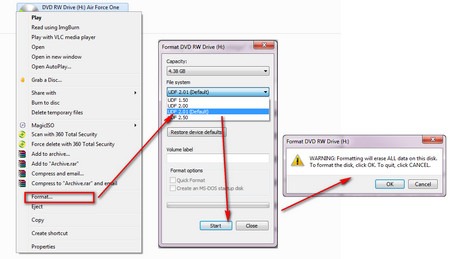
To format a DVD-RW using the built-in functions in Windows:
- Insert the DVD-RW into your computer’s DVD drive.
- Click on “Start” and then type “Disk Management” in the search bar.
- Open Disk Management and select the DVD-RW drive from the list of available drives.
- Right-click on the DVD-RW drive and select “Format.”
- Choose the file system you want to use (e.G., UDF 2.01) And select the format speed (e.G., Fast).
- Click “OK” to initiate the formatting process.
Method 2: Using Imgburn
Alternatively, you can use third-party software like ImgBurn to format a DVD-RW:
- Download and install ImgBurn from the official website.
- Insert the DVD-RW into your computer’s DVD drive.
- Open ImgBurn and select “Build” from the menu bar.
- Choose the DVD-RW drive from the list of available drives.
- Select the format speed (e.G., Fast) and file system (e.G., UDF 2.01).
- Click “OK” to initiate the formatting process.
Formatting a Dvd-rw With Macos
If you’re using a Mac, you can use the built-in function called Finder to format a DVD-RW:
- Insert the DVD-RW into your Mac’s DVD drive.
- Open Finder and select the DVD-RW drive from the list of available drives.
- Right-click on the DVD-RW drive and select “Erase.”
- Choose the format speed (e.G., Fast) and file system (e.G., UDF 2.01).
- Click “OK” to initiate the formatting process.
Formatting a Dvd-rw With Burn
If you’re using a Mac and want to use third-party software, you can use Burn:
- Download and install Burn from the official website.
- Insert the DVD-RW into your Mac’s DVD drive.
- Open Burn and select “Erase” from the menu bar.
- Choose the format speed (e.G., Fast) and file system (e.G., UDF 2.01).
- Click “OK” to initiate the formatting process.
Conclusion
Formatting a DVD-RW is a relatively simple process, whether you’re using Windows or macOS. By following these steps, you can easily format your DVD-RW and reuse it again. Remember to choose the correct file system and format speed for your specific needs.
Frequently Asked Questions (FAQs)
- What is The Difference Between a Dvd-rw And a Dvd+rw?
A DVD-RW is a type of DVD that can be rewritten multiple times, while a DVD+RW is another type of rewritable DVD. - Can I Format a Dvd-rw Using my Mac’s Built-in Function?
Yes, you can use the Finder to format a DVD-RW on your Mac. - What Are Some Popular Software Programs For Formatting Dvds?
ImgBurn and Burn are two popular software programs used for formatting DVDs. - How Long Does it Take to Format a Dvd-rw?
The time it takes to format a DVD-RW depends on the speed of the format process, but typically ranges from 10-30 minutes. - Can I Reuse a Formatted Dvd-rw?
Yes, you can reuse a formatted DVD-RW multiple times by erasing its contents and formatting it again.
Additional Tips
- Always choose the correct file system for your specific needs (e.G., UDF 2.01).
- Select the format speed that best suits your requirements (e.G., Fast or Complete).
- Use high-quality media to ensure reliable performance.
- Format the DVD-RW regularly to prevent data corruption and ensure optimal performance.
By following these steps and tips, you’ll be able to successfully format your DVD-RW using various methods. Happy formatting!


