
How to Format an External Hard Drive on a Mac: A Step-by-step Guide
Are you tired of dealing with issues related to your external hard drive connected to your Mac? Do you wish there was an easy way to format it without resorting to complicated procedures or third-party programs? Look no further! In this article, we will guide you through the process of formatting an external hard drive on a Mac using the built-in Utility Disk tool.
Why Format Your External Hard Drive?
Before we dive into the step-by-step instructions, let’s briefly discuss why you might want to format your external hard drive. Formatting your external hard drive can help resolve issues such as:
- Corrupted file systems
- Incompatible file formats
- Overcrowding and fragmentation of files
Step 1: Accessing Utility Disk
The first step in formatting your external hard drive is to access the Utility Disk tool on your Mac. To do this, follow these steps:
- Click on the Launchpad icon in the top left corner of the screen
- Type “Utility Disk” in the search bar and select it from the list of results
- Alternatively, you can search for Utility Disk using Spotlight
Step 2: Selecting The External Hard Drive
Once you have accessed the Utility Disk tool, you will see a window displaying all the available disks on your Mac. Click on the external hard drive that you want to format and select it from the list.
Step 3: Initiating The Format Process
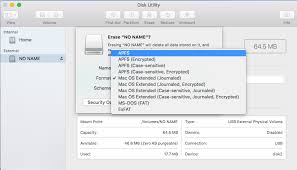
To initiate the formatting process, click on the “Initialize” button in the bottom right corner of the window. A new window will appear asking you to choose a file system for your external hard drive.
Choosing a File System
When choosing a file system, consider the following options:
- Ms-dos (FAT): This is an older file system that is still compatible with many devices. However, it has limitations such as high fragmentation and inability to handle files larger than 4GB.
- Exfat: This is an improved version of MS-DOS (FAT) that reduces the level of fragmentation and removes the 4GB file size limit. It is widely supported on most operating systems and devices.
- Mac OS Extended: This is the default file system for Macs, offering good performance and compatibility. However, it may not be compatible with external hard drives used on other operating systems.
- Apfs (Apple File System): This is a newer file system designed specifically for Macs running macOS High Sierra or later. It offers improved performance, security, and storage efficiency.
Step 4: Confirming The Format
Once you have selected your preferred file system, click on the “Initialize” button to confirm the format process. The Utility Disk tool will now begin formatting your external hard drive.
Tips And Precautions
Keep in mind that formatting your external hard drive will erase all data stored on it. Make sure to back up any important files before proceeding.
Additionally, if you need to use your external hard drive with a Windows PC, consider using the ExFAT file system for maximum compatibility.
Why Choose Apfs?
APFS is a great option for Mac users who want to take advantage of improved performance, security, and storage efficiency. It’s also optimized for SSDs (Solid-State Drives) and offers fast directory resizing.
However, if you need to use your external hard drive with other operating systems or devices, consider using the ExFAT file system for maximum compatibility.
Conclusion
Formatting an external hard drive on a Mac is a straightforward process that can be completed using the built-in Utility Disk tool. By following these step-by-step instructions, you can resolve issues related to corrupted file systems, incompatible file formats, and overcrowding and fragmentation of files. Remember to choose the right file system for your needs and always back up important data before proceeding.
Frequently Asked Questions
- What is The Best File System For my External Hard Drive?
The choice of file system depends on your specific needs and requirements. If you need maximum compatibility with other operating systems, consider using ExFAT. If you’re a Mac user who wants to take advantage of improved performance and security, choose APFS. - How Long Does The Formatting Process Take?
The duration of the formatting process depends on the size of your external hard drive and the chosen file system. A larger drive with more data will take longer to format. - Will Formatting my External Hard Drive Erase All Data Stored on It?
Yes, formatting your external hard drive will erase all data stored on it. Make sure to back up any important files before proceeding. - Can I Use a Third-party Program to Format my External Hard Drive?
In most cases, no. The built-in Utility Disk tool is the recommended method for formatting an external hard drive on a Mac. However, if you need to format your external hard drive in NTFS format, you may need to use a third-party program.


