
How to Format a External Hard Disk: A Step-by-step Guide
Are you facing problems with your external hard disk? Are you searching for solutions on how to format it? Look no further! In this article, we will provide you with a comprehensive guide on how to format an external hard disk using Windows 10, Mac, and other operating systems.
What is Formatting?
Formatting is the process of preparing a storage device, such as a hard disk or solid-state drive (SSD), for use. It erases all data on the device and sets up a new file system, allowing you to store new files and data.
Choosing The Right File System
Before we dive into the formatting process, it’s essential to choose the right file system for your external hard disk. Different operating systems support various file systems, and selecting the wrong one can lead to compatibility issues.
- Fat32: This is an older file system that supports a maximum file size of 4GB. It’s compatible with Windows, Mac, and other devices but has limitations.
- Ntfs: This is the default file system for Windows and offers improved performance compared to FAT32. However, it’s not compatible with all devices.
- Exfat: This file system is an evolution of FAT32 and supports larger file sizes and better performance. It’s compatible with most modern operating systems.
- Apfs and Hfs/hfs+: These are proprietary file systems for Mac, offering improved performance and security features.
Formatting an External Hard Disk Using Windows 10
To format an external hard disk using Windows 10, follow these steps:
- Open File Explorer (formerly known as Windows Explorer).
- Click on the “Computer” or “This PC” icon in the left-hand sidebar.
- Right-click on the external hard disk you want to format and select “Format.”
- In the Format window, select the file system you prefer (FAT32, NTFS, or ExFAT).
- Choose a label for your external hard disk and click “Initiate” to start the formatting process.
- Wait for the formatting process to complete.
Tips:
- If you’re formatting an external hard disk with a large capacity, the process may take some time.
- To speed up the formatting process, select the “Quick Format” option in the File Explorer context menu.
- Be aware that formatting will erase all data on the device. Make sure to back up any important files before proceeding.
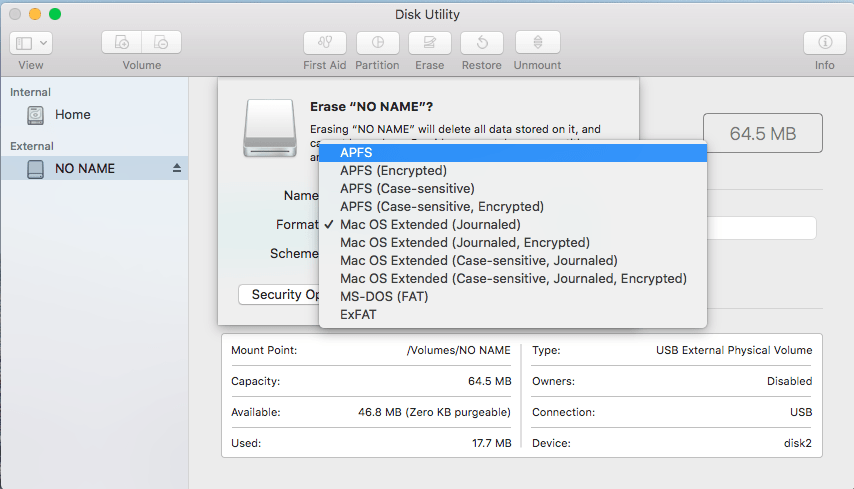
Formatting an External Hard Disk Using Mac
To format an external hard disk using a Mac, follow these steps:
- Launch the Disk Utility application (found in the Utilities folder within Applications).
- Select the external hard disk from the left-hand sidebar.
- Click on the “Erase” button at the top of the window.
- Choose the file system you prefer (APFS or ExFAT).
- Name your external hard disk and click “Erases” to start the formatting process.
Troubleshooting:
If your external hard disk is not recognized by your operating system, try:
- Checking the device’s power supply and connections.
- Running a diagnostic test on the device using built-in tools (e.G., Disk Utility on Mac or Check Disk on Windows).
- Contacting the manufacturer for assistance.
Conclusion
Formatting an external hard disk is a straightforward process that can be completed using various operating systems. By choosing the right file system and following the steps outlined in this guide, you’ll be able to prepare your device for new files and data. Remember to back up important files before formatting, as all existing data will be erased.
Frequently Asked Questions (FAQs)
- What is The Difference Between Formatting And Erasing?
Formatting prepares a storage device for use by creating a new file system, while erasing only deletes data without setting up a new file system. - Can I Format an External Hard Disk to be Compatible With Both Windows And Mac?
Yes, you can format your external hard disk using the ExFAT file system, which is compatible with most modern operating systems. - Will Formatting Erase All my Files?
Yes, formatting will erase all data on the device. Make sure to back up important files before proceeding. - What Should I do if my External Hard Disk is Not Recognized by my Operating System?
Try checking the device’s power supply and connections, running a diagnostic test using built-in tools, or contacting the manufacturer for assistance. - Can I Use an External Hard Disk as an Additional Storage Device on my Playstation 4?
Yes, you can format your external hard disk to be compatible with your PS4 by following the steps outlined in this article. - What Are The Benefits of Using a Solid-state Drive (SSD) Over a Traditional Hard Disk?
SSDs offer improved performance, reliability, and durability compared to traditional hard disks.
Additional Resources:
For more information on formatting external hard disks or troubleshooting issues, consult the following resources:
- Microsoft Support: Formatting an External Hard Drive
- Apple Support: Erasing a Disk in Disk Utility
- Our blog posts on formatting external hard disks for various operating systems


