
How to Format a Hard Disk on Mac
Are you experiencing issues with your external hard drive not functioning properly on your Mac? Don’t worry, it’s a common problem that can be easily resolved by formatting the hard disk. In this article, we’ll guide you through the step-by-step process of how to format a hard disk on Mac.
Understanding The Problem
When you try to access your external hard drive on your Mac, you might encounter errors or issues with reading and writing data. This could be due to various reasons such as:
- Incompatibility between the file system used by the external hard drive and the operating system of your Mac
- Corrupted data or file system structure
- Issues with the physical connection between the external hard drive and your Mac
Formatting a Hard Disk on Mac: What You Need to Know
Before we dive into the process, it’s essential to understand what formatting a hard disk entails. Formatting a hard disk erases all data stored on it, so make sure you’ve backed up any important files before proceeding.
There are several file systems that can be used for external hard drives, including:
- FAT (File Allocation Table)
- ExFAT (Extended File Allocation Table)
- HFS+ (Hierarchical File System Plus)
The type of file system you choose will depend on the operating system you’re using and the devices you plan to use the external hard drive with.
Formatting a Hard Disk on Mac For Windows
If you want to use your external hard drive on both Mac and Windows, you’ll need to format it in a file system that’s compatible with both operating systems. The most suitable option is ExFAT, which is supported by both Mac and Windows.
To format your external hard drive in ExFAT using your Mac:
- Connect the external hard drive to your Mac
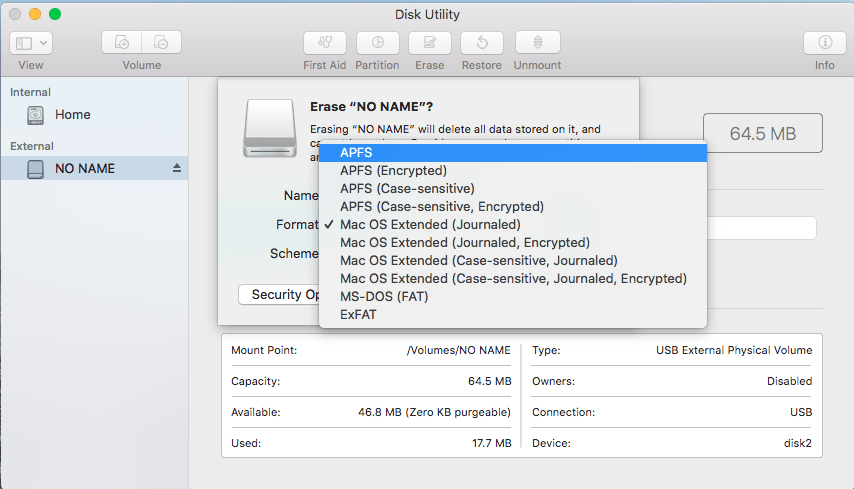
- Open Disk Utility (located in Applications > Utilities)
- Select the external hard drive from the list on the left side of the window
- Click the “Erase” button at the top of the window
- Choose ExFAT as the file system and give the volume a name
- Click the “Erase” button to format the hard disk
Formatting a Hard Disk For Mac OS Extended
If you want to use your external hard drive on your Mac only, you can format it in Mac OS Extended (HFS+). This is the default file system used by Macs.
To format your external hard drive in HFS+ using your Mac:
- Connect the external hard drive to your Mac
- Open Disk Utility (located in Applications > Utilities)
- Select the external hard drive from the list on the left side of the window
- Click the “Erase” button at the top of the window
- Choose HFS+ as the file system and give the volume a name
- Click the “Erase” button to format the hard disk
Conclusion
Formatting a hard disk on Mac is a straightforward process that can be completed in a few steps. By choosing the right file system for your needs, you can ensure compatibility with both Mac and Windows operating systems.
Frequently Asked Questions (FAQs)
- What Happens to my Data When I Format a Hard Disk?
When you format a hard disk, all data stored on it is erased. - Can I Recover my Data if I Accidentally Delete it While Formatting The Hard Disk?
No, once your data is deleted during the formatting process, it’s lost forever. - What Are The Benefits of Using Exfat Instead of Hfs+?
ExFAT is more compatible with Windows and other operating systems, making it a better choice if you need to share files between devices. - Can I Format my External Hard Drive in Fat32?
No, FAT32 is an older file system that’s not supported by Macs or most modern operating systems. - How do I Know Which File System to Use For my External Hard Drive?
Choose a file system based on the devices and operating systems you plan to use your external hard drive with.
Additional Resources
- Apple Support: Formatting a Hard Disk
- Microsoft Support: Format an External Hard Drive in ExFAT


