
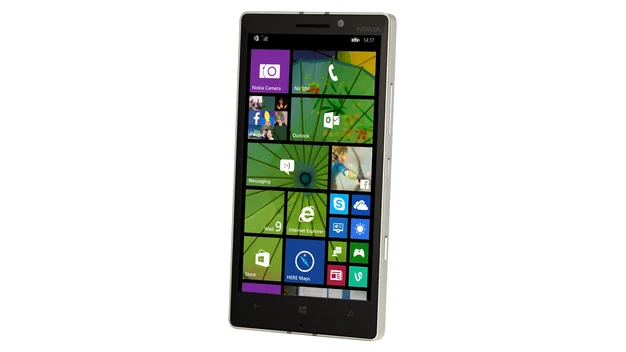
How to Format Your Nokia Lumia: A Step-by-step Guide
Are you thinking of selling your Nokia Lumia or giving it a fresh start? Before you do, make sure to erase all the present data on the device to protect your personal information. Don’t worry; I’ve got you covered! In this article, we’ll walk you through the process of formatting your Nokia Lumia in just five minutes.
Why Back Up Your Data First?
Before we dive into the formatting process, it’s essential to back up all your data on the device. This will ensure that you don’t lose any important photos, videos, or contacts. You can back up your data locally on a computer, microSD card, or online using OneDrive.
Backing Up Your Data Locally
To back up your data locally, connect your Nokia Lumia to your PC using the USB cable. Open the File Explorer and select “This PC” (or Computer) from the left-hand menu. Double-click on the Windows Phone icon and copy-and-paste the folders containing your desired data. This will save your photos and videos in the Pictures folder, downloads in the Downloads folder, and so on.
Backing Up Your Data Online
To back up your data online using OneDrive, you’ll need to associate your Nokia Lumia with a Microsoft account. Go to the Settings menu, select “Email & accounts,” and add an account. If you don’t have an existing account, create one now. Once you’re signed in, go to the Settings > Backup > App and settings option and enable the backup functions for your apps and settings.
Formatting Your Nokia Lumia
Now that we’ve backed up your data, it’s time to format your Nokia Lumia. Go to the Settings menu, select “About,” and click on the “Reset phone” button. Confirm the action by selecting “Yes” twice. If you have an expandable memory card, select the option to erase the card as well.
What Happens Next?
After formatting your device, it will restart, and Windows Phone will reset itself to its factory settings. This process should take around 10-15 minutes. If you encounter any issues or can’t access the Settings menu, don’t worry! You can perform a forced recovery by pressing the Power and Volume buttons simultaneously.
What if I Want to Sell My Nokia Lumia?
If you decide to sell your device, simply turn it off and hand it over to the new owner. If you want to keep using your phone but restore previously saved data, follow the initial configuration process for Windows Phone, selecting the option to restore data from OneDrive.
Formatting Your Nokia Lumia Remotely
Windows Phone, like Android and iOS, has a built-in anti-theft feature that allows you to locate and reset your device remotely. To do this, sign in to the Microsoft Devices website and select “Find my phone.” From there, click on the “Erase” button, confirm the action, and initiate the formatting process.
Conclusion
Formatting your Nokia Lumia is a straightforward process that requires just five minutes of your time. Remember to back up all your data before proceeding, and don’t forget to wipe any personal information from the device if you’re planning to sell it or give it away.
Frequently Asked Questions (FAQs)
- Why Should I Format my Nokia Lumia?
To protect your personal information and ensure a smooth transfer of ownership. - How do I Back up my Data on my Nokia Lumia?
You can back up your data locally, online using OneDrive, or on a microSD card. - What Happens if I Forget to Back up my Data?
Don’t worry! You can always try to recover deleted data, but it’s not guaranteed. - Can I Format my Nokia Lumia Remotely?
Yes, you can use the Microsoft Devices website to locate and reset your device remotely. - How Long Does Formatting Take?
The process should take around 10-15 minutes.


