
How to Format Your Playstation 4: A Step-by-step Guide
Are you looking to sell your PlayStation 4, but don’t know how to format it properly? Or maybe you’re experiencing some issues with your console and want to reset it without losing any data? Look no further! In this guide, we’ll walk you through the steps to format your PS4 like a pro.
Why Format Your Ps4?
Before we dive into the formatting process, let’s talk about why you might need to format your PS4 in the first place. There are several reasons why you might want to format your console:
- Selling Your Ps4: If you’re planning on selling your PS4, it’s essential to wipe all your data and settings. This will ensure that the new owner can’t access any of your personal information.
- Resolving Issues With Your Console: If your PS4 is experiencing some technical difficulties, formatting it might be the best way to resolve the issue.
- Preparing For a New Game: If you’re about to get a new game and want to start from scratch, formatting your PS4 will give you a fresh slate.
The Different Ways to Format Your Ps4
There are two main ways to format your PS4: The standard method and the provisional method. We’ll cover both options in this guide, so you can choose the one that suits your needs best.
Standard Formatting Method
This is the most common way to format your PS4. To do it:
- Power on Your Console: First, turn on your PS4 by pressing the power button.
- Go to Settings: Using the controller, navigate to the Settings menu.
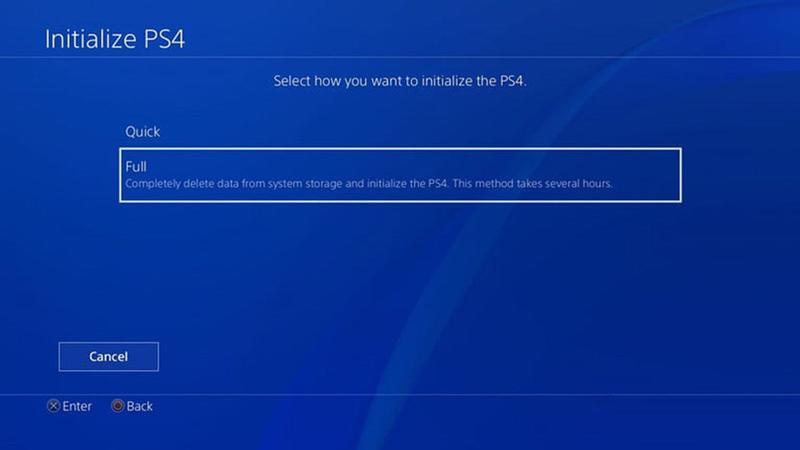
- Select Initialisation: Scroll down and select the “Initialisation” option.
- Confirm: Confirm that you want to format your PS4 by selecting “Yes”.
- Wait For The Process to Complete: The formatting process will take a few minutes to complete.
Provisional Formatting Method
If your PS4 is not starting up properly, or if you’re experiencing some other issues, you might need to use the provisional formatting method. To do it:
- Power on Your Console: Turn on your PS4 by pressing the power button.
- Hold Down The Power Button: Press and hold the power button for 7 seconds until the second “bip” sound is heard.
- Connect Your Controller: Connect your controller to the PS4 using a USB cable.
- Select Initialisation: Use the controller to navigate to the Settings menu and select the “Initialisation” option.
- Confirm: Confirm that you want to format your PS4 by selecting “Yes”.
Formatting Your Ps4 For Sale
If you’re planning on selling your PS4, it’s essential to wipe all your data and settings. To do this:
- Format Your Ps4 Using The Standard Method: Follow the steps outlined above to format your PS4.
- Remove Any External Devices: Remove any external hard drives or other devices connected to your PS4.
- Disconnect Your Console From The Internet: Make sure that your PS4 is not connected to the internet during the formatting process.
Common Issues With Formatting Your Ps4
Here are some common issues that you might encounter when formatting your PS4:
- Corrupt Files: If you’re experiencing issues with corrupt files, try using the provisional formatting method.
- Problems Accessing The Settings Menu: If you’re having trouble accessing the Settings menu, try disconnecting and reconnecting your controller.
Conclusion
Formatting your PlayStation 4 can seem like a daunting task, but it’s actually quite straightforward. By following the steps outlined in this guide, you should be able to format your PS4 without any issues. Whether you’re selling your console or experiencing some technical difficulties, formatting is a great way to resolve problems and start fresh.
Frequently Asked Questions (FAQs)
- Q: Why do I Need to Format my Ps4?
A: Formatting your PS4 will wipe all your data and settings, making it ideal for selling your console or resolving technical issues. - Q: What’s The Difference Between Standard And Provisional Formatting Methods?
A: The standard method is used when your PS4 starts up normally, while the provisional method is used when your console is not starting up properly. - Q: How do I Remove Any Data From my External Hard Drive?
A: To remove any data from an external hard drive connected to your PS4, simply disconnect it before formatting your console. - Q: Can I Still Access my Psn Account After Formatting my Ps4?
A: Yes, you can still access your PSN account after formatting your PS4, but you’ll need to re-register and set up a new profile.
Additional Tips
- Always back up any important data before formatting your PS4.
- Make sure that your console is fully powered off during the formatting process.
- If you’re experiencing issues with corrupt files or other technical difficulties, try using the provisional formatting method.


