
How to Format Windows 10: A Step-by-step Guide
Are you experiencing problems with your computer running Windows 10? Have you tried resolving the issues, but nothing seems to be working? Don’t worry; we’ve got you covered! In this article, we’ll guide you through a step-by-step process on how to format Windows 10 and get your PC back up and running smoothly.
What is Formatting Windows 10?
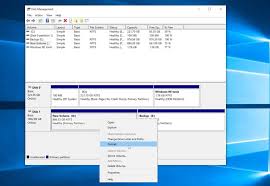
Formatting Windows 10 means erasing all the data and programs on your computer’s hard drive and reinstalling the operating system. This process can be useful if you’re experiencing software issues, malware infections, or simply want to start fresh with a clean installation of Windows 10.
Pre-formatting Operations: Why You Need to Backup Your Data
Before we dive into the formatting process, it’s essential to backup your data. Formatting Windows 10 will erase all files and programs on your computer, including personal documents, photos, and videos. To avoid losing important information, make sure to create a backup of your data using an external hard drive or cloud storage services like Google Drive or OneDrive.
Restoring Windows 10: A Soft Alternative
Instead of formatting Windows 10 entirely, you can try restoring the operating system using built-in recovery tools. This method is more suitable for minor issues and won’t erase any data. You can use the “Reset this PC” feature to restore Windows 10 to its factory settings or opt for a soft reset that only affects application data.
Formatting Windows 10 With Dvd
If you have a Windows 10 installation DVD, you can use it to format your computer. To do so:
- Insert the DVD into your computer’s CD/DVD drive.
- Restart your computer and enter the BIOS settings (usually by pressing F2 or Del).
- Save the changes and exit the BIOS settings.
- The Windows 10 installation process will begin automatically.
Formatting Windows 10 With Usb
If you don’t have a DVD, you can create a bootable USB drive using Microsoft Media Creation Tool. To do so:
- Download the tool from Microsoft’s website.
- Run the tool and select “Create media for another PC.”
- Choose the language, edition, and architecture of Windows 10.
- Create the installation media on your USB drive.
Formatting Windows 10 With Bios
Another way to format Windows 10 is by using the BIOS settings. This method requires you to access the UEFI settings (usually by pressing F2 or Del) and create a bootable device from the Windows 10 installation media. Be cautious when performing this process, as it may erase your data.
How to Format Windows 10 Without Losing License
If you’re worried about losing your Windows 10 license during the formatting process, fear not! If you have a digital license or a product key associated with your Microsoft account, you can still format Windows 10 without losing access to the operating system.
Formatting Windows 10 From Command Prompt
In some cases, you may need to use the command prompt to format Windows 10. This method is usually used when other recovery methods fail or when you’re experiencing issues with the installation process.
How to Format Windows 10 Without Password
If your computer’s password has been lost or forgotten, you can still format Windows 10 using built-in recovery tools like WinRE (Recovery Environment). To access this feature:
- Press the power button on your computer immediately after turning it off.
- Wait for about 30 seconds before restarting your computer again.
Conclusion
Formatting Windows 10 is a straightforward process that requires careful consideration and preparation. Before proceeding, ensure you have backed up your data, and explore other recovery methods to avoid losing essential information. Remember to follow the step-by-step guides provided in this article to ensure a smooth formatting experience.
Frequently Asked Questions (FAQs)
- Q: What Happens When I Format Windows 10?
A: Formatting Windows 10 erases all data and programs on your computer’s hard drive, including personal files, documents, photos, and videos. - Q: How do I Backup my Data Before Formatting Windows 10?
A: You can use an external hard drive or cloud storage services like Google Drive or OneDrive to create a backup of your data. - Q: Can I Restore Windows 10 Without Formatting The Entire Operating System?
A: Yes, you can try restoring Windows 10 using built-in recovery tools or opt for a soft reset that affects application data only. - Q: How do I Format Windows 10 With Dvd?
A: Insert the Windows 10 installation DVD into your computer’s CD/DVD drive and restart your computer to initiate the installation process. - Q: Can I Format Windows 10 Using Usb?
A: Yes, you can create a bootable USB drive using Microsoft Media Creation Tool or Rufus software. - Q: How do I Access The Bios Settings to Format Windows 10 From There?
A: Access the UEFI settings (usually by pressing F2 or Del) and follow the on-screen instructions to create a bootable device from the Windows 10 installation media. - Q: Will Formatting Windows 10 Affect my License?
A: If you have a digital license or product key associated with your Microsoft account, you can still format Windows 10 without losing access to the operating system.
We hope this comprehensive guide has helped you understand the process of formatting Windows 10. Remember to exercise caution and patience when performing these operations to avoid any potential issues.


