
How to Format Windows 7 Without a CD
Are you facing difficulties in formatting your Windows 7 laptop due to the broken DVD drive? Do you want to reinstall Windows 7 on an old PC without a CD/DVD drive? Don’t worry, it’s not an impossible mission! In this article, we will guide you through the process of formatting Windows 7 without a CD.
Preliminary Operations
Before starting with the tutorial, there are some preliminary operations that need to be accomplished. First, considering that the formatting procedure deletes all data on the computer in an irretrievable manner, it’s highly recommended to carry out a backup of any important files. You can do this manually by copying your files onto an external hard drive or using a dedicated backup program.
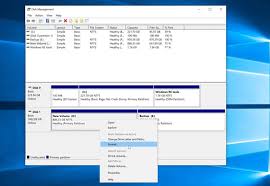
If you want to avoid deleting existing data during the formatting process, you can partition the disk and create a new partition for the new copy of Windows 7. For example, you can create a partition for the operating system and programs, leaving the rest of the disk free for your files.
Formatting Windows 7 Without a CD
To format Windows 7 without a CD, you will need to use the built-in recovery partition on your computer or create a bootable USB drive with the ISO image of the operating system. If you’re using the recovery partition, follow these steps:
- Restart your computer and press the combination of keys indicated for accessing the recovery partition (usually Alt + F10 or Alt + F9). The exact combination may vary depending on your computer model.
- Access the recovery partition and follow the instructions to format your Windows 7 installation.
Creating a Bootable Usb Drive
If you don’t have access to the recovery partition, you can create a bootable USB drive with the ISO image of Windows 7. To do this:
- Download Rufus, a free software that creates bootable USB drives for various operating systems (including Windows).
- Create a new folder on your desktop and extract the ISO image of Windows 7 to it.
- Open Rufus and select your USB drive as the target device.
- Select the ISO image of Windows 7 from the extracted folder and click “Download” to create the bootable USB drive.
Using The Bootable Usb Drive
Once you have created the bootable USB drive, follow these steps:
- Insert the USB drive into your computer and restart it.
- Enter the BIOS settings (usually by pressing F2 or Del) and set the USB drive as the primary boot device.
- Save the changes and exit the BIOS settings.
- The computer will now boot from the USB drive, and you can follow the instructions to format Windows 7.
Reinstalling Windows 7 Without a CD
If your computer doesn’t have a recovery partition or if you prefer not to use it, you can reinstall Windows 7 without a CD by using the bootable USB drive. Follow these steps:
- Insert the USB drive into your computer and restart it.
- The computer will now boot from the USB drive, and you’ll see the installation screen.
- Select the edition of Windows 7 you want to install (e.G., Home Premium or Professional).
- Click “Next” and follow the instructions to complete the installation.
Conclusion
Formatting Windows 7 without a CD is possible with the right tools and procedures. By following these steps, you can create a bootable USB drive or use the built-in recovery partition to reinstall your operating system. Remember to always back up your important files before formatting your computer!
Frequently Asked Questions (FAQs)
- Q: Can I Format Windows 7 Without a CD on an Old Pc?
A: Yes, you can format Windows 7 on an old PC without a CD by using the built-in recovery partition or creating a bootable USB drive. - Q: How do I Create a Bootable Usb Drive With Rufus?
A: To create a bootable USB drive with Rufus, download the software and follow the instructions to select your USB drive, ISO image of Windows 7, and desired settings. - Q: Can I Use an External Hard Drive as a Backup Instead of a Usb Drive?
A: Yes, you can use an external hard drive as a backup instead of a USB drive. Make sure it’s large enough to hold all your important files. - Q: How do I Access The Bios Settings on my Pc?
A: The steps for accessing the BIOS settings may vary depending on your computer model. Check your user manual or online documentation for specific instructions. - Q: Can I Reinstall Windows 7 Without a CD Using an Old Installation Disc?
A: No, you cannot reinstall Windows 7 without a CD using an old installation disc. You’ll need to create a new bootable USB drive with the ISO image of Windows 7. - Q: Will Formatting my PC Delete All my Files And Programs?
A: Yes, formatting your PC will delete all data on the computer in an irretrievable manner. Make sure you have backups before proceeding! - Q: Can I Use a Usb Drive That’s Smaller Than 4 GB to Create a Bootable Drive For Windows 7?
A: No, it’s recommended to use a USB drive with at least 8 GB of free space to ensure the installation process completes successfully. - Q: How Long Does it Take to Format And Reinstall Windows 7 on my Pc?
A: The time required to format and reinstall Windows 7 may vary depending on your computer specifications and internet connectivity. On average, it should take around 30 minutes to an hour.


