
How to Format Windows XP Without a CD
Are you tired of dealing with the constant problems that come with using an outdated operating system? Do you want to be able to format your computer without having to rely on a physical CD? Look no further! In this article, we will guide you through the process of formatting Windows XP without a CD.
The Risks of Using Windows XP
Before we dive into the steps, it’s essential to understand that using Windows XP is not recommended. The operating system is outdated and no longer receives updates from Microsoft. This means that your computer is vulnerable to security risks and potential threats. However, if you still want to use Windows XP for some reason, we will provide a step-by-step guide on how to format it without a CD.
Step 1: Create a Usb Installation Drive
The first step in formatting Windows XP without a CD is to create a special USB installation drive. This drive will contain all the necessary files to recover your operating system. To do this, you’ll need:
- A USB drive with at least 1 GB of blank space
- An image ISO of the Windows XP CD
- A program to mount the file ISO (such as ImgBurn)
- A program to transfer the installation file of Windows XP onto the pendrive (such as Rufus)
Step 2: Create an Image Iso of The Windows XP CD
If you don’t have a physical copy of the Windows XP CD, you can try searching for it online or create your own using another computer. One way to do this is by using ImgBurn, a free program that allows you to masterize image ISOs in a very easy and swift manner.
Step 3: Download And Install Rufus
Once you have the image ISO of the Windows XP CD, you’ll need to download and install Rufus, a free program that can create a bootable USB drive from an ISO file. To do this, click on this link to download the program and follow the instructions.
Step 4: Create The Bootable Usb Drive
Using Rufus, select the image ISO of Windows XP and choose the correct unit (the pendrive). Then, select the partition type as MBR for BIOS and UEFI-CSM. Click on the icon with two CDs in low to the right and select the image ISO of Windows XP. Initiate the creation of your bootable USB drive by clicking on Start and then OK.
Step 5: Boot From The Usb Drive
Once you have created the bootable USB drive, insert it into your computer and restart it without plugging in any other drives. As soon as the computer boots up, press a key to boot from the USB drive (usually F2 or F12). This will initiate the installation process of Windows XP.
Step 6: Follow The Installation Process
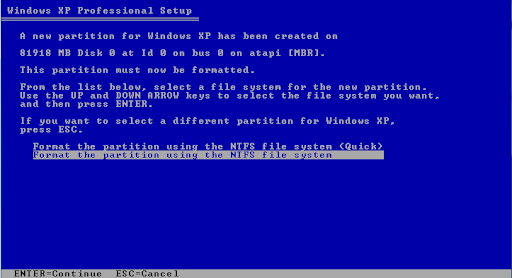
Follow the on-screen instructions to complete the installation process. When prompted to select a partition to format and install Windows XP, choose the correct one. After selecting the partition, click on the “D” key to start formatting. Then, press the “F8” key to accept the conditions of use.
Step 7: Choose Your Settings
Once the installation is complete, you’ll be asked to select your settings for the operating system. If you don’t have any specific requirements, choose the default options and click on Next. Follow the instructions to complete the initial configuration process.
Conclusion
Formatting Windows XP without a CD may seem like a daunting task, but with these steps, it’s easier than ever. However, please note that using an outdated operating system can put your computer at risk of security threats. We recommend upgrading to a newer version of Windows for better performance and security.
Frequently Asked Questions
- Can I Still Use Windows XP if I Don’t Have a Cd?
While we provide a step-by-step guide on how to format Windows XP without a CD, it’s essential to understand that using an outdated operating system can put your computer at risk. - What Are The Risks of Using Windows Xp?
Using Windows XP is not recommended as it no longer receives updates from Microsoft, making your computer vulnerable to security threats and potential threats. - Can I Still Get Support For Windows Xp?
Unfortunately, Microsoft has stopped supporting Windows XP, which means you won’t be able to receive any further updates or support for the operating system. - How do I Know if my Computer is Vulnerable to Security Threats?
If your computer is running an outdated version of Windows, it may be vulnerable to security threats. Make sure to regularly check for updates and use a reputable antivirus program to protect your computer. - Can I Still Upgrade to a Newer Version of Windows?
Yes, you can still upgrade to a newer version of Windows, such as Windows 10 or Windows 11. We recommend doing so for better performance and security.
Recommended Reading
If you’re interested in learning more about how to format your computer without a CD, we recommend checking out our guide on how to create a bootable USB drive using Rufus.


