
How to Format Your Phone Without Losing Any Data
Are you tired of your phone feeling slow and sluggish? Do you want to give it a fresh new start without losing any of your important data? Look no further! In this article, we’ll guide you through the process of formatting your phone without missing out on any crucial information.
Why Format Your Phone?
Formatting your phone can be a great way to resolve temporary problems caused by old age. It’s like giving your device a digital spring cleaning! However, before you start, it’s essential to understand that formatting will erase all data on the device. So, if you’re not ready to lose everything, consider backing up your files first.
Formatting Android Phones
If you’re using an Android phone, follow these steps:
Standard Procedure
- Open the Settings app.
- Tap on the gear icon (Settings) in the Home screen or the Drawer of the device.
- Find and tap on System/Info system.
- Select Restore factory data to delete all settings.
- Continue through the prompts and enter your phone’s unlock code and online account password when necessary.
- Confirm the operation by tapping OK.
Formatting Iphones
If you’re using an iPhone, follow these steps:
Standard Procedure
- Open the Settings app.
- Tap on the gear icon (Settings) in the Home screen or the App Store.
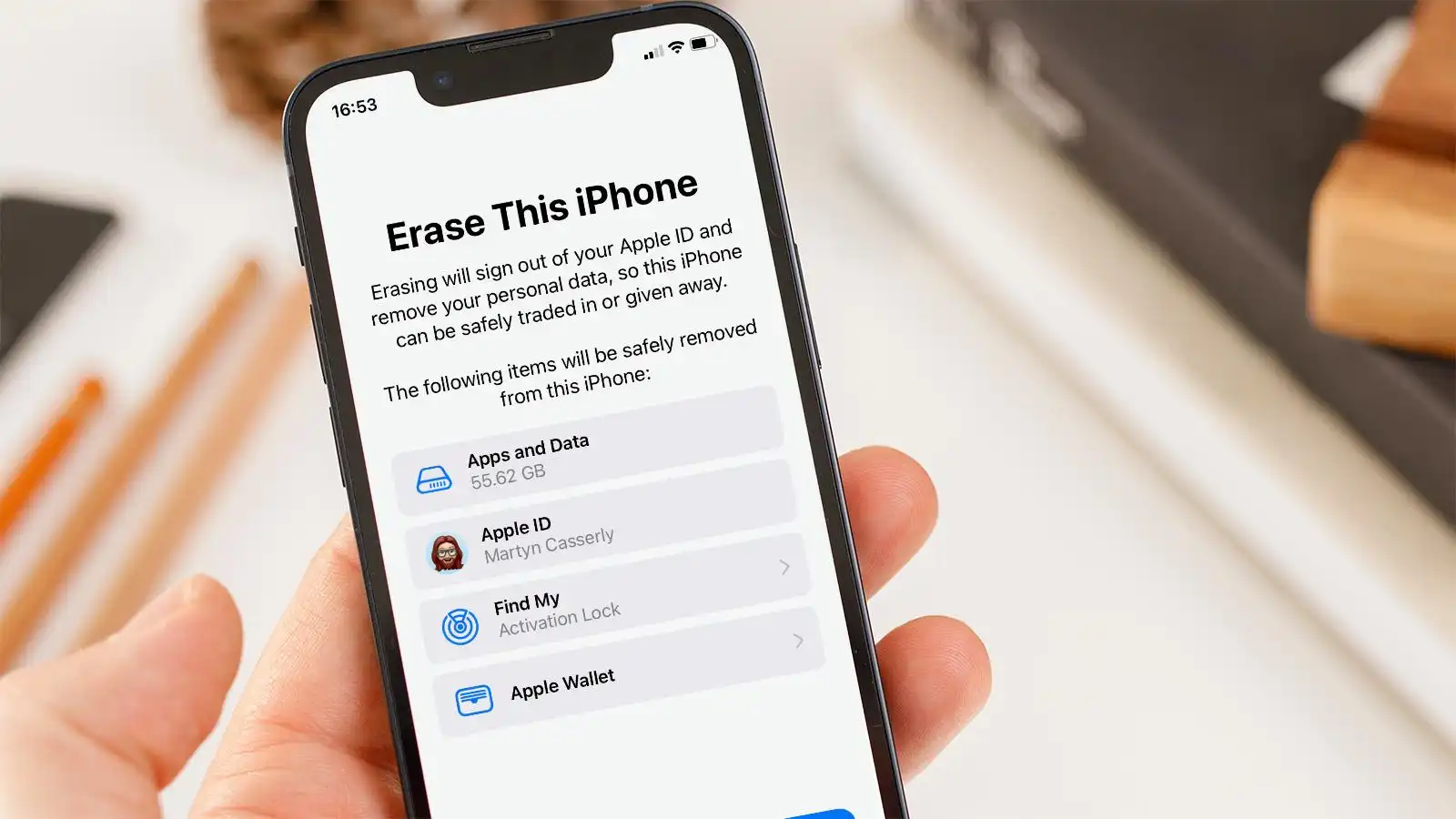
- Select Transfer or Initialize iPhone.
- Choose Erase All Content and Settings to initiate a factory reset.
- Confirm your decision by tapping OK.
Using Emergency Procedures
If you’re unable to complete the standard procedure, don’t worry! You can still format your phone using emergency procedures. For Android phones, follow these steps:
Emergency Procedure
- Go to Settings > General Management > Restore.
- Select Restore All Settings or Erase Entire Data.
- Enter your PIN, code, or password when prompted.
For iPhones, follow these steps:
Emergency Procedure
- Use a computer with iTunes installed to put your iPhone in recovery mode.
- Connect your iPhone to the computer and select Restore from a backup or Restore as new device.
- Follow the on-screen instructions to complete the process.
Using Apple’s Find My Device Service
If you’re unable to access your iPhone, try using Apple’s Find My Device service:
Find My Device Service
- Sign in with your Apple ID and password.
- Select Erase iPhone from the list of devices.
- Confirm your decision by tapping OK.
Tips And Precautions
Before formatting your phone, make sure to:
- Backup your data regularly using cloud services like Google Drive or iCloud.
- Use a backup app to store your passwords and settings.
- Consider using a password manager to secure all your online accounts.
Remember, formatting will erase all data on the device. Make sure you have backed up any important information before proceeding.


