
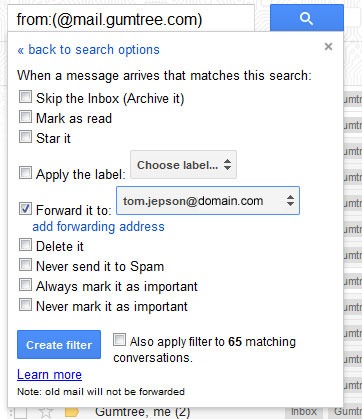
How to Forward Emails on Gmail
Are you tired of manually forwarding emails from your old account to your new Gmail address? Do you want to automate the process without having to lift a finger? Look no further! In this article, we’ll guide you through the simple steps of setting up email forwarding on Gmail.
Why Forward Emails on Gmail?
Forwarding emails on Gmail can be super helpful in several ways:
- Save Time: No more manually forwarding individual emails or worrying about missing important messages.
- Stay Organized: Keep all your emails in one place, making it easier to manage and respond to them.
- Increase Productivity: With automated email forwarding, you’ll have more time to focus on other tasks and activities.
How to Forward Emails on Gmail
Forwarding emails on Gmail is a straightforward process that requires just a few steps:
- Access Your Gmail Account: Log in to your Gmail account using your credentials.
- Click on The Gear Icon: Located in the upper right corner of the page, this icon will take you to the settings menu.
- Select ‘See All Settings’: This option is also located in the gear icon menu and will allow you to access more settings options.
- Scroll Down to ‘Forwarding And Pop/imap’: In this section, you’ll find the option to set up email forwarding.
- Click on ‘Add a Forward Address’: This button is where you’ll enter the new email address you want to forward emails to.
Configuring Email Forwarding
After clicking on ‘Add a forward address,’ follow these steps:
- Enter The New Email Address: Type in the email address you want to forward emails to.
- Choose What Gmail Should do With Forwarded Emails: You can select options like keeping a copy of the emails, marking them as read, or deleting them after forwarding.
- Click on ‘Save Changes’: This button will apply the changes and activate email forwarding.
Forwarding Emails From Other Accounts
Want to forward emails from other accounts, such as Outlook or iCloud, to your Gmail address? It’s also possible! Just follow these steps:
- Access The Account Settings: For Outlook, go to the settings menu by clicking on the gear icon. For iCloud, access the Mail settings.
- Enable Email Forwarding: Follow the instructions provided for each service to set up email forwarding.
- Enter Your Gmail Address: Type in your Gmail address as the forward address.
Troubleshooting Email Forwarding
Having trouble setting up or using email forwarding? Don’t worry! Here are some troubleshooting tips:
- Check Your Account Settings: Ensure that email forwarding is enabled for both your Gmail and other accounts.
- Verify Your Email Addresses: Double-check the email address you entered as the forward address.
- Contact Support: Reach out to the respective service’s support team for assistance.
Conclusion
Forwarding emails on Gmail can be a game-changer for streamlining your email management process. By following these simple steps, you’ll be able to automate the forwarding of emails from other accounts and services to your Gmail address. Happy forwarding!
Faqs
Here are some frequently asked questions about forwarding emails on Gmail:
Q: How do I Set up Email Forwarding on Gmail?
A: To set up email forwarding on Gmail, follow these steps: Access your Gmail account, click on the gear icon, select ‘See all settings,’ scroll down to ‘Forwarding and POP/IMAP,’ and click on ‘Add a forward address.’
Q: Can I Forward Emails From Other Accounts to my Gmail Address?
A: Yes, you can forward emails from other accounts, such as Outlook or iCloud, to your Gmail address. Just follow the steps outlined in the article for each service.
Q: Why am I Not Receiving Forwarded Emails on my Gmail Account?
A: Make sure that email forwarding is enabled for both your Gmail and other accounts. Also, double-check the email address you entered as the forward address.
Q: How do I Troubleshoot Issues With Email Forwarding?
A: Check your account settings, verify your email addresses, and contact support if needed.
Q: Can I Set up Filters to Forward Emails Based on Specific Criteria?
A: Yes, you can create filters to forward emails based on specific parameters. This feature is available in the Gmail settings menu.
Q: How do I Disable Email Forwarding on my Gmail Account?
A: To disable email forwarding on your Gmail account, go to the ‘Forwarding and POP/IMAP’ section of the settings menu and click on ‘Remove a forward address.’


