
How to Forward Messages on Whatsapp: A Step-by-step Guide
Are you tired of manually forwarding messages on WhatsApp? Look no further! In this article, we will guide you through the process of forwarding messages on WhatsApp, whether you’re using an Android or iPhone device.
Understanding How to Forward Messages on Whatsapp
Before we dive into the step-by-step guide, it’s essential to understand how forwarding messages works on WhatsApp. When you forward a message, it is labeled as “Forwarded” so that the recipient knows it was not sent by the original sender. This feature helps maintain the privacy of the original sender.
How to Forward Messages on Whatsapp: Android
If you have an Android device and want to forward messages on WhatsApp, follow these steps:
- Access Your Whatsapp Conversation: Open WhatsApp and navigate to the chat where you want to forward a message.
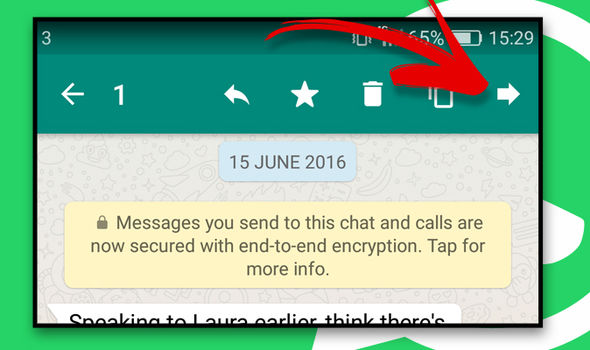
- Select The Message(s): Tap and hold on the message you want to forward until a menu appears. Select “Forward” from this menu.
- Choose The Recipient(s): In the next screen, select the contact(s) you want to forward the message to. You can choose up to 5 contacts at a time.
- Tap Forward: Tap the “Forward” button to send the message.
How to Forward Messages on Whatsapp: Iphone
If you’re using an iPhone and want to forward messages on WhatsApp, follow these steps:
- Access Your Whatsapp Conversation: Open WhatsApp and navigate to the chat where you want to forward a message.
- Tap And Hold on The Message: Tap and hold on the message until a menu appears. Select “Forward” from this menu.
- Select The Recipient(s): In the next screen, select the contact(s) you want to forward the message to. You can choose up to 5 contacts at a time.
- Tap Forward: Tap the “Forward” button to send the message.
How to Forward Messages on Whatsapp: PC
If you’re using a PC and want to forward messages on WhatsApp, follow these steps:
- Open Whatsapp Web: Open WhatsApp Web on your browser.
- Select The Conversation: Select the chat where you want to forward a message.
- Tap And Hold on The Message: Tap and hold on the message until a menu appears. Select “Forward” from this menu.
- Select The Recipient(s): In the next screen, select the contact(s) you want to forward the message to. You can choose up to 5 contacts at a time.
- Tap Forward: Tap the “Forward” button to send the message.
Can I Forward Messages on Whatsapp to Multiple People?
Yes, you can forward messages on WhatsApp to multiple people, but there’s a limit of 5 contacts per forward. If you want to forward messages to more than 5 people, you’ll need to create a group chat and add them to it.
How Do I Know if a Message Has Been Forwarded?
When you forward a message on WhatsApp, it is labeled as “Forwarded” so that the recipient knows it was not sent by the original sender. This helps maintain the privacy of the original sender.
Can I Export My Whatsapp Conversation And Send it Via Email?
Yes, you can export your entire WhatsApp conversation and send it via email. To do this:
- Open Whatsapp: Open WhatsApp on your device.
- Go to Settings: Go to settings > Chats.
- Select The Conversation: Select the chat you want to export.
- Tap Export Chat: Tap “Export Chat” and select a format (such as CSV or HTML).
- Email The File: Email the exported file to yourself or someone else.
Conclusion
Forwarding messages on WhatsApp is a convenient way to share information with multiple people at once. By following these simple steps, you can forward messages on WhatsApp whether you’re using an Android or iPhone device. Remember to respect the original sender’s privacy by labeling forwarded messages as such.


