
Discharging The Memory of Your Mobile: A Step-by-step Guide
Are you tired of running out of memory on your smartphone? Do you find yourself constantly deleting apps and files to free up space? Look no further! In this article, we will guide you through the process of discharging the memory of your mobile device, covering both Android and iOS devices.
Why Discharge The Memory of Your Mobile Device?
Discharging the memory of your mobile device is essential for maintaining its performance and preventing it from slowing down over time. When your device runs out of memory, it can lead to a range of issues, including:
- Slow loading times
- Frequent app crashes
- Difficulty running multiple apps simultaneously
How to Discharge The Memory of Your Android Device
Discharging the memory of an Android device is relatively straightforward and involves several steps. Here’s how you can do it:
1. Uninstall Unused Apps
Uninstalling unused apps is one of the most effective ways to free up space on your Android device. To do this, follow these steps:
- Go to Settings > Storage
- Select the app you want to uninstall and tap on the “Uninstall” button
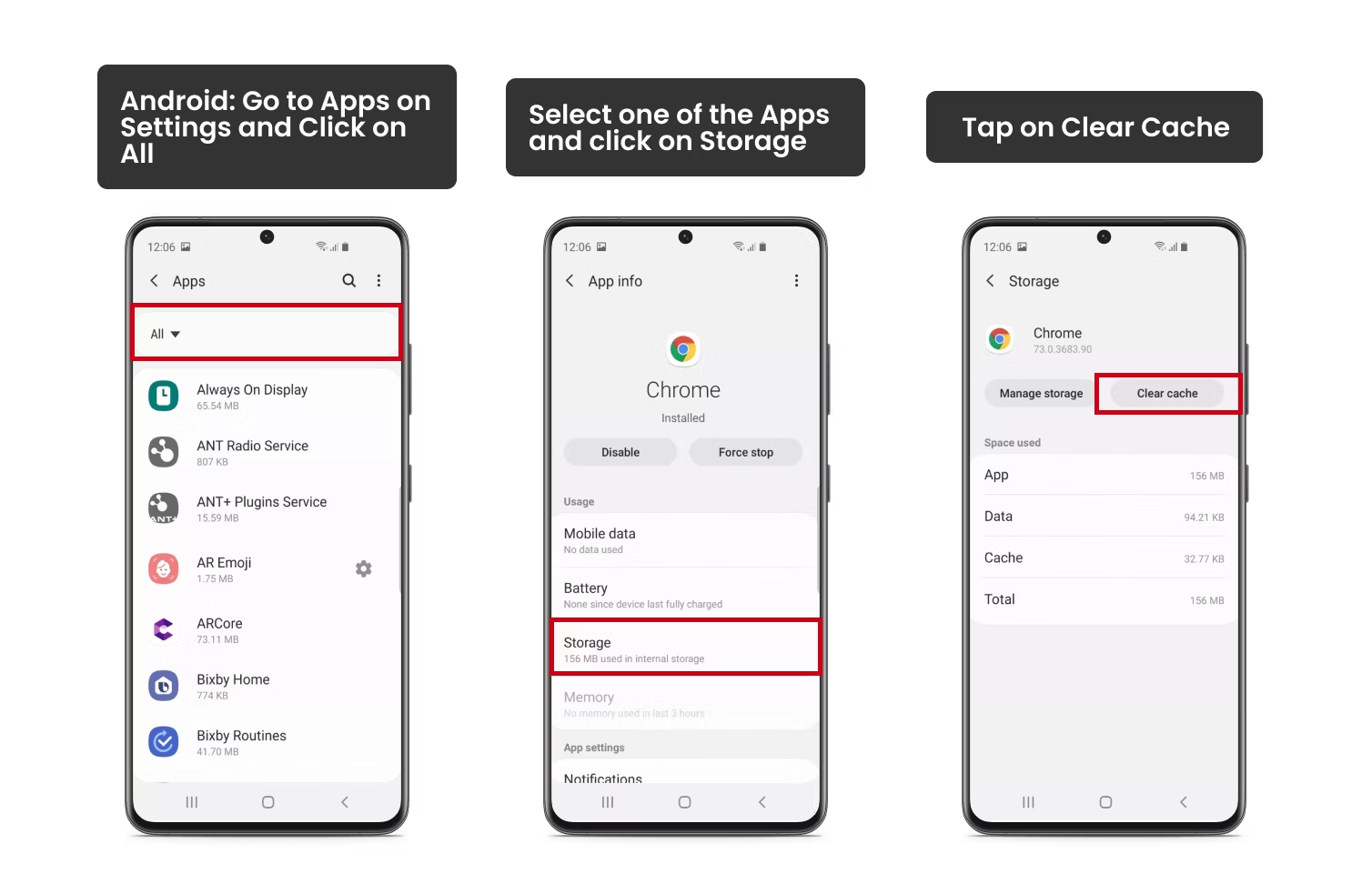
2. Clear Cache And Data
Clearing cache and data from apps can also help free up space on your device. Here’s how you can do it:
- Go to Settings > Storage
- Tap on the “Cached data” option
- Select the app you want to clear cache and data for and tap on the “Clear cache” button
3. Use an App Cleaning Tool
Using an app cleaning tool, such as Files by Google, can help you clean up your device’s memory more efficiently. Here’s how you can use it:
- Download and install Files by Google from the Play Store
- Launch the app and tap on the “Erase” button
- Select the type of files you want to erase (e.G., Videos, photos, etc.)
4. Clear Browser History
Clearing browser history can also help free up space on your device. Here’s how you can do it:
- Go to Settings > Storage
- Tap on the “Cached data” option
- Select the browser app and tap on the “Clear cache” button
How to Discharge The Memory of Your Ios Device
Discharging the memory of an iOS device is also relatively straightforward. Here’s how you can do it:
1. Uninstall Unused Apps
Uninstalling unused apps is one of the most effective ways to free up space on your iOS device. To do this, follow these steps:
- Go to Settings > General
- Tap on the “iPhone Storage” option
- Select the app you want to uninstall and tap on the “Delete App” button
2. Clear Browser History
Clearing browser history can also help free up space on your device. Here’s how you can do it:
- Go to Settings > Safari
- Tap on the “Clear History and Website Data” option
3. Use a Cloud Storage Service
Using a cloud storage service, such as iCloud or Google Drive, can help you store and access your files without taking up space on your device.
Additional Tips For Discharging The Memory of Your Mobile Device
In addition to these steps, here are some additional tips that can help you discharge the memory of your mobile device:
- Use a Memory-saving App: There are several apps available that can help you clean up your device’s memory more efficiently. One such app is SD Maid.
- Clear System Cache: Clearing system cache can also help free up space on your device. To do this, follow these steps:
- Go to Settings > Storage
- Tap on the “Cached data” option
- Select the “System Cache” option and tap on the “Clear cache” button
- Delete Unnecessary Files: Deleting unnecessary files can also help free up space on your device. To do this, follow these steps:
- Go to Settings > Storage
- Tap on the “Files” option
- Select the file you want to delete and tap on the “Delete” button
Conclusion
Discharging the memory of your mobile device is essential for maintaining its performance and preventing it from slowing down over time. By following these steps, you can free up space on your Android or iOS device and ensure that it continues to run smoothly.
Frequently Asked Questions (FAQs)
Q: How often should I discharge the memory of my mobile device?
A: You should discharge the memory of your mobile device every few months, depending on how frequently you use it.
Q: What are some common reasons why my mobile device runs out of memory?
A: Common reasons for running out of memory include uninstalling unused apps, clearing cache and data, using a cloud storage service, and deleting unnecessary files.
Q: Can I discharge the memory of my mobile device without deleting any files or apps?
A: Yes, you can discharge the memory of your mobile device without deleting any files or apps. You can simply clear cache and data from apps, use an app cleaning tool, and clear browser history.
Q: How do I prevent my mobile device from running out of memory in the future?
A: To prevent your mobile device from running out of memory in the future, make sure to regularly uninstall unused apps, clear cache and data from apps, and delete unnecessary files.
Q: Can I use a cloud storage service to store and access my files without taking up space on my device?
A: Yes, you can use a cloud storage service, such as iCloud or Google Drive, to store and access your files without taking up space on your device.
Q: How do I clear system cache on my mobile device?
A: To clear system cache on your mobile device, follow these steps:
+ Go to Settings > Storage
+ Tap on the “Cached data” option
+ Select the “System Cache” option and tap on the “Clear cache” button
Q: How do I delete unnecessary files on my mobile device?
A: To delete unnecessary files on your mobile device, follow these steps:
+ Go to Settings > Storage
+ Tap on the “Files” option
+ Select the file you want to delete and tap on the “Delete” button


