
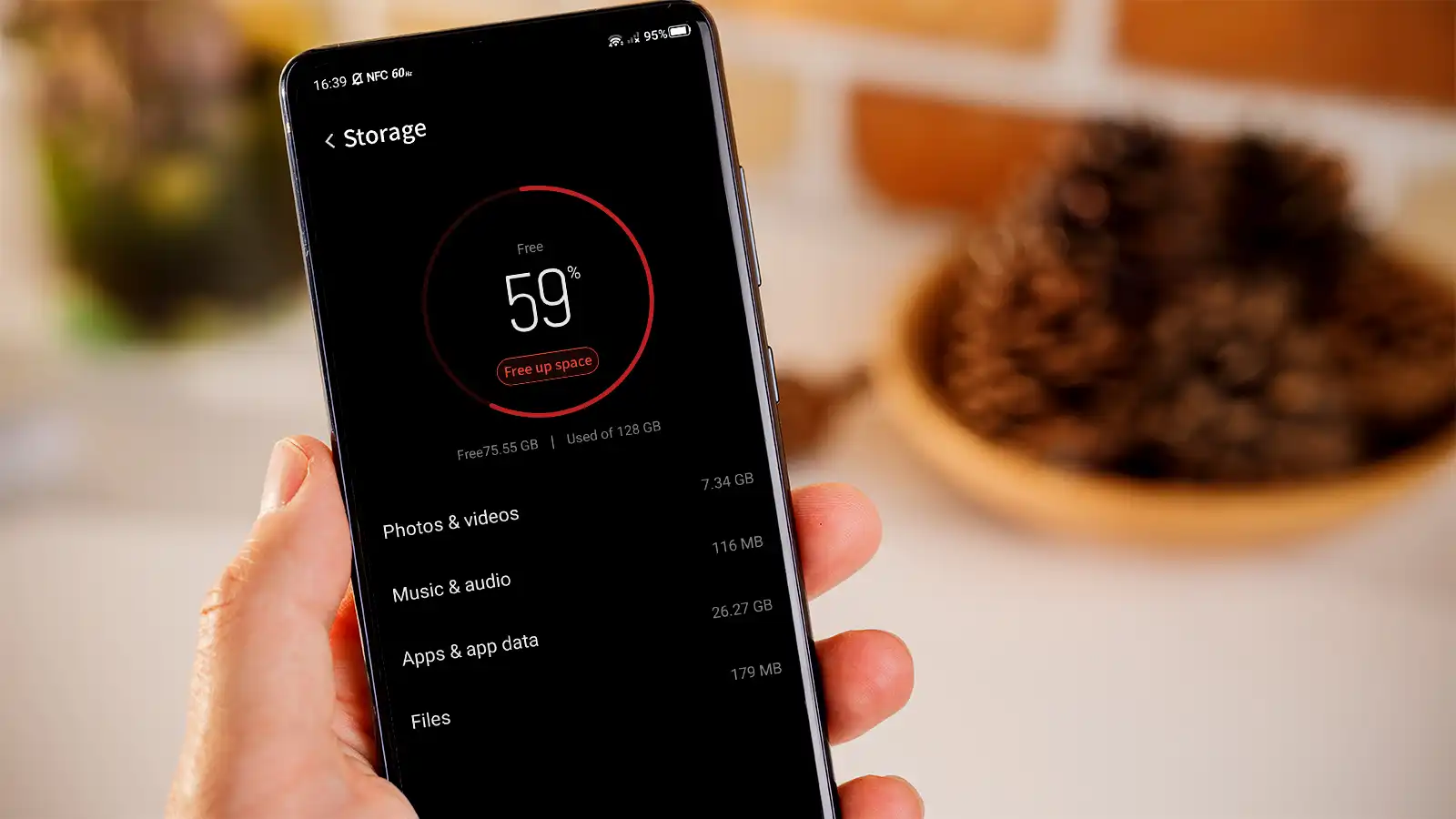
How to Clean Up Storage on Android: A Step-by-step Guide
Are you tired of seeing a full storage warning on your Android device? Do you want to know how to free up space without losing any important data or apps? Look no further! In this article, we will guide you through the process of cleaning up storage on your Android device.
Why Clean Up Storage on Android?
Before we dive into the steps, let’s quickly discuss why cleaning up storage on Android is essential. When your device’s internal memory gets full, it can lead to slow performance, battery drain, and even crashes. By freeing up space, you’ll be able to:
- Improve device speed and responsiveness
- Reduce battery consumption
- Avoid data loss due to lack of storage
- Keep your device running smoothly
Method 1: Using a Microsd Card
One of the easiest ways to clean up storage on Android is by using an external microSD card. If you have a smartphone that supports expandable memory, inserting a microSD card can help free up internal space.
To do this:
- Check if Your Device Supports Expandable Memory: Look for a microSD card slot on the side or top of your phone.
- Purchase a Suitable Microsd Card: Buy a high-capacity microSD card that suits your needs (at least 64GB).
- Insert The Microsd Card: Place the card into the slot, and it should be recognized by your device.
- Move Files to The Microsd Card: Transfer photos, videos, music, and documents to the external storage.
Method 2: Using Cloud Storage
If you don’t have a microSD card or prefer not to use one, cloud storage is an excellent alternative. Google Photos is a popular option that allows you to back up your photos and videos directly to the cloud.
To do this:
- Sign in to Google Photos: Create an account or log in if you already have one.
- Enable Backup: Go to Settings > Backup & sync, and turn on automatic backups for photos and videos.
- Transfer Files to The Cloud: Let Google Photos handle the uploads, freeing up space on your device.
Method 3: Cleaning Up Cache And Unused Apps
Cache buildup and unused apps can also consume valuable storage space. Here’s how to clean them up:
- Clear Cache And Data: Go to Settings > Storage > Internal Storage > Clear cache and data for each app.
- Uninstall Unused Apps: Remove any unnecessary apps from your device.
- Disable System Updates: If you’re not using a specific update, disable it to save storage space.
Method 4: Using Third-party Apps
Several third-party apps can help with cleaning up storage on Android. Some popular options include:
- Files by Google: A powerful file manager that allows you to clean cache and data, move files to the cloud, and more.
- SD Maid: An all-in-one app cleaner that removes unused system files, cache, and other unwanted items.
Specific Methods For Samsung And Huawei Devices
If you own a Samsung or HUAWEI device, here are some specific methods to clean up storage:
Samsung:
- Open The Settings App: Look for the icon of a cogwheel.
- Go to Device Maintenance: Find this section and tap on it.
- Run an Analysis: Allow your device to scan for issues.
- Optimize Now: Click on this option to free up storage space.
Huawei:
- Launch The Settings App: Find the icon of a cogwheel.
- Go to Storage: Look for this section and tap on it.
- Click on Cleanup: Choose from various options to clean up storage space.
- Run an Analysis: Allow your device to scan for issues.
Conclusion
Cleaning up storage on Android is essential for maintaining device performance, battery life, and overall user experience. By following the methods outlined in this article, you should be able to free up valuable space without losing any important data or apps.
Frequently Asked Questions (FAQs)
- What Happens if I Run Out of Internal Storage?
Running out of internal storage can cause your device to slow down, become unresponsive, and even crash. - Can I Use a Microsd Card on All Android Devices?
Not all Android devices support expandable memory. Check your device’s specifications before purchasing a microSD card. - How do I Move Files From my Internal Storage to The Cloud?
Use cloud storage services like Google Photos or Dropbox to upload files and free up space on your device. - Can I Uninstall System Updates to Save Storage Space?
Yes, you can disable system updates to save storage space. However, this may compromise security and cause issues with future software updates.
We hope this article has helped you learn how to clean up storage on Android! If you have any further questions or need more guidance, feel free to ask in the comments section below.


