
How to Free Up Memory Ram: A Comprehensive Guide
Are you tired of your computer or smartphone slowing down due to limited memory RAM? Look no further! In this article, we will explore the ins and outs of freeing up memory RAM on various devices, including PCs, Macs, Android smartphones, and iPhones.
Why Is It Important to Free Up Memory Ram?
Before we dive into the nitty-gritty, let’s quickly discuss why it’s essential to free up memory RAM. When your device runs low on RAM, it can lead to slow performance, crashes, and even freezes. This is especially true for devices with limited RAM capacity.
How to Free Up Memory Ram on Pcs
If you’re using a PC, there are several ways to free up memory RAM:
- Update Your Operating System: Ensure your PC is running the latest version of Windows (Windows 10 or 11). These updates often include improvements in memory management.
- Use Task Manager: Press Ctrl+Alt+Canc on your keyboard and select “Task Manager” from the menu. This will show you all running processes, and you can close unnecessary ones to free up RAM.
- Disable Unnecessary Startup Programs: Go to Settings > Apps > Startup, and disable any programs that are not essential for your daily use.
- Use Lightweight Alternatives: Consider using lightweight alternatives to resource-intensive software, such as AbiWord instead of Microsoft Word.
How to Free Up Memory Ram on Macs
If you’re using a Mac, here’s how to free up memory RAM:
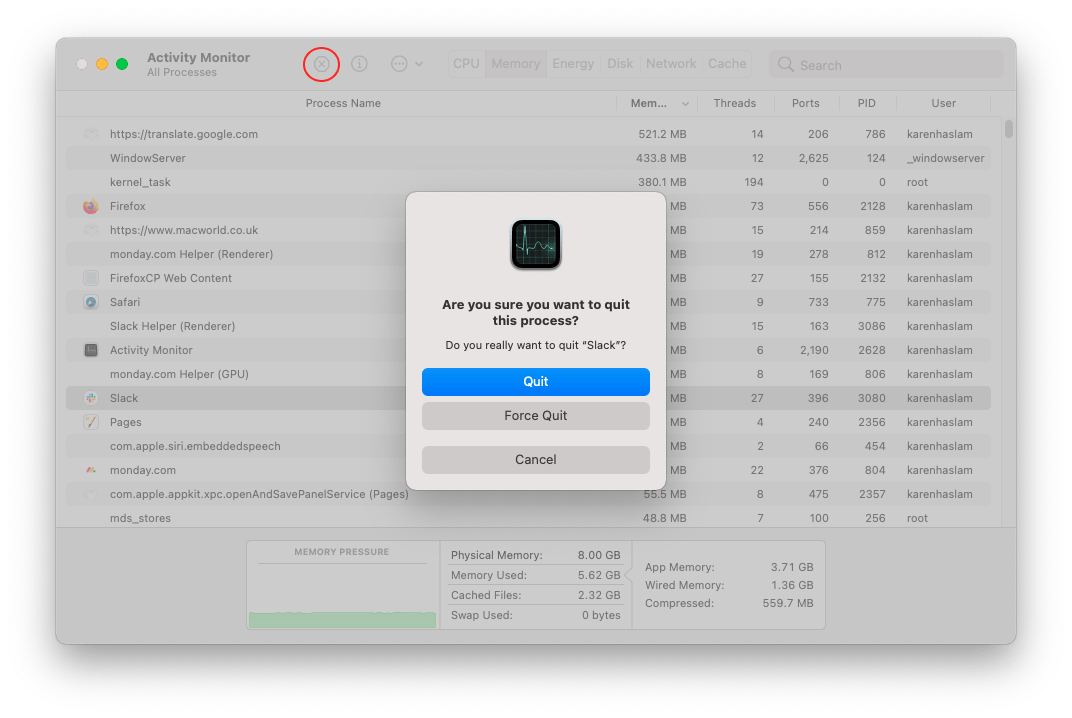
- Monitor Activity Monitor: Open the Activity Monitor app (located in the Applications/Utilities folder) and click on the “Memory” tab. This will show you all running processes, and you can close unnecessary ones to free up RAM.
- Use The Command Purge: In the Terminal app, type
sudo purgeand press Enter. This will remove temporary files and free up memory RAM. - Use Cleanmymac X: This third-party cleaning tool can help clean up your Mac’s hard drive, free up RAM, and improve overall performance.
How to Free Up Memory Ram on Android Smartphones
If you’re using an Android smartphone, here’s how to free up memory RAM:
- Close Unnecessary Apps: Go to the Recent apps menu (usually found by swiping up or down from the bottom of the screen) and close any unnecessary apps.
- Use Built-in Cleaning Tools: Some Android devices come with built-in cleaning tools, such as Samsung’s “Optimize” feature or Huawei’s “Optimizer.”
- Clear Cache: Go to Settings > Storage > Internal storage > Cached data and clear any cached data.
How to Free Up Memory Ram on Iphones
If you’re using an iPhone, here’s how to free up memory RAM:
- Don’t Close Apps in The Background: Resist the temptation to close apps that are running in the background, as this can actually decrease performance.
- Close Resource-intensive Apps: If you’re experiencing slow performance, try closing any resource-intensive apps (such as games).
- Use Built-in Cleaning Tools: While not necessary on iPhones, some users may find it helpful to use third-party cleaning tools.
Conclusion
Freeing up memory RAM is an essential step in maintaining your device’s performance and extending its lifespan. By following these tips for PCs, Macs, Android smartphones, and iPhones, you can ensure that your device runs smoothly and efficiently.
Frequently Asked Questions (FAQs)
Q: What happens if I free up too much memory RAM?
A: Freeing up too much memory RAM can lead to performance issues, as some processes may struggle to run with limited resources.
Q: How often should I free up memory RAM?
A: Depending on your usage patterns, you may need to free up memory RAM daily or weekly. However, if you’re experiencing frequent crashes or slow performance, it’s likely that your device is running low on RAM.
Q: Can I use third-party cleaning tools to free up memory RAM?
A: While some users swear by these tools, they can also pose risks (such as malware) and may not be effective in all situations. Always exercise caution when installing third-party software.
Q: How do I know if my device is running low on RAM?
A: Look for signs such as slow performance, frequent crashes, or high memory usage indicators on your device’s home screen.
Q: Can I upgrade my device’s RAM?
A: This depends on the device itself and its manufacturer. Some devices may have expandable RAM options, while others may not.
Q: Are there any risks associated with freeing up memory RAM?
A: Generally no, but be cautious when using third-party cleaning tools or closing essential apps.
Final Thoughts
Freeing up memory RAM is a straightforward process that can significantly improve your device’s performance. By following these guidelines for PCs, Macs, Android smartphones, and iPhones, you’ll be well on your way to enjoying faster, smoother performance from your device.


