
Preliminary Information
Before getting to the heart of this tutorial and explaining how to free up space on Google Drive, it might be useful to know which files occupy the storage space on Google’s famous cloud storage service and which ones do not.
All the files (e.G. PDF, images, videos) that you have personally uploaded to Google Drive and which are available in the “my drive” section occupy the storage space available to you. However, files that you do not own (e.G. Public files or files that have been shared with you) but which you may have added to folders you created do not occupy it.
Among the elements that do not take up space there are also files created with the free web applications made available by Google, such as documents, sheets, presentations, Google Forms and Google Sites, and all the files available in the “shared with me” section of google drive: The latter only occupy space in the file owner’s drive.
How to Free up Space on Google Drive From Computer
To free up space on Google Drive from your computer, follow these instructions:
-
Connect to the main Google Drive page and log in with your Google account.
-
In the “choose an account” screen, select the account you are interested in (or choose the “use another account” option to log in with a Google account other than those listed).
-
Enter the password in the appropriate field and press the “next” button to access drive.
-
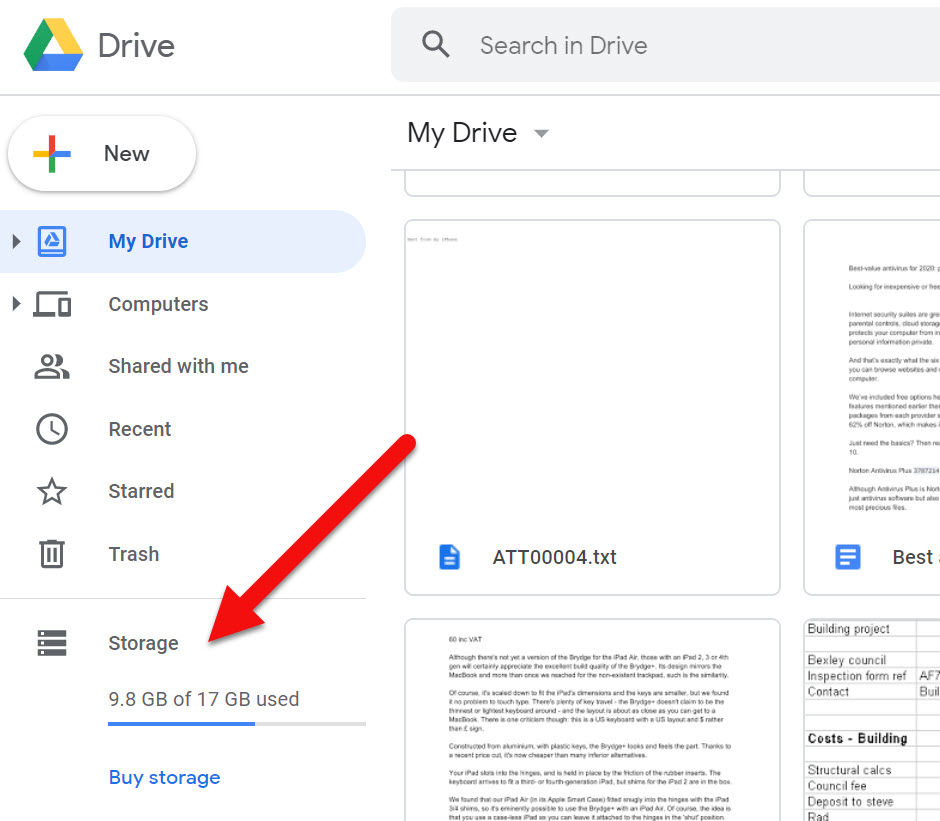
In the new opened page, at the bottom left, view the space used and the total space available to you (Google offers 15 GB of free storage space).
-
Click on the “storage” option to view all items taking up space sorted by size (from the file that takes up the most space to the file that takes up the least space).
-
If you intend to delete a file, right-click on the item you are interested in and select the “remove” option from the menu that opens.
-
To delete multiple files at the same time, select them and press the trash can icon that appears at the top.
-
Before deleting a file, if you want to save a copy of it on your computer, you can select the “download” option.
-
For more information on this, I leave you with my guide on how to recover files from Google Drive.
-
If you intend to delete all the files in the trash, click on the “trash” item and select the “empty trash twice in a row” option.
-
To speed up the operation, you can also select multiple files at the same time, click on the trash can icon, at the top right, and press the “permanently delete” button.
How to Free up Space on Google Drive From Smartphones And Tablets
To free up space on Google Drive from smartphones and tablets, follow these instructions:
-
Launch the official Drive app for Android or iPhone/iPad devices.
-
Tap the ☰ button at the top left and select the “space” option from the menu that opens.
-
If you intend to delete a file, tap on the three dots icon relating to the file to be deleted and press on the “remove” item from the menu that is proposed to you.
-
To delete multiple files at the same time, make a long tap on a single file, place the check mark next to all the elements you intend to delete, press on the three dots icon at the top right and select the “remove” option ” from the menu that is proposed to you.
-
Once this is done, press the ☰ button, choose the “trash” item from the displayed menu and locate the file to be permanently deleted.
-
If you intend to delete all the files in the trash can, select the “empty trash twice in a row” option.
How to Increase Space on Google Drive
If you have carefully followed the instructions I have provided in the previous paragraphs but, despite this, the space available to you on Google Drive is still insufficient, you can purchase additional space at any time by activating a Google One subscription.
To do it from your computer, connect to the main Google Drive page and select the “buy storage space” option. Then select the Google One plan best suited to your needs between 100 GB, 200 GB and 2 TB.
To activate your Google One subscription from your smartphone and tablet, launch the Google Drive app for Android or iPhone/iPad devices, select the “space” option from the menu that opens, tap on the three dots icon in top right and choose the “google one” option. Then choose the plan that best suits your needs between 100 GB, 200 GB and 2 TB.
Remember that, if you have second thoughts, you can return to the free Google Drive plan at any time by deactivating the automatic renewal of Google One. To do so, connect to the Google One main page or launch the app for Android devices, select the “settings” option and press on the “cancel subscription” item twice consecutively.
Conclusions
Have you followed the instructions I gave you in the previous paragraphs to the letter, but despite this the space available to you on Google Drive is still insufficient? I’m happy to know that you can always count on me to help you free up space on your Google Drive.
Frequently Asked Questions
-
How Can I Increase Storage Space on Google Drive?
-
Can I Delete Files Synchronized With my Computer From Google Drive?
-
How Can I Free up Space on Gmail And Google Photos to Have More Space on Google Drive?
Answers
-
To increase storage space on Google Drive you can purchase additional space at any time by activating a Google One subscription.
-
Yes, you can delete files synchronized with your computer from Google Drive by following the instructions I have provided in the previous paragraphs.
-
To free up space on gmail and google photos you can delete messages that are no longer useful and empty the spam folder.


