
Windows 10: Your Comprehensive Guide to Gaining Assistance
Are you facing issues with your Windows 10 operating system? Do you need help troubleshooting problems or understanding how to use certain features? Look no further! This article will guide you through the process of gaining assistance in Windows 10, covering various methods and resources available to you.
Introduction
Windows 10 is a powerful operating system that offers numerous features and tools. However, sometimes, even with extensive knowledge, users may encounter difficulties or require guidance on how to use certain aspects of the OS. This article aims to provide you with a comprehensive guide on how to gain assistance in Windows 10, covering various scenarios and resources.
Table 1: Common Issues in Windows 10
| Issue | Description |
|---|---|
| System problems | Errors or issues affecting system performance |
| Program compatibility | Inability to run specific programs or applications |
| Hardware issues | Problems with hardware components, such as drivers or peripherals |
Table 2: [Bolded Title]
Quick Fix Methods For Common Issues
| Method | Description |
|---|---|
| System restart | Basic troubleshooting step to resolve system problems |
| Update and security settings | Checking for updates and ensuring security is enabled |
| Program uninstallation | Removing conflicting programs or applications |
Section 1: Requesting Support From Microsoft
If you’re experiencing issues with your Windows 10 operating system, the first step is to request support from Microsoft. Here’s how:
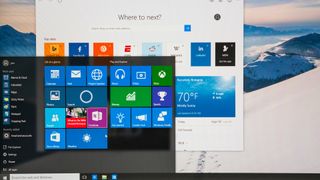
- Open the Start menu by clicking on the Windows logo in the bottom left corner of the screen.
- Type “support” in the search bar and click on the “Get help” option.
- Select the type of issue you’re experiencing, such as system problems or program compatibility issues.
- Follow the prompts to initiate a support request.
Section 2: Using Windows Troubleshooters
Windows 10 comes equipped with built-in troubleshooters that can help resolve common issues. Here’s how to use them:
- Open the Start menu and click on “Settings.”
- Click on “Update & Security” and select “Troubleshoot.”
- Choose the type of issue you’re experiencing, such as system problems or hardware issues.
- Follow the prompts to run a troubleshooter.
Section 3: Remote Assistance in Windows 10
If you need more extensive assistance, consider using remote assistance tools built into Windows 10. Here’s how:
- Open the Start menu and search for “Remote Assistance.”
- Click on the “Get help from someone” option.
- Select a user to assist you, or create an account if needed.
Section 4: Using Alternative Remote Access Tools
If Microsoft’s built-in remote assistance tools aren’t sufficient, consider using alternative remote access tools like TeamViewer, AnyDesk, or Supreme. Here’s how:
- Download and install the desired tool.
- Follow the prompts to initiate a remote session.
- Connect with an expert or user for assistance.
Conclusion
Gaining assistance in Windows 10 is easier than you think! With this comprehensive guide, you’ve learned various methods to troubleshoot common issues, request support from Microsoft, and use built-in troubleshooters. Additionally, we explored alternative remote access tools that can provide more extensive help when needed.
Now that you’re equipped with these knowledge resources, don’t hesitate to seek assistance whenever you need it!
Frequently Asked Questions (FAQs)
Q: How do I request support from Microsoft?
A: Type “support” in the Start menu search bar and follow the prompts to initiate a support request.
Q: What are Windows troubleshooters?
A: Built-in tools that help resolve common issues, such as system problems or hardware issues.
Q: Can I use remote assistance tools on my Windows 10 PC?
A: Yes! Windows 10 has built-in remote assistance tools. Search for “Remote Assistance” in the Start menu to initiate a session.
Q: Are there alternative remote access tools available?
A: Yes! Consider using TeamViewer, AnyDesk, or Supreme for more extensive help when needed.
Q: How do I use the built-in guide for specific software or applications?
A: Press the F1 key on your keyboard while in the program or application to access the guide.
Q: Can I search for answers online?
A: Yes! Use the Windows 10 Start menu’s “Search” feature, or visit Microsoft’s official support website for guidance.
Q: How do I get assistance with specific software or applications?
A: Follow these steps:
1. Press F1 while in the program or application.
2. Access the guide through the program’s menu options (e.G., Help > Guide).
3. Search online using relevant keywords and phrases.
Additional Resources
For more detailed information on Windows 10, its features, and troubleshooting methods, visit Microsoft’s official support website: Https://Support.Microsoft.Com/
Stay informed about the latest updates, security patches, and new features by subscribing to Microsoft’s official blog: Https://Blogs.Windows.Com/


