
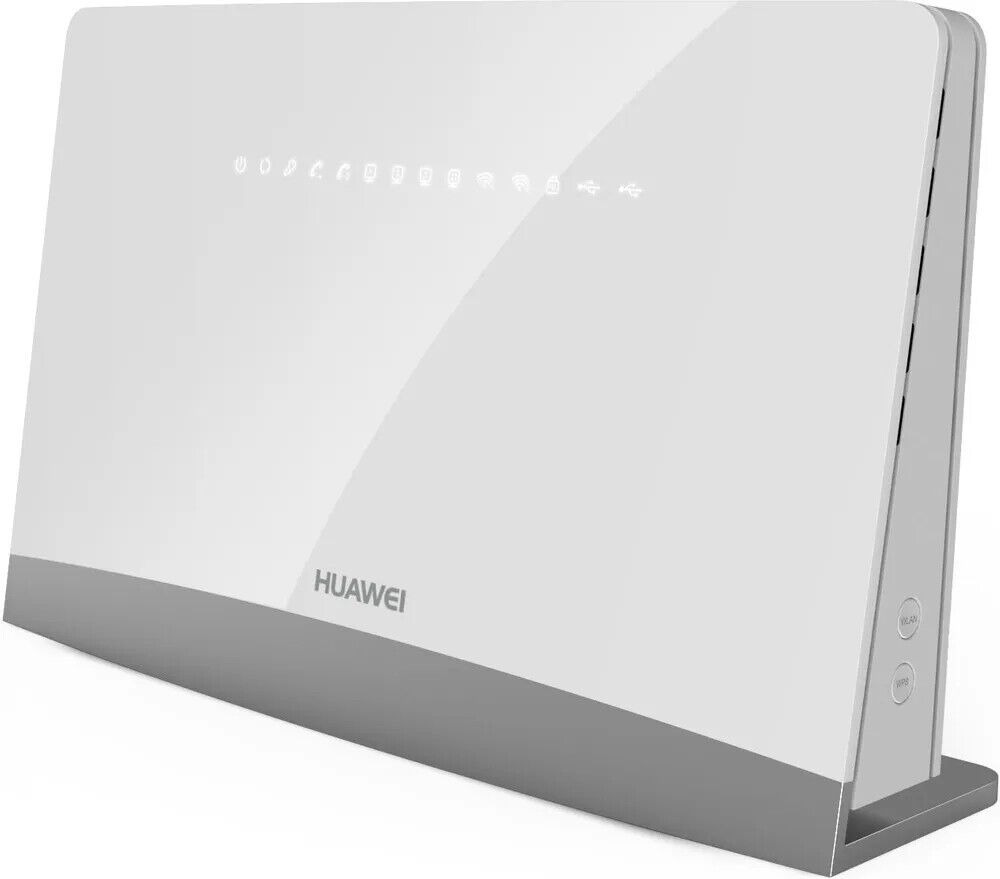
How to Access Your Windtre Modem: A Step-by-step Guide
Are you tired of dealing with a slow internet connection or difficulty accessing your Windtre modem? Look no further! In this article, we will guide you through the process of accessing your Windtre modem, step by step.
Why Accessing Your Modem Matters
Before we dive into the steps, let’s talk about why accessing your modem is important. Your modem is the device that connects your home to the internet, and it needs to be configured correctly for optimal performance. By accessing your modem, you can:
- Check your internet speed
- Update your firmware
- Change your Wi-Fi settings
- Troubleshoot connectivity issues
Step 1: Find The IP Address of Your Modem
The first step in accessing your Windtre modem is to find its IP address. You can do this by following these steps:
- Open a web browser on your computer, smartphone, or tablet.
- Type
http://192.168.1.1In the address bar and press Enter (note: This may vary depending on your specific modem configuration). - If prompted, enter your username and password to access the modem’s settings.
Step 2: Access The Modem’s Settings
Once you have accessed the modem’s IP address, you will be taken to its settings page. From here, you can:
- Check your internet speed
- Update your firmware
- Change your Wi-Fi settings
- Troubleshoot connectivity issues
Step 3: Change Your Wi-fi Settings
If you want to change your Wi-Fi settings, such as the network name or password, follow these steps:
- Click on the “Wireless” tab in the modem’s settings page.
- Select the type of wireless connection you want (e.G., WEP, WPA, WPA2).
- Enter a new network name and password.
Step 4: Update Your Firmware
To keep your modem up to date with the latest security patches and features, follow these steps:
- Click on the “Maintenance” tab in the modem’s settings page.
- Select the option to update your firmware.
- Follow the prompts to download and install the new firmware.
Additional Features of The Windtre Modem
In addition to accessing your Wi-Fi settings and updating your firmware, the Windtre modem also offers other features that can enhance your internet experience. These include:
- Network Monitoring: This feature allows you to monitor your network activity and troubleshoot any issues.
- Firmware Updates: Regularly check for updates to ensure your modem stays secure and up-to-date.
- System Backup: Automatically backup your system settings in case of a software issue.
Troubleshooting Common Issues
If you’re experiencing issues with your Windtre modem, try the following:
- Check that all cables are securely connected.
- Restart your router (if applicable).
- Try resetting your modem to its factory settings.
- Contact Windtre customer support for further assistance.
Conclusion
Accessing your Windtre modem is a straightforward process that can be completed in just a few steps. By following this guide, you’ll be able to configure your modem correctly, troubleshoot connectivity issues, and ensure optimal internet performance. If you have any further questions or concerns, please don’t hesitate to reach out.
Frequently Asked Questions (FAQs)
- What is The IP Address of my Windtre Modem?
The default IP address for most Windtre modems ishttp://192.168.1.1. However, this may vary depending on your specific modem configuration. - How do I Change my Wi-fi Password?
To change your Wi-Fi password, go to the “Wireless” tab in your modem’s settings page and select the type of wireless connection you want (e.G., WEP, WPA, WPA2). Then, enter a new network name and password. - How do I Update my Firmware?
To update your firmware, click on the “Maintenance” tab in your modem’s settings page and select the option to update your firmware. Follow the prompts to download and install the new firmware. - What Are Some Common Issues With Windtre Modems?
Some common issues with Windtre modems include slow internet speeds, connectivity issues, and difficulty accessing the modem’s settings. - How do I Troubleshoot Common Issues With my Windtre Modem?
If you’re experiencing issues with your Windtre modem, try restarting it, checking that all cables are securely connected, or resetting it to its factory settings. If these steps don’t resolve the issue, contact Windtre customer support for further assistance. - Can I Customize my Windtre Modem’s Settings?
Yes! You can customize various settings on your Windtre modem, such as changing your Wi-Fi password or updating your firmware. - What Are Some Additional Features of The Windtre Modem?
Some additional features of the Windtre modem include network monitoring, system backup, and firmware updates.
Additional Resources
- Windtre customer support: Www.Windtre.Com
- Windtre modem user manual: Www.Windtre.Com/docs/modem_user_manual.Pdf


