
How to Pay With Paypal: A Step-by-step Guide
Are you looking for a secure way to pay online? Look no further than PayPal! In this article, we will guide you through the process of paying with PayPal on various platforms, including PC, smartphone, and tablet.
Understanding Paypal
Before we dive into the nitty-gritty, let’s understand what PayPal is. PayPal is an online payment system that allows individuals and businesses to send and receive payments online. It’s a secure way to pay for goods and services without exposing your credit card details.
Paying With Paypal on PC
To start paying with PayPal on your PC, follow these steps:
- Register For a Paypal Account: If you haven’t already, create a PayPal account by visiting their website and following the registration process.
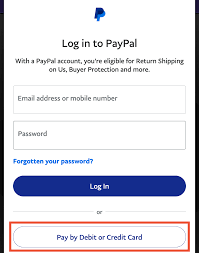
- Log in to Your Account: Once registered, log in to your account using your email address and password.
- Initiate a Payment: Click on the “Request money” button, which can be found in the top right corner of the screen.
- Enter The Recipient’s Details: Enter the name and email address of the person you want to pay.
- Specify The Amount: Enter the amount you want to pay, including any fees or charges.
- Add a Message (optional): If you want to include a message with your payment, enter it in the provided field.
- Click “Request Money”: Click the “Request money” button to send the payment request.
Paying With Paypal on Smartphone And Tablet
If you prefer using your smartphone or tablet to pay online, follow these steps:
- Download The Paypal App: Download the PayPal app from the App Store (for iOS devices) or Google Play Store (for Android devices).
- Log in to Your Account: Log in to your PayPal account using your email address and password.
- Initiate a Payment: Tap on the “Request money” button, which can be found at the bottom of the screen.
- Enter The Recipient’s Details: Enter the name and email address of the person you want to pay.
- Specify The Amount: Enter the amount you want to pay, including any fees or charges.
- Add a Message (optional): If you want to include a message with your payment, tap on the “Message” field and enter it.
- Tap “Request Money”: Tap the “Request money” button to send the payment request.
Paying With Paypal Using Paypal.Me
If you want to pay someone without logging in to your PayPal account, you can use the PayPal.Me service. Here’s how:
- Create a Paypal.Me Link: Log in to your PayPal account and go to the “PayPal.Me” section.
- Enter The Recipient’s Details: Enter the name and email address of the person you want to pay.
- Specify The Amount: Enter the amount you want to pay, including any fees or charges.
- Add a Message (optional): If you want to include a message with your payment, enter it in the provided field.
- Get Your Paypal.Me Link: Click on the “Get link” button to get your personalized PayPal.Me link.
- Share The Link: Share the link with the person you want to pay.
Paying With Paypal on Amazon
Unfortunately, PayPal is not a supported payment method on Amazon. However, you can still use PayPal to make payments on other platforms that support it.
Paying With Paypal on Goton.It
If you’re selling an object on Goton.It and want to use PayPal as your payment method, follow these steps:
- Create a Paypal.Me Link: Log in to your PayPal account and go to the “PayPal.Me” section.
- Enter The Recipient’s Details: Enter the name and email address of the buyer.
- Specify The Amount: Enter the amount you want to receive, including any fees or charges.
- Add a Message (optional): If you want to include a message with your payment, enter it in the provided field.
- Get Your Paypal.Me Link: Click on the “Get link” button to get your personalized PayPal.Me link.
- Share The Link: Share the link with the buyer and wait for them to make the payment.
Paying With Paypal on Ebay
Unfortunately, PayPal is no longer a supported payment method on eBay. However, you can still use PayPal to make payments on other platforms that support it.
Conclusion
In conclusion, paying with PayPal is a simple and secure way to pay online. Whether you’re using your PC, smartphone, or tablet, the process is easy to follow. Remember to always log in to your account, specify the amount, add a message (if desired), and click the “Request money” button to send the payment request.
Frequently Asked Questions
- Q: How do I Create a Paypal Account?
A: To create a PayPal account, visit their website and follow the registration process. - Q: Can I Pay With Paypal on Amazon?
A: Unfortunately, PayPal is not a supported payment method on Amazon. - Q: How do I Use Paypal.Me?
A: To use PayPal.Me, log in to your PayPal account and go to the “PayPal.Me” section. Enter the recipient’s details, specify the amount, add a message (if desired), and get your personalized PayPal.Me link. - Q: Can I Pay With Paypal on Goton.It?
A: Yes, you can use PayPal as your payment method on Goton.It by creating a PayPal.Me link and sharing it with the buyer. - Q: How do I Cancel a Paypal Payment Request?
A: To cancel a PayPal payment request, log in to your account and go to the “Chronology” section. Find the payment request you want to cancel and click on the “Cancel” button. - Q: Can I Pay With Credit Card Using Paypal?
A: Unfortunately, PayPal does not support credit card payments directly. However, some platforms may offer this option through their integration with PayPal. - Q: How do I Get my Money Back if The Buyer Cancels The Payment?
A: If the buyer cancels the payment, your money will be refunded to your account. - Q: Can I Use Paypal For Business Purposes?
A: Yes, you can use PayPal for business purposes by creating a business account and following the guidelines set by PayPal.


