
How to Go Back to The Old Version of Facebook
Are you tired of the new Facebook interface? Do you want to go back to the old version of Facebook? You’re not alone! Many users have expressed their disappointment with the latest updates and are seeking a way to revert back to the classic design. In this article, we’ll guide you on how to go back to the old version of Facebook on both PC and mobile devices.
Why Go Back to The Old Version of Facebook?
Before we dive into the steps, let’s talk about why people want to go back to the old version of Facebook. The new interface has been met with criticism for being cluttered, confusing, and less user-friendly. Many users have reported difficulties in finding their way around the new design, and some have even lost functionality that they were used to. If you’re one of them, don’t worry! You can easily go back to the old version of Facebook.
How to Go Back to The Old Version of Facebook on PC
To go back to the old version of Facebook on your PC, follow these simple steps:
- Log in to Your Facebook Account: Start by logging in to your Facebook account on your computer.
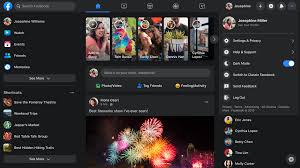
- Click on The Down Arrow: In the top right corner of the screen, click on the down arrow icon.
- Select “Classic” Version: From the drop-down menu, select the option that says “Classic” or “Old Version.”
- Confirm The Change: A confirmation message will appear asking if you’re sure you want to switch back to the classic version. Click “Confirm” to complete the process.
How to Go Back to The Old Version of Facebook on Mobile Devices
If you’re using a mobile device, the process is slightly different:
- Uninstall The Latest Update: On your Android device, go to the Google Play Store and uninstall the latest update for the Facebook app.
- Enable Unknown Sources: To install an older version of the app, you need to enable unknown sources on your device. Go to Settings > Security > Unknown Sources and toggle it on.
- Download a Previous Version: Visit APK Mirror or another trusted website that offers old versions of apps. Download the Facebook app in its previous version.
- Install The Older Version: Once downloaded, go to your file manager and install the older version of the Facebook app.
Note: If you’re using an iPhone or iPad, it’s not possible to download and install an older version of the Facebook app directly from the App Store. However, you can use a tweak like App Admin to install older versions of apps.
Why Can’t I Go Back to The Old Version Permanently?
Gone are the days when you could permanently go back to the old version of Facebook! The latest updates will eventually become permanent for everyone. Facebook has made changes to ensure that users don’t get stuck with an outdated interface.
Tips And Tricks
Here are some additional tips to keep in mind:
- Disable Automatic App Updates: To prevent your device from automatically updating to the new version, disable the feature on your Android or iOS device.
- Backup Your Data: Make sure you’ve backed up your Facebook data before making any changes.
Conclusion
Going back to the old version of Facebook is a straightforward process that can be completed in just a few steps. Whether you’re using a PC or mobile device, follow our guide to revert back to the classic design. Remember, the new interface may not be for everyone, and it’s perfectly fine to stick with what you know and love.
Frequently Asked Questions
Here are some answers to frequently asked questions:
- Q: Why Did Facebook Change Its Interface?
A: Facebook aimed to improve the user experience by introducing a new design. - Q: Can I go Back to The Old Version Permanently?
A: No, you can’t permanently go back to the old version of Facebook. - Q: What’s The Difference Between “Classic” And “Old Version”?
A: Both terms refer to the same interface that was replaced by the new design. - Q: Can I Use App Admin on my Iphone or Ipad?
A: Yes, but you need to jailbreak your device first. - Q: Will I Lose Any Data if I go Back to The Old Version?
A: No, your Facebook data will be safe and unaffected by changing the interface.
Bonus Tips
- Share this article with friends who are also looking for ways to go back to the old version of Facebook!
- Stay up-to-date with our latest guides and tutorials on social media platforms!
[End]


