
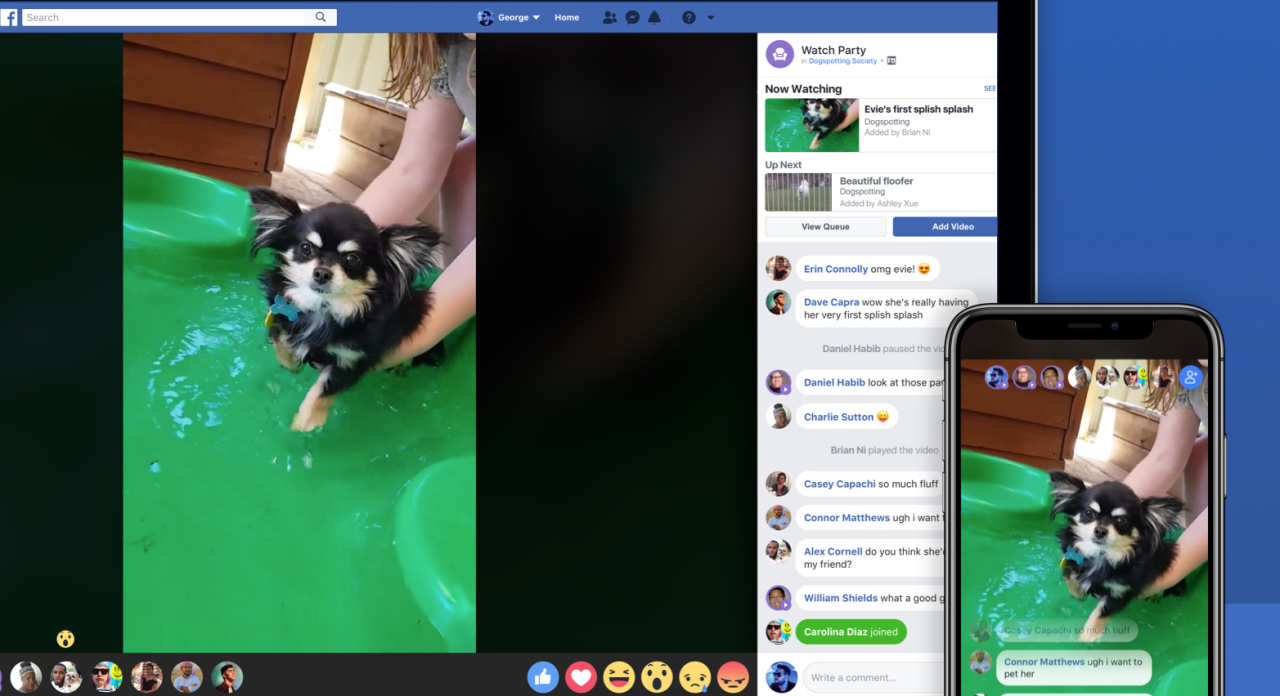
How to Have a Video Party on Facebook
Are you looking to spice up your social media experience? Want to connect with friends and family in a fun and engaging way? Look no further than Facebook’s video party feature! In this article, we’ll guide you through the process of hosting a video party on Facebook, whether you’re using a smartphone, tablet, or computer.
What is a Video Party on Facebook?
A video party on Facebook is essentially a playlist of videos that you can watch with friends and family. You can add videos from Facebook Watch, YouTube, or other sources, and even interact with others who are watching the same content. It’s like having a virtual movie night with your loved ones.
How to Create a Video Party on Facebook
To create a video party on Facebook, follow these steps:
Using a Smartphone or Tablet:
- Open the Facebook app on your device.
- Tap on the three horizontal lines in the top right corner of the screen.
- Select “Pages” and then choose the page you want to host the video party on.
- Tap on the “+” icon in the bottom right corner of the screen.
- Select “Video Party” from the menu.
- Choose the videos you want to add to your playlist by searching for them or selecting from your Facebook Watch history.
- Once you’ve selected all the videos, tap on the “Done” button.
Using a Computer:
- Log in to your Facebook account on your computer.
- Click on the “What’s on Your Mind?” box at the top of the page.
- Select “Create Post.”
- Choose “Video Party” from the dropdown menu.
- Select the videos you want to add to your playlist by searching for them or selecting from your Facebook Watch history.
- Once you’ve selected all the videos, click on the “Post” button.
How to Add Videos to a Video Party
To add videos to a video party, follow these steps:
- Access the video party page.
- Click on the “+” icon in the top right corner of the screen.
- Search for the video you want to add or select from your Facebook Watch history.
- Once you’ve selected the video, click on the “Add” button.
How to Interact With Others During a Video Party
During a video party, you can interact with others by:
- Commenting on videos
- Sharing reactions
- Chatting with other participants
Can I Delete a Video Party?
Yes, you can delete a video party at any time. To do so, follow these steps:
- Access the video party page.
- Click on the three dots in the top right corner of the screen.
- Select “Delete” from the menu.
Benefits of Using Facebook’s Video Party Feature
Using Facebook’s video party feature offers several benefits, including:
- Easy to Use: The feature is user-friendly and easy to navigate.
- High-quality Videos: You can add high-quality videos from various sources.
- Social Interaction: You can interact with others who are watching the same content.
Conclusion
Hosting a video party on Facebook is a fun way to connect with friends and family. By following these simple steps, you can create a playlist of videos that everyone can enjoy together. Don’t forget to delete any unnecessary video parties when they’re over!
Frequently Asked Questions:
- Q: What is The Maximum Number of Videos I Can Add to a Video Party?
A: There is no maximum limit, but keep in mind that you can only watch one video at a time. - Q: Can I Share my Video Party With Others?
A: Yes, you can share your video party with others by clicking on the “Share” button. - Q: How do I End a Video Party?
A: To end a video party, click on the three dots in the top right corner of the screen and select “End Video Party.” - Q: Can I Add New Videos to an Ongoing Video Party?
A: Yes, you can add new videos to an ongoing video party by clicking on the “+” icon in the top right corner of the screen. - Q: How do I Delete a Video Party That Hasn’t Ended Yet?
A: To delete an ongoing video party, click on the three dots in the top right corner of the screen and select “Delete Video Party.”


