
How to Get Instagram Black on Android, Iphone, And PC
Are you tired of straining your eyes when scrolling through Instagram at night? Do you wish there was a way to make the app easier on the eyes without sacrificing its iconic visuals? Look no further! In this article, we’ll guide you through the steps to get Instagram black on Android, iPhone, and PC.
What is Instagram Black?
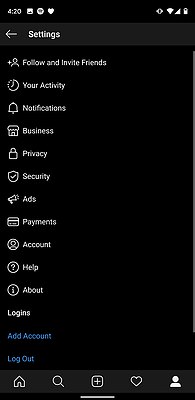
Instagram black, also known as dark mode, is a feature that allows users to switch the app’s background color from white to black. This can help reduce eye strain, especially in low-light environments. Additionally, dark mode can also help conserve battery life on mobile devices.
Benefits of Using Instagram Black
- Reduced Eye Strain: Switching to dark mode can help alleviate eye fatigue and discomfort caused by prolonged exposure to bright lights.
- Battery Life Conservation: Dark mode can help extend the battery life of your device, especially if you use it extensively for social media browsing.
- Improved User Experience: A darker interface can make the app feel more premium and visually appealing.
Getting Instagram Black on Android
To activate dark mode on Android devices, follow these steps:
- Ensure Your Device is Updated: Make sure your device is running Android 9.0 Or higher to access dark mode.
- Go to Settings: Open the Settings app and navigate to the Display section.
- Enable Dark Mode: Toggle the switch to enable dark mode.
- Activate Dark Mode in Instagram: Launch Instagram and go to Settings > Accessibility > Background color > Black.
Getting Instagram Black on Iphone
To activate dark mode on iPhone devices, follow these steps:
- Ensure Your Device is Updated: Make sure your device is running iOS 13 or higher to access dark mode.
- Go to Settings: Open the Settings app and navigate to Display & Brightness.
- Enable Dark Mode: Toggle the switch to enable dark mode.
- Activate Dark Mode in Instagram: Launch Instagram and go to Settings > Account > Theme > Dark.
Getting Instagram Black on PC
To activate dark mode on PC devices, follow these steps:
- Visit Instagram’s Website: Open Instagram’s website in your preferred browser.
- Click on The Three Horizontal Lines: Click on the three horizontal lines in the top-right corner of the screen.
- Select Theme: Click on “Theme” and select “Dark”.
Alternative Method For PC
If you’re unable to find the theme option, you can try adding a URL shortcut to your browser’s address bar:
- Add The Following Code: Type
https://Www.Instagram.Com/?theme=darkin your browser’s address bar. - Save The Shortcut: Save this code as a shortcut for easy access.
Conclusion
Getting Instagram black on Android, iPhone, and PC is easier than you think! By following these simple steps, you can reduce eye strain, conserve battery life, and enjoy an improved user experience. Whether you’re a casual Instagram user or an avid social media enthusiast, dark mode is a great way to make your Instagram experience more enjoyable.
Frequently Asked Questions
- Q: What is The Difference Between Instagram Black And Dark Mode?
A: Instagram black and dark mode are essentially the same thing. - Q: Will Switching to Dark Mode Affect my Instagram Experience?
A: No, switching to dark mode will not affect your Instagram experience in any way. - Q: Can I Switch Back to Light Mode if I Want To?
A: Yes, you can easily switch back to light mode by following the same steps to enable dark mode. - Q: Will Enabling Dark Mode on my Device Affect Other Apps?
A: No, enabling dark mode on your device will not affect other apps in any way. - Q: Is Instagram Black Available on All Devices?
A: Yes, Instagram black is available on all devices that support dark mode.
We hope this article has been helpful! If you have any further questions or concerns, feel free to ask.


