
How to Have Two Profiles on Instagram: A Step-by-step Guide
Are you tired of having only one profile on Instagram? Do you want to keep your personal and professional life separate, or maybe just experiment with different profiles without affecting your main account? Look no further! In this article, we’ll guide you through the process of creating a second profile on Instagram, whether you’re using an Android or iOS device.
Benefits of Having Two Profiles on Instagram
Before we dive into the steps, let’s quickly discuss the benefits of having two profiles on Instagram:
- Separation: Keep your personal and professional life separate by creating a secondary profile for work, business, or other purposes.
- Experimentation: Try out different content styles, themes, or even personas without affecting your main account.
- Convenience: Access both profiles from the same device, making it easy to switch between them.
Step 1: Create a New Account on Instagram
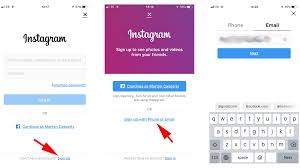
To start, you’ll need to create a new account on Instagram. This can be done directly from the app or by visiting the official website.
- On your Android or iOS device, open the Instagram app and navigate to the “Create New Account” button.
- Fill out the required information, including your name, email address, phone number, and password.
- Review and agree to Instagram’s terms of service and privacy policy.
Step 2: Link Your Second Account to The App
Once you’ve created a new account, you’ll need to link it to the Instagram app. This will allow you to access both profiles from the same device.
- Open the Instagram app and navigate to your main profile.
- Tap on the three horizontal lines (⚰) in the top right corner of the screen.
- Select “Settings” and then tap on “Add Account.”
- Choose the option to create a new account, and follow the prompts to link it to the app.
Step 3: Access Your Second Profile
Now that you’ve linked your second profile, you can access it directly from the app.
- Open the Instagram app and navigate to your main profile.
- Tap on the three horizontal lines (⚰) in the top right corner of the screen.
- Select “Settings” and then tap on “Switch Profile.”
- Choose your second profile, and you’ll be logged in instantly.
How to Switch Between Profiles
To switch between your main and secondary profiles, follow these steps:
- Open the Instagram app and navigate to your main profile.
- Tap on the three horizontal lines (⚰) in the top right corner of the screen.
- Select “Settings” and then tap on “Switch Profile.”
- Choose your secondary profile, and you’ll be logged in instantly.
Tips And Variations
Here are some additional tips and variations to keep in mind:
- Use a Different Email Address: When creating your second account, use a different email address than the one associated with your main account.
- Choose a Unique Username: Select a username for your secondary profile that’s distinct from your main profile.
- Post Different Content: Experiment with different content styles, themes, or even personas on your secondary profile.
Conclusion
Having two profiles on Instagram can be a great way to separate your personal and professional life, experiment with different content styles, or simply enjoy the convenience of accessing multiple profiles from the same device. By following these steps, you’ll be able to create and manage multiple profiles with ease.
Frequently Asked Questions
- Can I Have Two Accounts on Instagram With The Same Email Address?
No, Instagram does not allow you to create multiple accounts with the same email address. - How do I Switch Between my Main And Secondary Profiles?
To switch between your main and secondary profiles, follow the steps outlined in Step 3: Access Your Second Profile. - Can I Access Both Profiles From The Same Device?
Yes, you can access both profiles from the same device by following the steps outlined in this guide.


