
How to Connect Your PC to Tv: A Step-by-step Guide
Are you tired of being stuck on your computer screen when watching videos or listening to music? Do you want to enjoy a more immersive experience by connecting your PC to your TV? Look no further! In this article, we will guide you through the process of connecting your PC to your TV using various methods, including wireless and cable connections.
Understanding Your Options
Before we dive into the step-by-step instructions, let’s take a look at the options available for connecting your PC to your TV:
- Wireless Connection: Using technologies like Miracast, Google Cast/Chromecast, AirPlay 2/Apple TV, and more.
- Cable Connection: Using HDMI cables or adapters.
Miracast: A Wireless Solution
Miracast is a wireless connection technology developed by Microsoft that allows you to share your computer screen with a compatible device, such as a smart TV or monitor. To use Miracast:
- Ensure both devices are connected to the same Wi-Fi network.
- Open the Settings app on your PC and select “Devices.”
- Click on “Add Device” and select “Bluetooth & Other Devices.”
- Select “Wireless Display” and follow the instructions to connect to your TV.
Google Cast/chromecast: A Wireless Solution
Google Cast/Chromecast is a popular wireless streaming solution that allows you to stream content from your PC or mobile device to your TV. To use Google Cast/Chromecast:
- Connect your Chromecast device to your TV’s HDMI port.
- Open the Google Chrome browser on your PC and select “Cast” from the menu.
- Select your Chromecast device from the list of available devices.
Airplay 2/Apple Tv: A Wireless Solution
AirPlay 2 is a wireless streaming solution developed by Apple that allows you to share your Mac screen with a compatible device, such as an Apple TV or smart TV. To use AirPlay 2:
- Ensure both devices are connected to the same Wi-Fi network.
- Open the System Preferences app on your Mac and select “Displays.”
- Select “AirPlay” from the menu and follow the instructions to connect to your Apple TV.
Connecting With Cables
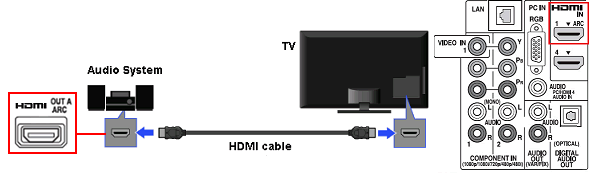
If you prefer a wired connection, you can use an HDMI cable or adapter to connect your PC to your TV. Here’s how:
- Connect one end of the HDMI cable to your PC’s HDMI port.
- Connect the other end of the HDMI cable to your TV’s HDMI port.
Types of Cables
There are different types of cables you can use, depending on your needs:
- Hdmi Cable: A standard HDMI cable that supports up to 4K resolution and HDR.
- Rca Cable: An older type of cable that uses RCA connectors for audio and video signals.
- Aux Cable: A cable with a 3.5Mm jack connector for audio signals.
Configuring Your System
Once you’ve connected your PC to your TV, you may need to configure your system settings to ensure the audio is coming from the TV speakers:
- Open the Settings app on your PC and select “System.”
- Click on “Sound” and select the correct device (e.G., HDMI or speakers).
Conclusion
Connecting your PC to your TV can enhance your viewing experience and provide more flexibility for streaming content. Whether you choose a wireless solution like Miracast, Google Cast/Chromecast, or AirPlay 2, or opt for a wired connection using an HDMI cable or adapter, we hope this guide has helped you navigate the process.
Frequently Asked Questions
- Q: Can I Connect my PC to my TV Wirelessly?
A: Yes, you can use wireless technologies like Miracast, Google Cast/Chromecast, and AirPlay 2. - Q: What is The Best Way to Connect my PC to my Tv?
A: The choice of connection method depends on your needs and preferences. Wireless solutions offer more flexibility, while cable connections provide a reliable and stable link. - Q: Can I Use an Hdmi Adapter or Converter?
A: Yes, you can use adapters or converters to convert HDMI signals from one type to another (e.G., MiniHDMI to standard HDMI). - Q: How do I Configure my System Settings For Audio Output?
A: You’ll need to set your system settings to ensure the audio is coming from the TV speakers. - Q: Can I Use Rca or Aux Cables Instead of Hdmi?
A: While older types of cables like RCA and AUX can be used, they may not provide the same level of quality as HDMI cables. - Q: What Are Some Popular Wireless Streaming Solutions?
A: Some popular wireless streaming solutions include Miracast, Google Cast/Chromecast, and AirPlay 2.


