
How to Hibernate Windows 10: A Step-by-step Guide
Are you tired of shutting down your computer only to have it take a long time to start up again? Do you want to know how to hibernate Windows 10 and make your computer start up faster? Look no further! In this article, we will guide you through the process of hibernating Windows 10, explaining what hibernation is, how to activate it, and how to customize its settings.
What is Hibernation in Windows 10?
Hibernation is a feature in Windows 10 that allows your computer to save its current state and shut down. When you hibernate your computer, it saves the contents of RAM (Random Access Memory) to the hard drive and then powers off. This means that when you start up your computer again, it will resume from where it left off, quickly and efficiently.
Benefits of Hibernation in Windows 10
Hibernation offers several benefits, including:
- Faster startup times: Since your computer saves its state to the hard drive, it can start up much faster than a completely shut-down system.
- Energy efficiency: Hibernation uses less energy than running a full-power computer.
- Data protection: Hibernation helps protect your data by saving your current work and shutting down the computer.
How to Hibernate Windows 10
To hibernate Windows 10, follow these steps:
- Open Power Options: Click on the Start menu and search for “Power Options.”
- Select System Settings: Open the System settings window.
- Click on “Choose What Closing The Lid Does”: Select this option from the left-hand menu.
- Select “Hibernate”: Choose the Hibernate option from the dropdown list.
- Save Changes: Click on the Save changes button to apply your selection.
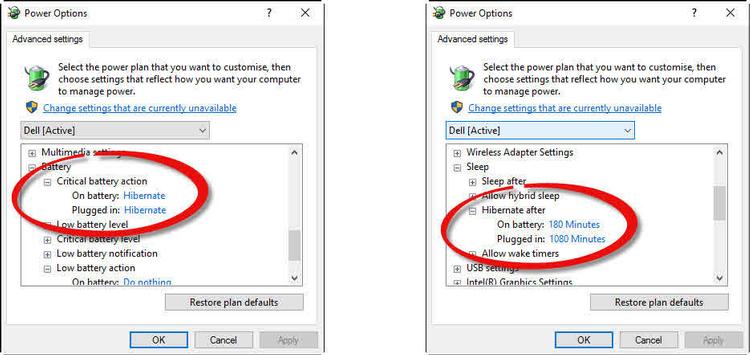
Customizing Hibernation Settings
To customize hibernation settings, follow these steps:
- Open Power Options: Follow step 1 above.
- Click on “Change What Power Buttons Do”: Select this option from the left-hand menu.
- Select “Hibernate”: Choose the Hibernate option from the dropdown list.
- Customize Settings: Use the options provided to customize hibernation settings, such as selecting specific actions or modifying timeouts.
How to Disable Hibernation in Windows 10
To disable hibernation in Windows 10, follow these steps:
- Open Power Options: Follow step 1 above.
- Click on “Change What Power Buttons Do”: Select this option from the left-hand menu.
- Deselect “Hibernate”: Choose the “Do nothing” option instead of Hibernate.
Common Issues With Hibernation
Some users may encounter issues with hibernation, such as:
- Hibernation not working: Check that the hibernate setting is enabled and that there are no conflicts with other power-saving features.
- Hibernation taking too long to start up: Try adjusting hibernation settings or upgrading your hardware.
Conclusion
Hibernation in Windows 10 offers several benefits, including faster startup times, energy efficiency, and data protection. By following the steps outlined above, you can activate hibernation, customize its settings, and even disable it if needed. If you encounter any issues with hibernation, try troubleshooting or seeking help from Microsoft support.
Frequently Asked Questions
Q: What is the difference between hibernation and sleep in Windows 10?
A: Hibernation saves your computer’s state to the hard drive and then powers off, while sleep saves your current work to RAM but keeps the computer running.
Q: How do I enable hibernation on my laptop?
A: To enable hibernation on your laptop, follow steps 1-5 above. Ensure that the hibernate setting is enabled in Power Options.
Q: Can I customize hibernation settings for specific scenarios?
A: Yes, you can customize hibernation settings based on different scenarios, such as when pressing the power button or closing the lid.
Q: How do I troubleshoot issues with hibernation not working?
A: Try checking that the hibernate setting is enabled and that there are no conflicts with other power-saving features. If needed, seek help from Microsoft support.
Bonus Tips
- To save energy, consider using the “Power saver” or “Balanced” plan in Windows 10.
- When upgrading your hardware, ensure that it supports hibernation to avoid compatibility issues.
- Consider backing up your data regularly to prevent data loss in case of a power outage.


