
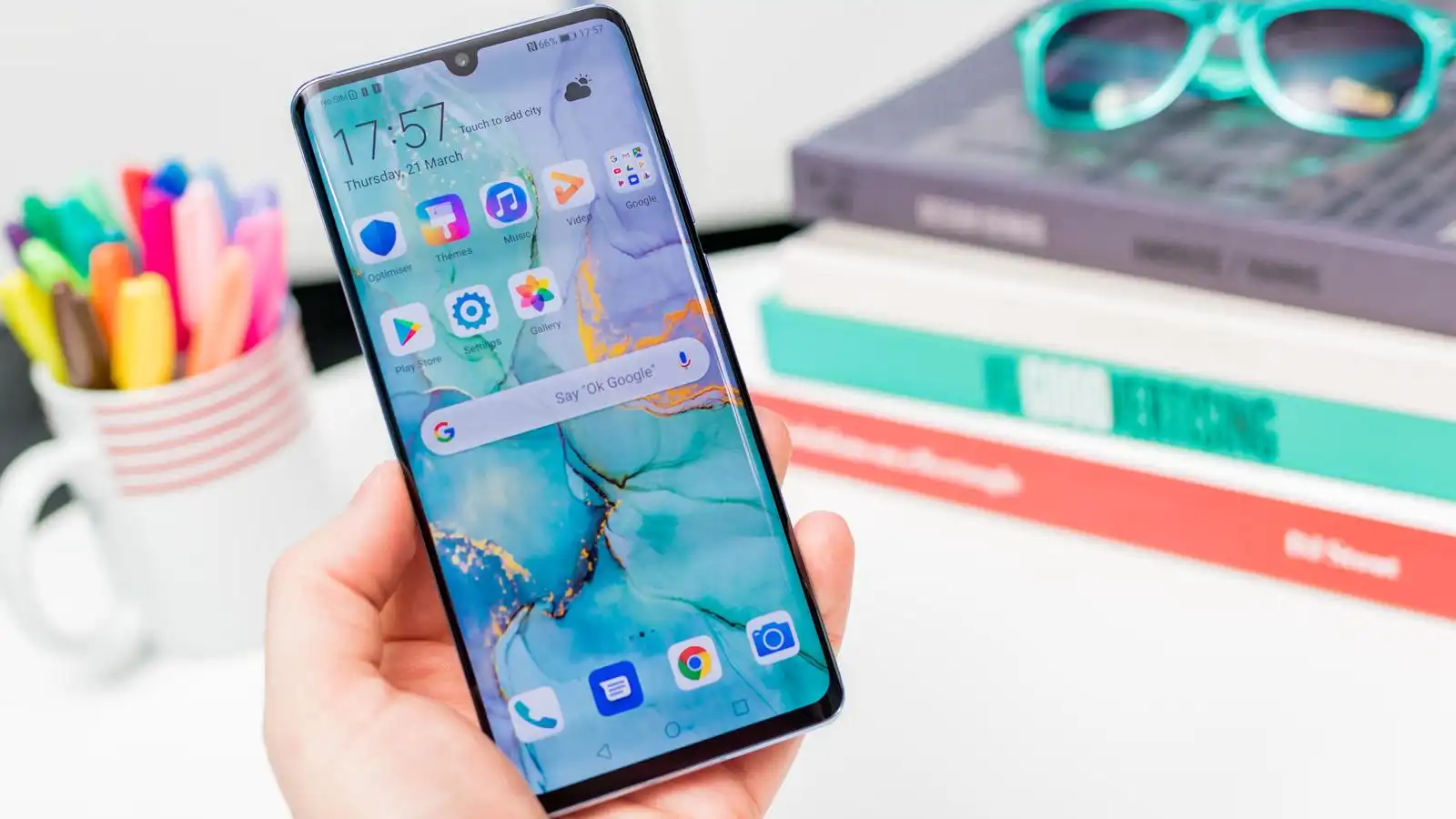
Concealing Apps on Huawei Devices: A Comprehensive Guide
As we navigate the world of smartphones, it’s not uncommon to want to keep certain apps hidden from prying eyes. Whether it’s a personal preference or a need for privacy, concealing apps on our devices can be a great way to maintain some level of security and control. In this article, we’ll explore the different methods available for concealing apps on Huawei devices.
Native Function: Private Space
Before diving into alternative solutions, let’s take a look at the native function provided by Huawei itself – Private Space. This feature allows users to create a parallel space within their device, accessible only through a PIN or biometric authentication. To enable Private Space, follow these steps:
- Open the Settings app on your Huawei device.
- Navigate to Privacy > Private Space.
- Tap on the Activate button and enter your PIN code.
- Set up a separate PIN for Private Space (preferably different from your main device unlock PIN).
- If desired, enable biometric authentication for added security.
Once enabled, you can add apps to Private Space by downloading them within this secure environment. To exit Private Space, simply tap on the notification toggle and select “Leave Private Space.”
App Hider: An Alternative Solution
If Private Space isn’t an option or doesn’t meet your needs, App Hider is a viable alternative. This free app (with ads) allows you to hide apps from your home screen and app drawer. Here’s how to use it:
- Download and install App Hider from the Play Store or AppGallery.
- Open the app and grant necessary permissions.
- Tap on the “+” button to add an app to App Hider.
- Select the app you want to hide, then tap on the “Hide” button.
- Set up a PIN for App Hider to prevent unauthorized access.
To launch a hidden app, simply tap on its icon within App Hider, and it will be displayed in a new window. To uninstall a hidden app, follow the usual process within your device’s settings or app drawer.
Launcher Alternatives: Concealing Apps With Nova Launcher
Another approach is to use a launcher alternative like Nova Launcher, which offers a built-in feature for concealing apps. Here’s how to set it up:
- Download and install Nova Launcher Prime (3.99 Euros) from the Play Store or alternative stores.
- Open Nova Launcher and follow the initial setup process.
- Navigate to Settings > Apps > App Predefined > Home Screen.
- Select Nova Launcher as your default launcher.
- Go back to Settings > Apps, and enable the “Conceal apps” toggle.
To conceal an app using Nova Launcher, simply long-press on its icon within your home screen or app drawer, then tap on the “Settings” button that appears. From there, select the option to hide the app.
Other Solutions: Blocking App Access With Norton App Lock
If you’d rather block access to certain apps altogether than conceal them, consider using Norton App Lock – a free app from Symantec that allows you to lock specific apps with a PIN or biometric authentication. This method doesn’t require root access and is relatively easy to use.
Conclusion
Concealing apps on Huawei devices can be achieved through various methods, including the native Private Space feature, alternative solutions like App Hider, and launcher alternatives such as Nova Launcher. By following these steps, you can maintain your desired level of security and control over your device’s app selection.
Faqs
- Can I Conceal Multiple Apps at Once?
Yes, most methods allow you to hide multiple apps simultaneously. - How do I Exit Private Space or App Hider?
To exit either, simply tap on the notification toggle and select “Leave” or follow the in-app instructions. - Will Concealing Apps Affect my Device’s Performance?
In general, no – these methods are designed to be lightweight and won’t impact your device’s overall performance. - Are There Any Risks Associated With Using These Methods?
As with any app or feature, there’s a small risk of data loss or unauthorized access if not used correctly. Always follow the provided instructions and take necessary precautions. - Can I Use These Methods on Devices Other Than Huawei?
Some methods may work on non-Huawei devices, but compatibility can vary. Be sure to check device-specific requirements before attempting to conceal apps.
We hope this comprehensive guide has helped you understand how to conceal apps on your Huawei device.


